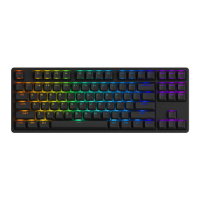
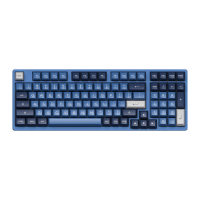
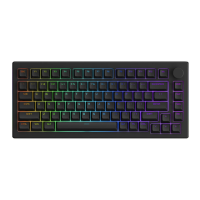
VIA is a widely recognized software that offers an intuitive interface for configuring and
personalizing various keyboard settings. Users can utilize VIA to remap keys and adjust
lighting on keyboards with VIA/QMK firmware.
Web Version:https://usevia.app/
App:https://github.com/the-via/releases/releases
It enables you to remap keys, create custom macros, customize lighting effects, and more.
If you encounter connection issues, please load the corresponding V3 JSON file specific to
your keyboard model. You can download JSON files from our dedicated Download page
https://akkogear.eu/pages/download-center
2.4G Pairing
Bluetooth Pairing
Battery Level Check
Key/Lighting Effects Customization instruction
You can download keyboard source code (in compliance with GPL license)
via: https://github.com/akkogear
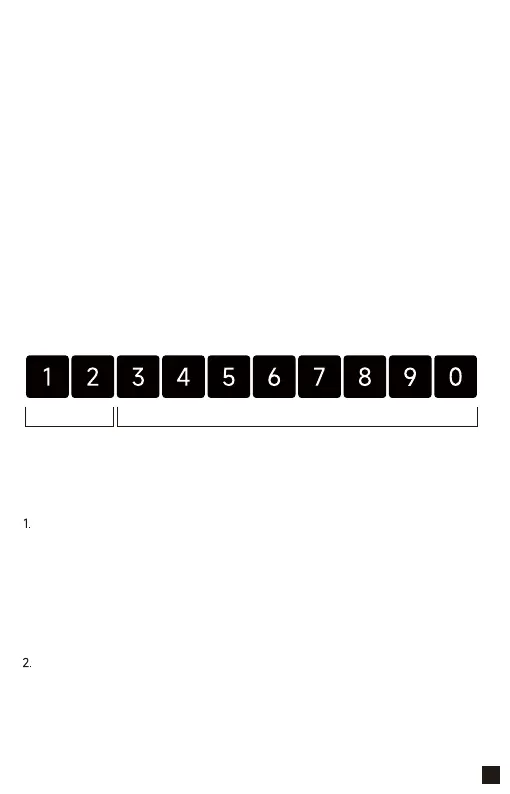
In wireless mode, press Fn+Backspace to check the battery level. If the battery level is less than
30%, the 1-2 keys will light up red. If the battery level is less than 100%, the 1-9 keys will light
up green, and if the battery level is full, the 1-0 keys will light up green.
Low 30% Low 40% Low 50% Low 60% Low 70% Low 80% Low 90% Low 100%
Full
Red light on Green light
After turning on the keyboard, press Fn+ R to enter 2.4G mode. Then press and hold the Fn+R Key
combination for 3 seconds to enter pairing mode. Then insert in the receiver, and the green indicator
light will flash quickly. Once the pairing is successful, the LED indicator will stay on for 2 seconds.
lf no available device is found within 30 seconds, the LED indiactor will turn off and the keyboard
will enter sleep mode.
After turning on the keyboard, press Fn+ Q/W/E to enter Bluetooth mode. Press and hold the Fn+Q/W/E Key
combinationfor 3 seconds to enter pairing mode, with the blue/yellow/purple indicator light flashing quickly.
Once the connection is established, the indicator light will stay on for 2 seconds. lf the device fails to connect,
the indicator light will turn off and the kevboard will enter sleep mode.
05



 To Next Page