EasyManua.ls Logo

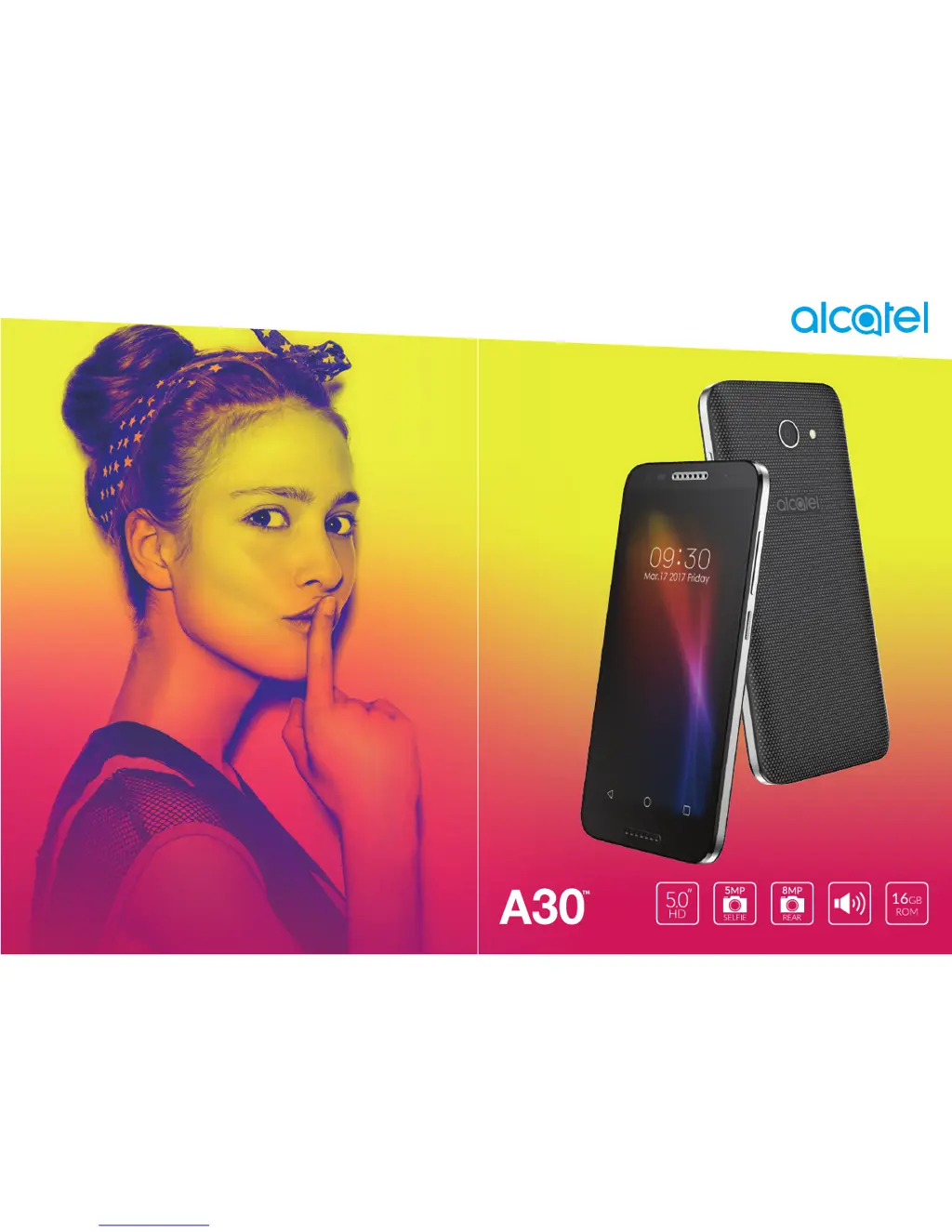
Alcatel A30 - User Manual

Alcatel A30
56 pages
Print Icon
To Next Page IconTo Next Page
Loading...
For more informaon on how to use your phone, please go to www.alcatelonetouch.us.

Other manuals for Alcatel A30

Questions and Answers

  • R
    Robert JacksonSep 7, 2025
    How to improve the sound quality of the calls on my Alcatel Cell Phone?
    • R
      Russell BenderSep 7, 2025
      If the sound quality of calls on your Alcatel Cell Phone is poor, try adjusting the volume during the call using the volume key. Check the network strength and move to a location with a stronger signal. Also, make sure that the receiver, connector, or speaker on your phone is clean.
  • C
    cynthia89Aug 22, 2025
    How to fix Alcatel Cell Phone that can't be switched on?
    • K
      Kayla BrownAug 22, 2025
      If your Alcatel Cell Phone can't be switched on, charge it for a minimum of 10 minutes to ensure it has enough battery power. After charging, try switching it on again.
  • V
    Victoria PriceSep 4, 2025
    Why my Alcatel Cell Phone can't receive incoming calls?
    • J
      Jennifer HarrisonSep 5, 2025
      If your Alcatel Cell Phone can't receive incoming calls, ensure that your phone is switched on and connected to a network. Check for overloaded or unavailable network. Verify your subscription status with your carrier. Make sure that you have not forwarded incoming calls or barred certain calls, and ensure that your phone is not in airplane mode.
  • J
    juan18Sep 3, 2025
    Why my Alcatel Cell Phone can't make outgoing calls?
    • B
      briancarpenterSep 3, 2025
      If your Alcatel Cell Phone can't make outgoing calls, first ensure that you have dialed a valid number and have touched the call button on your phone. For international calls, verify the country and area codes. Make sure your phone is connected to a network that isn't overloaded or unavailable. Check your subscription status with your carrier and ensure that you haven't barred outgoing calls or enabled airplane mode.
  • P
    Patricia MooreSep 2, 2025
    Why my Alcatel Cell Phone can't connect to the internet?
    • D
      Dana CameronSep 2, 2025
      If your Alcatel Cell Phone can't connect to the internet, ensure that your wireless service plan includes Cellular Data. Check your phone's settings to confirm that Cellular Data is enabled or that you are connected to Wi-Fi. Make sure you are in an area with network coverage for cellular data or Wi-Fi. If problems persist, try connecting at a later time or from a different location.
  • R
    Raymond SanchezAug 31, 2025
    Why does my Alcatel Cell Phone turn off by itself?
    • K
      Katherine ScottSep 1, 2025
      If your Alcatel Cell Phone turns off by itself, first ensure that you are not accidentally pressing the power key. Check the battery charge level. Also, check your phone’s settings to see if there is a set time for the phone to turn off automatically. If the issue persists, consider performing a factory reset via the Backup & reset option in the phone’s settings, but remember to back up your data first.
  • R
    Rebecca RobertsonAug 30, 2025
    Why my Alcatel Cell Phone can't connect to a network or displays 'No service'?
    • J
      Joshua RichardsonAug 30, 2025
      If your Alcatel Cell Phone can't connect to a network or shows 'No service', try moving to a different location to connect. Verify network coverage with your carrier in your area and confirm that your SIM card is valid with them. Also, ensure your phone isn't in airplane mode. If you're outside your carrier's network, enable roaming in your phone’s settings, but be aware that roaming charges may apply.
  • B
    Brittany MoodyAug 29, 2025
    Why my Alcatel Cell Phone can't charge properly?
    • J
      Jack SalasAug 29, 2025
      If your Alcatel Cell Phone can't charge properly, ensure you're using the charger that came with it. If your phone has a removable battery, make sure it's correctly inserted and making good contact before plugging in the charger. If the battery has been completely discharged for a while, it might take about 10 minutes for the charging indicator to appear. Also, ensure charging occurs between 0°C (32°F) and 55°C (131°F), and verify voltage compatibility when abroad. Finally, check that the charging port is secure and undamaged.
  • M
    Mary HarrisAug 27, 2025
    Why does my Alcatel Cell Phone battery drain so fast?
    • D
      davidowensAug 27, 2025
      To extend the battery life of your Alcatel Cell Phone, ensure you charge it fully for at least 200 minutes. Note that the battery level indicator might not be accurate after a partial charge, so wait 10 minutes after unplugging the charger for a precise reading. Additionally, lower your screen brightness, extend the auto-check interval for email, and manually update news and weather or increase their check interval. Close unused background apps and turn off Bluetooth, Wi-Fi, or GPS when not needed.
  • S
    Steven SilvaAug 27, 2025
    After Factory data reset is performed, I can't use my Alcatel Cell Phone without entering Google account credentials, what to do?
    • M
      melissamaldonadoAug 27, 2025
      After performing a factory data reset on your Alcatel Cell Phone, you must enter the original Google account credentials that were used on the phone. If you don’t remember your Google account credentials, complete the Google account recovery procedures. If you still cannot access your phone, contact an authorized repair center, but be aware that this will not be covered under warranty.

Summary

Safety and use

Radio waves

Licences

US Information Concerning the Federal Communications Commission (“FCC”) Requirements for Hearing Aid Compatibility with Wireless Devices

General information

General information overview

Provides website, contact, and basic phone specifications.

1 Your mobile

1.1 Keys and connectors

Identifies physical buttons, ports, and sensors on the phone.

1.2 Getting started

Covers initial setup, SIM card insertion, charging, and powering the phone.

1.3 Home screen

Explains the main screen layout, icons, and widgets for quick access.

2 Text input

2.1 Using the onscreen keyboard

Details how to use the virtual keyboard and its settings.

2.2 Text editing

Explains how to edit text, cut, copy, paste, and insert new text.

3 Call, Call log and Contacts

3.1 Call

Covers making, answering, and managing calls, including call history.

3.2 Call log

Explains how to view missed, outgoing, and incoming calls.

3.3 Contacts

Guides on viewing, adding, editing, and managing phone contacts.

4 Messaging and Email

4.1 Messaging

Instructions for sending and receiving SMS and MMS messages.

4.2 Email

Guidance on setting up and using email accounts to send and receive emails.

5 Calendar, Clock, and Calculator

5.1 Calendar

How to use the calendar to track meetings and create events.

5.2 Clock

Features for using the built-in clock, alarms, countdowns, and timers.

5.3 Calculator

Explains how to use the calculator for mathematical operations.

6 Getting connected

6.1 Connecting to the internet

Instructions for connecting to the internet via mobile data or Wi-Fi.

6.2 Connecting to a Bluetooth device

Steps to pair and connect the phone with Bluetooth devices.

6.3 Connecting to a computer via USB

How to transfer files between the phone and a computer using a USB cable.

6.4 Sharing your phones mobile data connection

Guide to sharing the phone's data via USB tethering or Wi-Fi hotspot.

6.5 Connecting to virtual private networks

Explains how to set up and connect to VPNs for secure network access.

7 Multimedia applications

7.1 Camera

Guide to using the camera for taking photos and shooting videos.

7.2 Gallery

How to view, manage, and work with photos and videos.

7.3 Music

Instructions for playing music files stored on the phone.

8 Others

8.1 Files

Information on managing files, folders, and installed applications on the phone.

8.2 Sound Recorder

How to use the sound recorder to capture voice or sound.

9 Google applications

9.1 Chrome

Details on using the Chrome web browser for internet surfing.

9.2 Gmail

How to set up and use the Gmail email service on the phone.

9.3 Maps

Guide to using Google Maps for navigation and location services.

9.4 YouTube

Information on using the YouTube app for video streaming and viewing.

9.5 Play Store

How to use the Google Play Store to download apps and games.

10 Settings

10.1 Suggestions

Displays frequently used functions for quick access.

10.2 Wireless & networks

Settings for Wi-Fi, Bluetooth, and data usage.

10.3 Device

Controls for display, gestures, lock screen, and notifications.

10.4 Personal

Settings for accounts, location, security, and backup.

10.5 System

Options for date/time, accessibility, regulatory info, and about phone.

11 Making the most of your phone

11.1 FOTA Upgrade

Instructions for updating phone software wirelessly (Firmware Over The Air).

12 Accessories

13 Warranty

14 Troubleshooting

Power and Responsiveness Issues

Covers phone not switching on, freezing, or turning off by itself.

Connectivity Issues

Addresses problems with charging, network, and internet connectivity.

15 Specifications

Connectivity

Details Bluetooth, Wi-Fi, and USB ports.

Camera

Specifications for front and rear cameras.

Battery

Battery type and capacity.

Display

Screen size and resolution.

Memory

Information on internal storage and RAM.

Processor

Details the phone's processor model.

Alcatel A30 Specifications

General IconGeneral
Resolution1280 x 800 pixels
RAM2 GB
Internal Storage16 GB
Rear Camera5 MP
Front Camera2 MP
Battery Capacity4060 mAh
Operating SystemAndroid 7.0 (Nougat)
Display Size8.0 inches
Expandable StoragemicroSD, up to 128 GB

Videos

How to Reset & Unlock Alcatel A30 Plus

Related product manuals