
 Need help?
Do you have a question about the Alcatel PLUS12 and is the answer not in the manual?
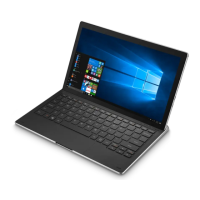
The Alcatel PLUS12 is a 12-inch detachable tablet designed to function as both a tablet and a laptop, running on Windows 10. This device offers flexibility in usage modes and integrates various features to enhance productivity and entertainment.
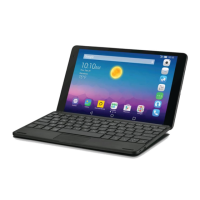
The PLUS12 serves as a versatile computing device, allowing users to switch between a tablet and a laptop experience. In its tablet form, it supports both landscape and portrait orientations, making it suitable for media consumption, browsing, and touch-based interactions. When docked with its keyboard, it transforms into a laptop, providing physical keys and a gesture-enabled touchpad for more traditional input methods, ideal for typing and complex tasks. The keyboard also features a built-in 3G/4G hotspot, enabling internet access for the tablet and other connected devices.
The device is equipped with a front-facing camera, suitable for video chats and taking photos. It integrates with Windows 10 features like Cortana, the digital assistant, for voice commands and personalized assistance. Task View and virtual desktops allow for efficient multitasking and organization of open applications. OneDrive integration provides cloud storage, syncing documents, photos, and other files across web-connected devices. Windows Ink functionality supports compatible electronic pens, mice, or fingers for note-taking, drawing, and annotating screenshots, enhancing creative and productive workflows.
For communication, the Mail app allows users to manage multiple email accounts, including Outlook, Gmail, AOL, Yahoo!, and Exchange ActiveSync. Microsoft Edge serves as the default web browser, offering features like Hub for favorites, reading lists, browsing history, and web notes for annotating web pages. The device also includes pre-installed apps such as Weather, Money, Sports, Maps, OneNote, Calendar, People, Groove Music, and Films & TV, catering to a wide range of daily needs and interests.
The PLUS12 offers several features to optimize user experience. The detachable keyboard allows for seamless mode switchover: separating the tablet from the keyboard enables tablet mode, while docking it activates laptop mode. This adaptability is key to its design.
Projecting to a larger display is possible via an HDMI cable, offering modes like "PC screen only," "Duplicate," "Extend," and "Second screen only." Wireless projection is also supported through a Wi-Fi display receiver, providing flexibility for presentations or media sharing.
For security and convenience, the tablet includes a fingerprint sensor integrated into the power key, allowing for quick and secure sign-in via Windows Hello. Users can set up multiple accounts, customizing the experience for different individuals.
The keyboard's touchpad supports ten gestures for intuitive navigation and control, such as double-tapping to open apps, two-finger gestures for scrolling and zooming, and three-finger gestures for Cortana search, multitasking view, and showing the desktop. A four-finger gesture opens the Action Center. The keyboard also has a dedicated 4G on/off button and indicators for power and data service.
The keyboard's built-in 3G/4G hotspot allows the tablet to connect to the internet, and the "My Connection" application provides a centralized interface for managing SIM card settings, data usage, SMS, and online updates for the keyboard.
To ensure optimal performance and longevity, several maintenance features and recommendations are provided. Users are advised to fully charge the battery for optimal operation and avoid storing excessive amounts of data on the tablet, as this can affect performance. Regular use of the Factory data reset and upgrade tool is recommended for formatting or software upgrading, with a strong emphasis on backing up all user data beforehand.
Troubleshooting tips include charging the tablet for at least 20 minutes if it fails to start, pressing the Power key for 10 seconds to shut down an unresponsive tablet, and checking the screen lock and battery charge level if the tablet turns off unexpectedly. Proper charging conditions (0°C to +40°C) are crucial for battery health.
For battery life optimization, users are encouraged to complete the full charge time (minimum 2.5 hours), adjust screen brightness, extend email auto-check intervals, manually update news and weather information, and close background-running apps when not in use. Deactivating Bluetooth or Wi-Fi when not needed also helps conserve power.
The device is designed to handle complex apps, and temporary warming during intensive use is a normal consequence of CPU activity, which subsides once demanding tasks are stopped. For connectivity issues, ensuring Bluetooth is turned on and visible, and that the target device is within range, is important. The manual also notes that a slight delay (2 seconds) in activation after pressing the Power key or recognizing a fingerprint is a deliberate design choice to maximize battery life.
 General
| Resolution | 1920 x 1080 pixels |
|---|---|
| Processor | Intel Atom x5-Z8350 |
| RAM | 4 GB |
| Storage | 32 GB |
| Operating System | Windows 10 |
| Battery | 6900 mAh |
| Front Camera | 5 MP |
| Rear Camera | 5 MP |
| Connectivity | Wi-Fi, Bluetooth |


 To Next Page