51 52
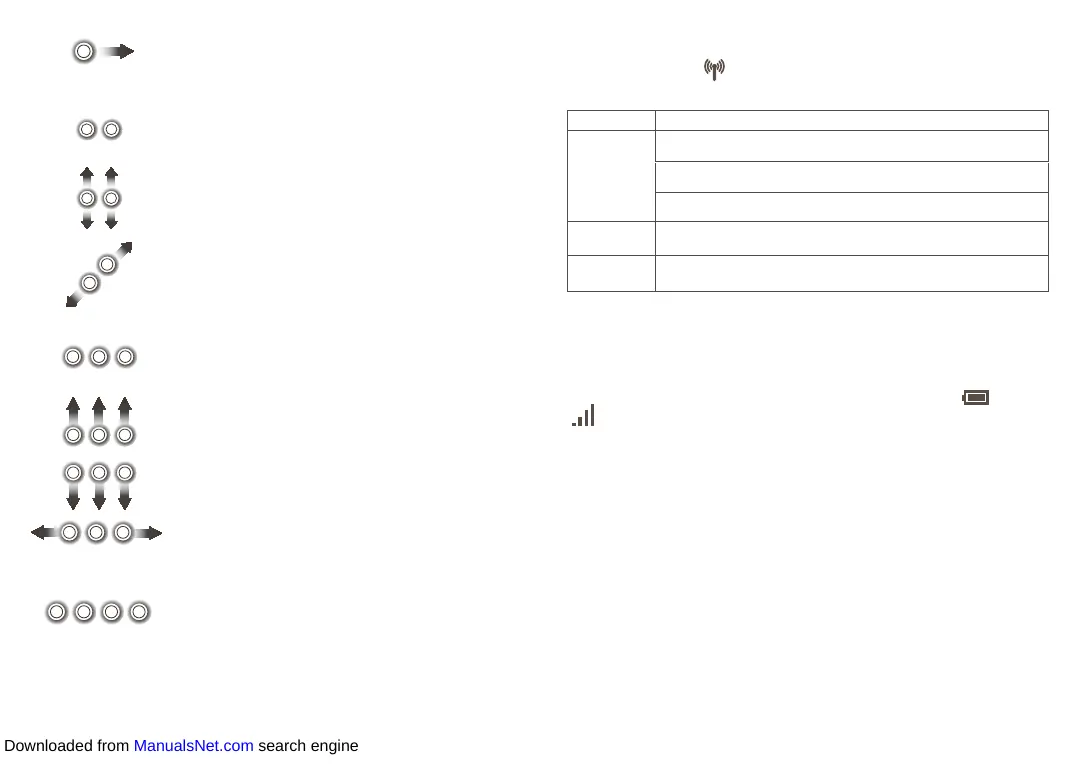
Double tap and slide to move an icon across
the screen.
Two fingers
Touch to show the attributes of an object.
This equals the effect of right-clicking using a
mouse.
Touch and slide up and down for scrolling up
and down.
Draw two fingers apart or together to scale an
element on the screen.
Three fingers
Touch to start the Cortana search assistant.
Touch and slide up to switch to the multitasking
view.
Touch and slide down to show the desktop by
minimizing all the windows.
Touch and slide left or right to switch between
tasks.
Four fingers
Touch to show the Action centre.
3.3 Keyboard button
The keyboard button is located at the upper right part of the keyboard.
Different durations of pressing enable the corresponding operations.
Duration Operation
Short press
Start up the keyboard.
Wake up the Wi-Fi hotspot when it goes dormant.
Shut down the keyboard.
6s Forcibly restore the factory settings of the keyboard.
10s Forcibly restart the keyboard when it crashes.
3.4 Keyboard indicators
You can learn about the keyboard's status by checking the power ( ) and data
( ) indicators.
Power indicator
Constant white Battery higher than 10%
Constant
orange
Battery lower than 10%
Off Battery lower than 5% and keyboard shut down
Data indicator
Constant white 3G/4G data service available
Downloaded from ManualsNet.com search engine







 To Next Page