43 44
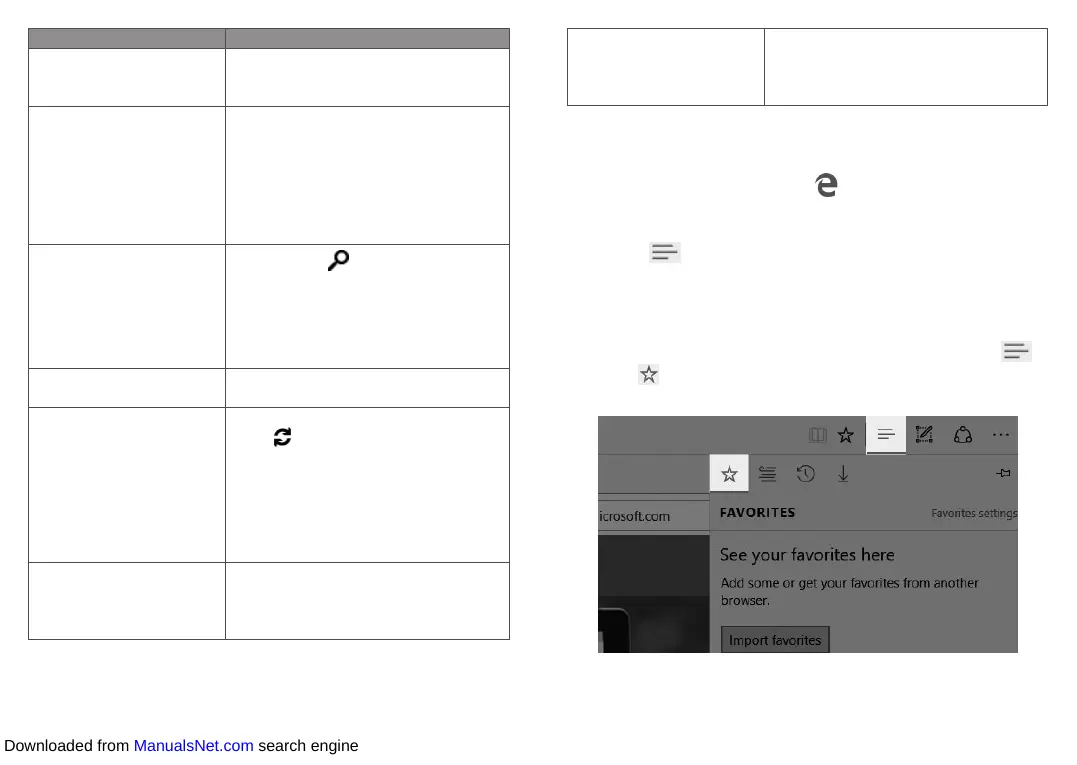
Task What to do
Reply, Reply all, or Forward
• Select a message, and select Reply,
Reply all or Forward at the top of the
Mail app window.
Delete messages Swipe from right to left across each
message you want to delete.
Or, select one or more messages and
select Delete at the top of the Mail app
window.
Search for messages
Select Search at the top of the Mail
app window. In the search box, enter
what you want to find—someone’s name
or text from an email message—and
press Enter (or select the Search icon)
to search.
Email notifications New email notifications appear in the
Action centre.
Sync email To manually sync your email, select
Sync next to the account name
in the left pane. By default, the Mail
app downloads new email as it arrives.
To change how often and how much
email the app downloads select Settings
>Accounts, and select the account that
you want to change.
Send an attachment
In a new email message, select Insert at
the top, and select Attach File. Select
the files you want to add to the message,
and select Open.
Add a contact Select an email address in a message
and select Open Contact to open the
People app. Select the Save icon in the
top-right corner.
2.9 Microsoft Edge
To get going, select Microsoft Edge on the Windows taskbar.
2.9.1 Hub: all your stuff in one place
Select Hub to view your favorites, reading list, browsing history,
and current downloads.
Note: Sign in with a Microsoft account to make your favorites and
reading list available across all your Windows 10 devices.
To import your favorites from another browser, select Hub >
Favorites > Import favorites. Press and hold (or right-click) any
item in the list and select Sort by name to arrange them alphabetically.
Downloaded from ManualsNet.com search engine



 To Next Page