32
CONNECT WEATHER STATION TO WI-FI NETWORK
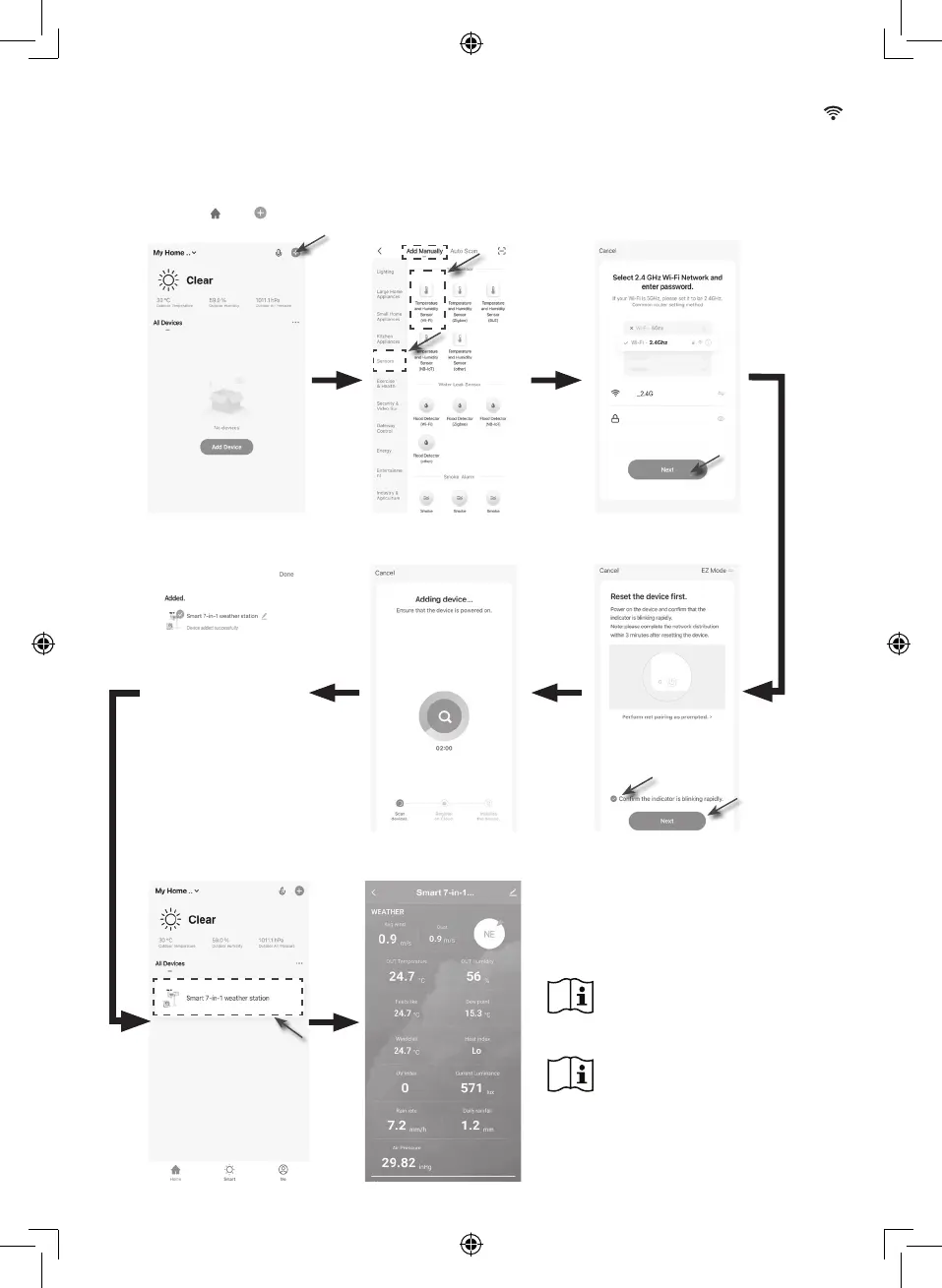
1. Press and hold the [ SENSOR / Wi-Fi ] key for 6 seconds to enter AP mode manually, indicated by blinking AP and .
When the console is power up for the first time, the console will automatically enter and stay at AP mode.
2. Open Smart Life APP and follow the in-APP instructions to connect weather station to your Wi-Fi network.
3. The console will automatically exit AP mode and return to normal operation once it’s connected to Wi-Fi router.
Step 1:
At the home screen , tap the on the top right
corner to add your console.
Step 5:
There will auto scan and register your
device.
Step 6:
Once it success, the console icon will shown, and you can
customize its information.
Step 4:
Conrm your device is in "AP mode" and tap
"Next".
Step 3:
Make sure you select the 2.4G network and
enter your Wi-Fi password then tap the "Next".
Step 7:
The console will appear on your Home Screen.
Tap to see the readings.
Step 2:
On "Add Manually" screen, choose
"Sensors" in the left menu bar and then
select "Temperature and Humidity Sensor
(Wi-Fi)".
Smart weather station can only
connect to 2.4G Wi-Fi network
Enable the location information in
your mobile when you add your
console to APP.



 To Next Page