24
Creating a Keyboard Split…
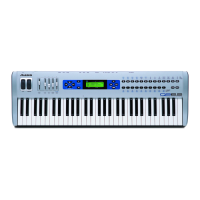
Mix mode is also useful for creating keyboard splits. This feature enables you to have, for
example, one sound on the upper region of the keyboard, with a different sound on the lower
region—such as a piano/bass split. Here’s how it works:
1. Press the Program Mode button and, for the sake of our example, press Category – Bass.
2. Select an acoustic bass program and then press Program.
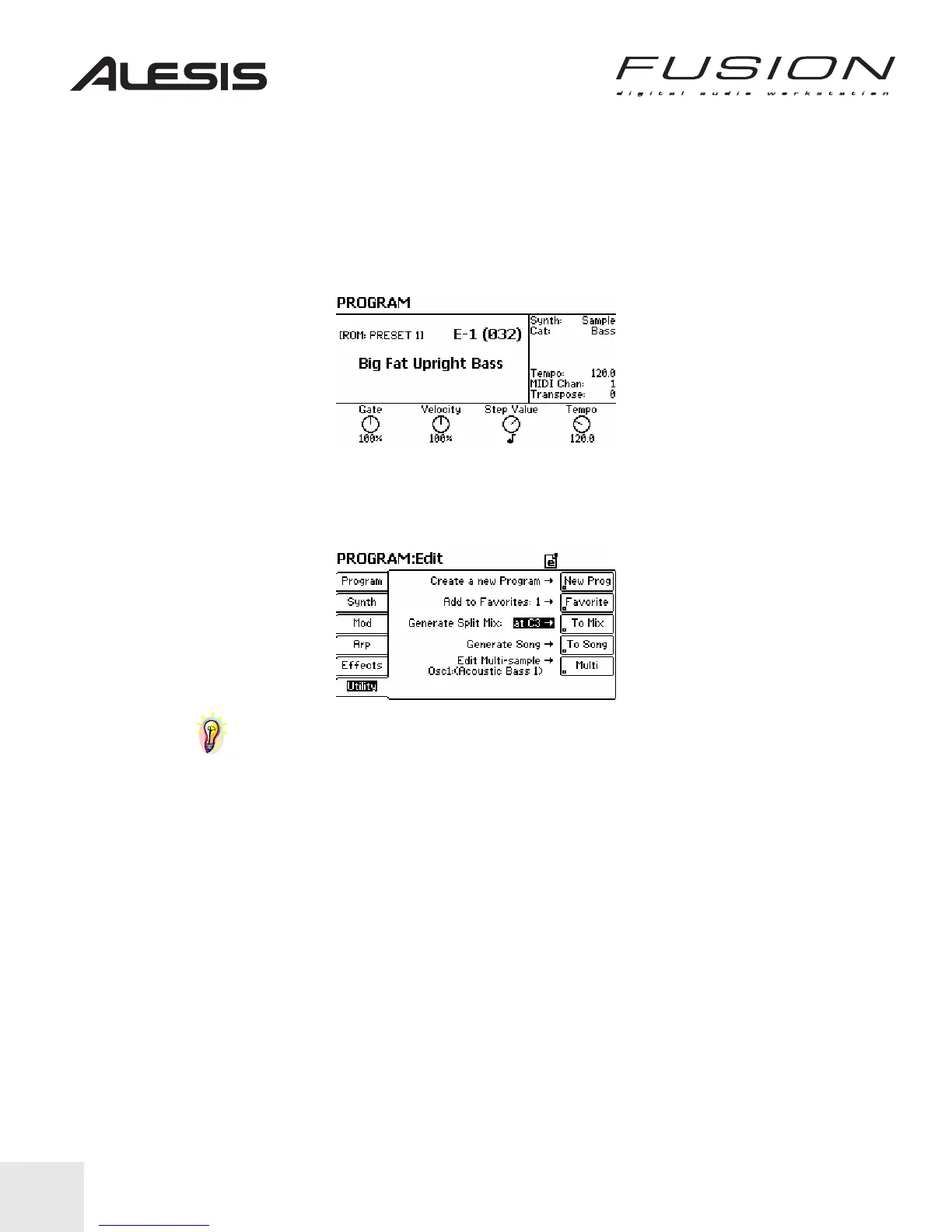
3. Press EDIT, then select the Utility tab from the lower left of the display, as shown below. If at
first you don’t see this parameter, position the cursor on this third line (using the PREV and
NEXT buttons) and rotate the Control Wheel from either “Add to Current Mix” or “Generate
Layer Mix” to “Generate Split Mix”.
TIP: You can modify the split point by either positioning the cursor on the C3 and rotating
the Control Wheel to another note, or by positioning the cursor on C3, holding the LOCATE
button and pressing a note on the keyboard (that note will become the split point).
4. Press the To Mix button. This will generate a Mix with your Bass below the split key and a
piano above it. You should now have a piano/bass split.


 To Next Page