28 | Setting up the monitor
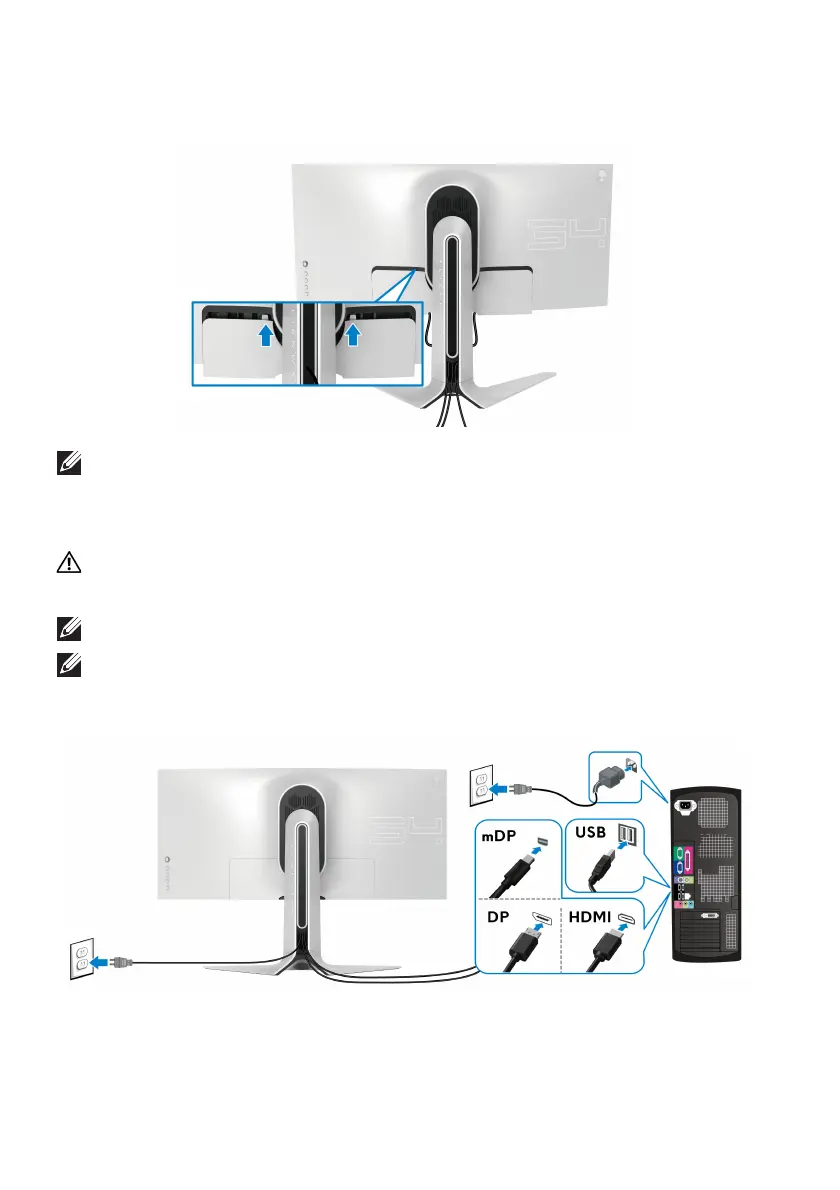
12. Slide the tabs on the I/O cover into the slots on the display back cover until
it snaps into place.
NOTE: Ensure that all cables pass through the I/O cover and cable-
management slot on the stand riser.
Connecting the computer
WARNING: Before you begin any of the procedures in this section,
follow the Safety instructions.
NOTE: Do not connect all cables to the
computer at the same time.
NOTE: The images are for the purpose of illustration only. Appearance of
the computer may vary.
To connect your monitor to the computer:
1. Connect the other end of the DisplayPort cable (or Mini-DisplayPort to
DisplayPort) or HDMI cable to your computer.








 To Next Page