EasyManua.ls Logo

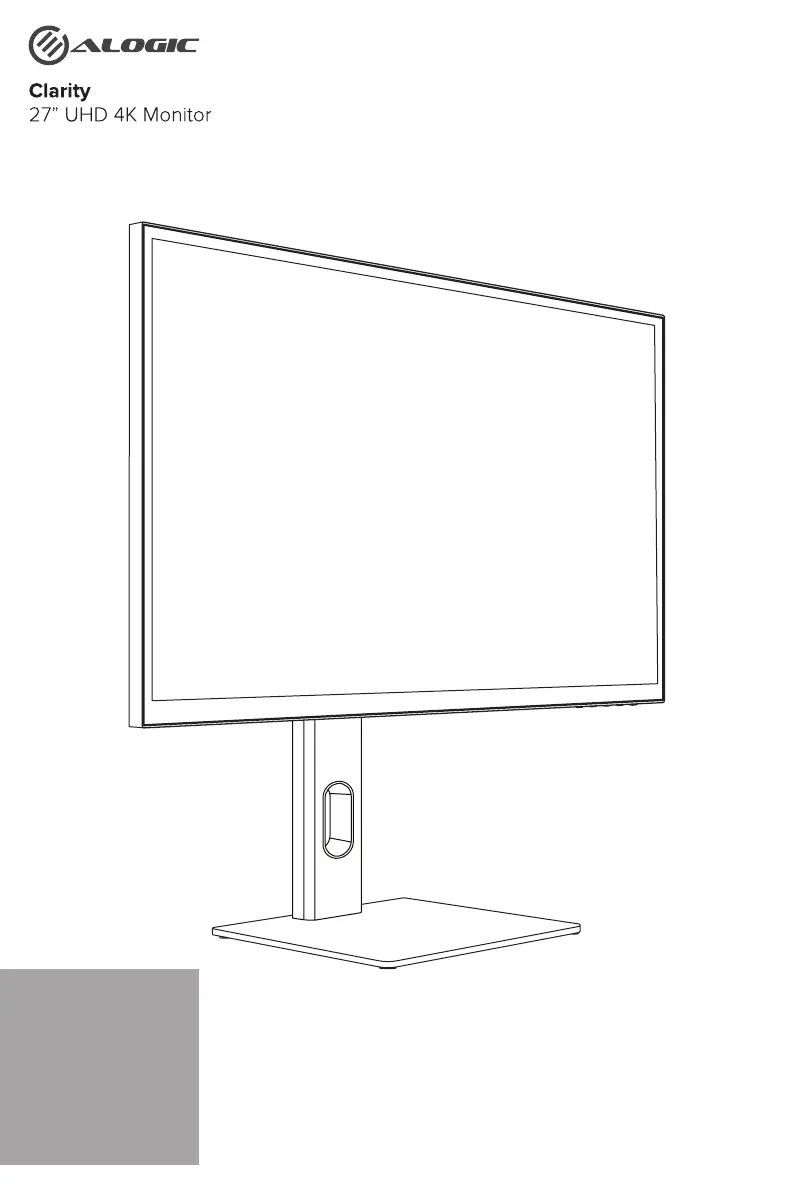
Alogic Clarity 27F34KCPD - User Manual

Alogic Clarity 27F34KCPD
68 pages
Print Icon
To Next Page IconTo Next Page
Loading...
Schnellstartanleitung
Quick Start Guide
Guida Rapida
Guide de démarrage
rapide
Guía de inicio rápido
ートイド

Краткое руководство
пользователя

Questions and Answers

  • A
    Amanda PruittJul 29, 2025
    How to fix Alogic Monitor when it does not show HDMI or DisplayPort video from the computer?
    • D
      Daniel ShepherdJul 29, 2025
      Ensure that a suitable video cable is properly connected between your computer and the Alogic Monitor. Also, make sure that the correct input is selected on the monitor. Check your computer's settings to confirm that it is detecting the monitor and sending video to it.
  • D
    Dustin ShahAug 4, 2025
    Why is my laptop not charging when connected to the Alogic Clarity 27F34KCPD using USB-C?
    • Q
      qellisonAug 5, 2025
      First, verify that the USB-C port on your computer supports charging using the USB Power Delivery (USB-PD) standard. It's also possible that your laptop requires more than 90W to charge, which is common for high-end graphics and gaming computers. If this is the case, connect the power adapter that came with your computer to your laptop in addition to the USB-C cable connected to the monitor.
  • B
    byrddanielAug 10, 2025
    What to do if Alogic Clarity 27F34KCPD does not show USB-C video from the computer?
    • S
      Stephanie OlsenAug 10, 2025
      First, make sure you're using the USB-C cable that came with the monitor. Check your computer's settings to ensure it detects the monitor and is outputting video to it. Also, verify that the USB-C port on your computer supports video output using DisplayPort Alternate Mode (DP Alt. Mode).
  • T
    Tony MooreAug 16, 2025
    What to do if the Alogic Clarity 27F34KCPD power button lights up, but nothing is displayed on the screen?
    • E
      Erik BradshawAug 16, 2025
      Try disconnecting the power adapter from the monitor and reconnecting it after 2-3 minutes. You can also try to reset the monitor settings by pressing and holding the power button for 5 seconds.
  • R
    Rhonda MunozAug 22, 2025
    How to troubleshoot if the Alogic Monitor power button does not light up when pressed?
    • R
      Ryan MorrisonAug 22, 2025
      Check that the mains power cord is securely attached to both the power adapter and a working power outlet, and ensure the power outlet is switched on. Also, verify that the power adapter is securely connected to the rear of the monitor.

Summary

Package Contents

Specifications

Interface Overview

Monitor Controls

Overview of buttons for OSD navigation and power.

Indicator Light

Meaning of the LED status indicator lights.

Monitor Ports

Lists and identifies all physical monitor ports.

Unpacking and Assembly

Disassembly and Storage

Mounting Options

Connecting the Monitor

Connecting a Video Source

Details on connecting computers and other devices via video inputs.

Audio Output

Information on connecting headphones or external speakers.

Connecting Audio Devices

Instructions for routing audio to speakers or headphones.

Connecting USB Devices

Guidance on connecting peripherals via USB ports.

Key Operation

Using the On Screen Menu

OSD Menu Functions

Troubleshooting

Warnings

Alogic Clarity 27F34KCPD Specifications

General IconGeneral
Screen Size27 inches
Resolution3840 x 2160 (4K UHD)
Panel TypeIPS
Refresh Rate60 Hz
Response Time5 ms
Brightness350 cd/m²
Contrast Ratio1000:1
Built-in SpeakersYes
Aspect Ratio16:9
Viewing Angle178°/178°
Color Gamut99% sRGB
VESA Mount100 x 100 mm
PortsHDMI 2.0, DisplayPort 1.2, USB-C
USB-C Power Delivery65W

Related product manuals