40
3. In the left field enter the name you are looking for. It can be a street address (just the
street name or both the street and the house number), the name of a Place, a previous
destination or an Address Book entry.
4. If you are searching in an area that is far from your current location, tap on the right
field and enter a city name or a post code from the target area.
5. While you type, the number of matching items is displayed on the left broken down by
category. Tap one of the categories or the
button to see the
matching items. The keyboard is now replaced with the list of results.
6. Select one of the items from the list.
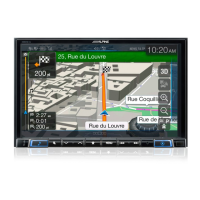
7. After a short summary of the route parameters, the map appears showing the entire
route. The route is automatically calculated. Tap
to modify route
parameters, or tap
and start your journey.
3.1.4 Selecting a map location as the destination
1. In the Navigation menu, tap the following buttons: , .
2. Locate your destination on the map: move and scale the map as needed.


 To Next Page