13
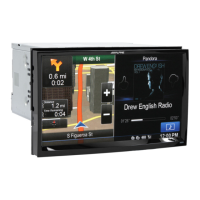
The application starts with a full screen map. Tap to reduce
the map size to half and allow information from your Alpine X009E audio
system to appear on the other half. You can decide which side of the map is
the navigation. Simply tap the audio part and drag it to the other side of the
screen.
When there is no GPS position, the Vehimarker is transparent. It shows
your last known position.
You see coloured dots circling around a satellite symbol in the top left
corner. The more green dots you see, the closer you are to get the valid
GPS position.
When GPS position is available, the Vehimarker is displayed in full colour,
now showing your current position.
There are screen buttons and data fields on the screen to help you
navigate. During navigation, the screen shows route information.
Two data fields are displayed on the left.
The data fields are different when you are navigating an active route and
when you have no specified destination (the orange line is not displayed).
Default data fields when cruising without a destination (tap any of the fields
to change its value):
Alpine_X009E_B5.pdf 13 5/9/2014 14:22:23



 To Next Page