MIDI CHANNEL
PAD #1, 11
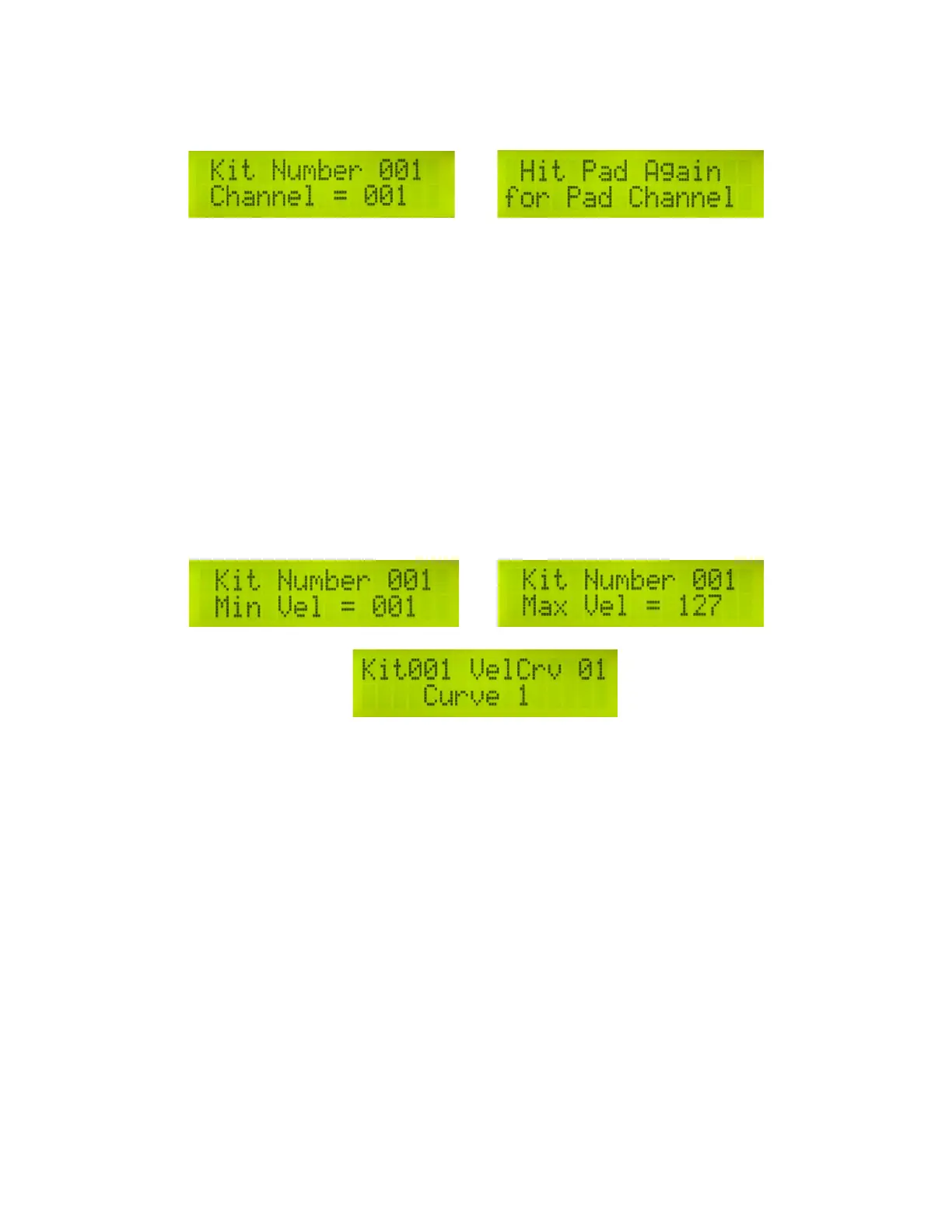
To change the MIDI Channel on the entire User Kit, tap on pad #1. The Kit's current MIDI channel is
displayed. To change the MIDI channel, tap on the pad again or “"quick click"” to reverse direction
when tapping on the pad. If you want to change the MIDI Channel on just one pad, use pad #11, Pad
MIDI Channel. When you tap on pad #11, it will ask you to select the pad that you want to change the
MIDI Channel.
There are 16 MIDI channels available in MIDI. Any pad can be assigned to its own MIDI channel. If
you have a multi-timbral sound module, very creative kits can be created! A different program sound
can be assigned to any MIDI channel, allowing the trapKAT to control many sounds at once.
KIT VELOCITY (Minimum, Maximum, Velocity Curves)
PAD #2,12, 3,13, 4 and 14
There are three settings that affect the response of each pad. They are called Minimum and
Maximum Velocity, and Velocity Curve. The Min and Max Velocity affect the range of how loud or
soft an individual sound can be. The Velocity Curve affects the feel or how fast the sound gets louder
as you smoothly play harder and harder.
The range for velocity is 00-127. If you set the Minimum to 00 and the Maximum to 127, you are
programming the pad to play the widest dynamic range possible. Counter to what you may first think,
this is not always the best choice. For example, most people find that the bass drum needs a narrower
range, say 32-127. If the softest hits are not heard, then you will need to raise the Minimum Velocity
Setting. If you want the same crack of a snare drum, you might want to raise the Minimum Velocity
even higher.
If you hear a sound that is not balanced, i.e. too loud, you might want to lower the Maximum Velocity.
After the range is set, the next factor to consider is the Velocity Curve. The curve tells the trapKAT
how fast to change from soft to loud. Usually folks like a linear or smooth response, and use the default
Curve #1. There are exponential and logarithmic curves that stay soft longer as you play harder or the
other way around.
It is possible to set one Minimum, Maximum and Curve Setting for the entire kit. Use pad #2 for the
20



 To Previous Page