Page 8
26
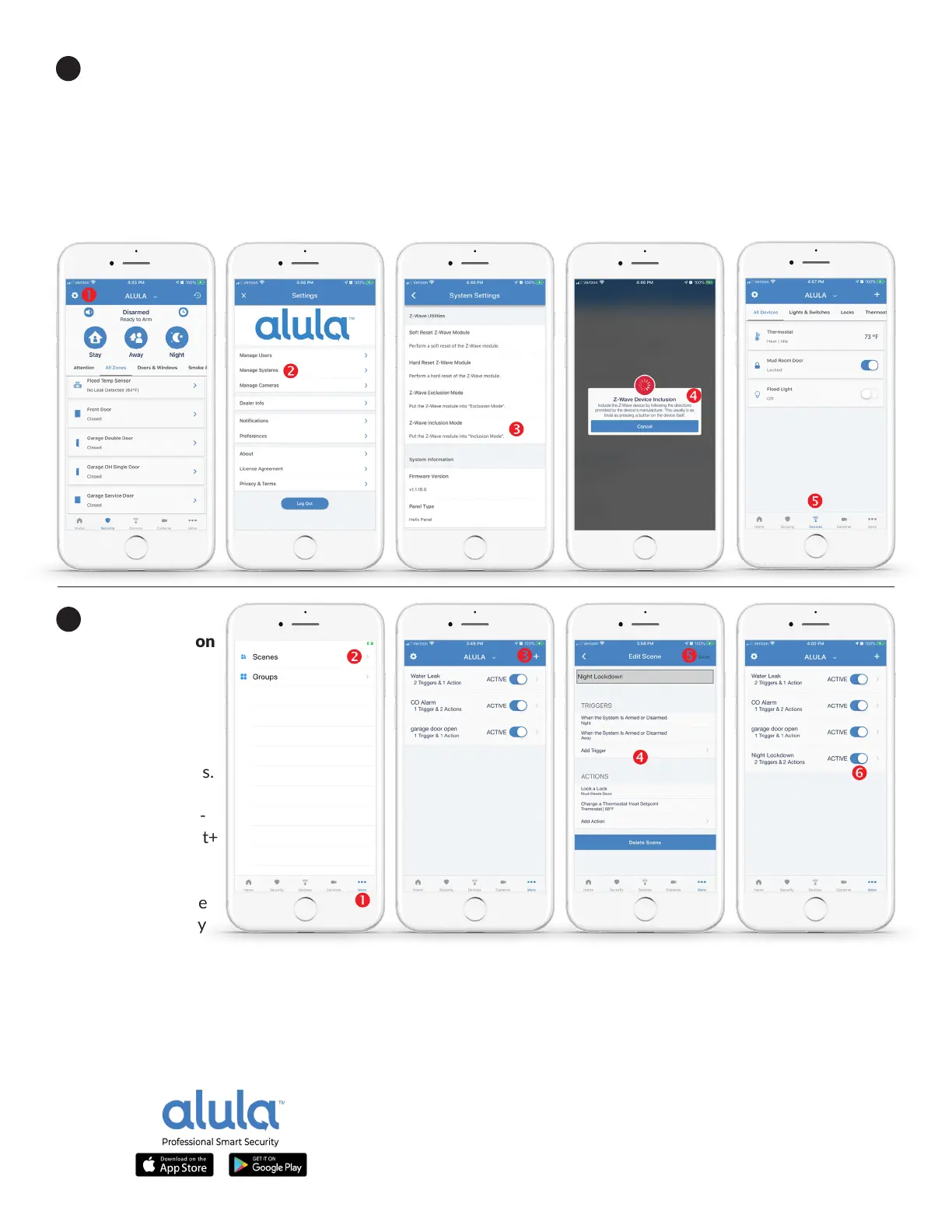
Adding Z-Wave automaon devices to your Connect+ Hub. Follow the Z-Wave device maker’s direcons
to iniate inclusion for the Z-Wave device. Once the device is in Z-Wave inclusion, tap the GEAR icon (1) in
the Alula App, then tap Manage Systems (2). Then tap Z-Wave Inclusion Mode (3). Wait for the Connect+
to complete the link with the Z-Wave device also in inclusion mode. Aer INCLUSION (4), your device will
appear in the DEVICES (5) tab. Test control with the Alula App as you’re standing next to the device to validate
operaon. PRO TIP: If your Z-Wave device was already programmed to another automaon hub, it must be rst
excluded to link to the Connect+ Hub. Before networking your device to Connect+, follow the Z-Wave device
maker’s instrucons to exclude the device.
27
Using the Alula
App’s scene creaon
you can program
many automaon
acons to enhance
your connected
premises and
automate daily tasks.
If you ordered your
system automaon-
ready, your Connect+
Hub is ready to
communicate with
Z-Wave and Z-Wave
Plus devices. Simply
choose a trigger like
Armed Night and connect acons like locking the front door deadbolt and turning down the heat set point.
Your place just got safer and smarter. Tap MORE at the boom (1). Tap SCENES at the top (2). Tap
+ to add a
scene (3). Set TRIGGERS AND ACTIONS (4). SAVE the new automaon scene (5). ACTIVATE the new scene (6).


 To Previous Page