14
Operating Instructions
Aluratek Smart Frame App
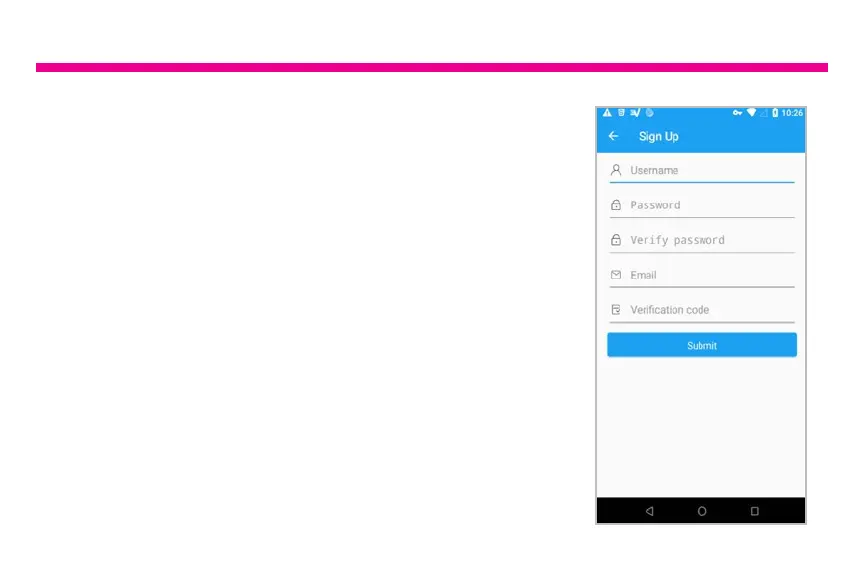
3. Please login to your account
4. Please select “Devices” from the main menu to
activate / bind your frame to the app
5. Please select “+” of My Devices
6. For Device Name, this is the name of the frame that
will be shown in the device list. For the email address,
this will be the email address of the frame that you can
provide to your friends and family so they can email the
pictures to the frame. Please use 6 or more characters
with a mix of letters, numbers and symbols. For example,
I can set the email name to be kitchen123 so the email
address of the frame will be kitchen123@wiframe.com
7. You can also add frames owned by other family member.
Please select “+” of Other Devices and provide the frame
ID number. Once the owner of the frame approve your
request, you can start sending pictures to that frame.



 To Next Page