Opening the Celect Communicaons App
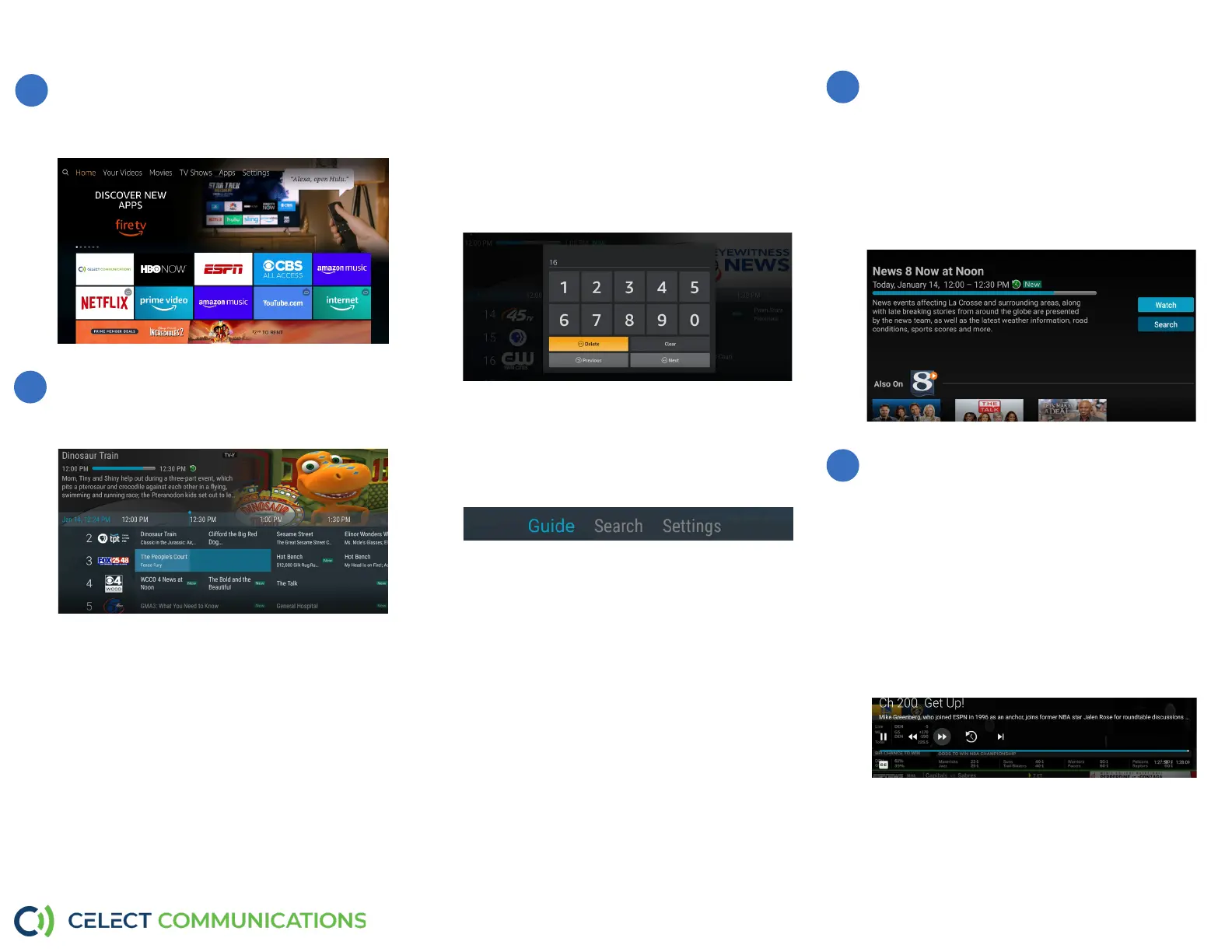
On the Home Screen of your Fire TV Sck,
using the Direconal Ring, highlight the Celect
Communicaons App and press the OK buon.
Finding Channels & Programming
Once the App is open, you will see a Program Guide.
There are several ways to nd channels and
programming.
Using the Program Guide
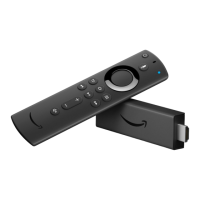
On the Fire TV Remote, using the Direconal Ring,
you can view the content that is playing on each
channel.
Note: To exit the App, press the Home buon on the
Fire TV Remote. To return to the previous screen,
press the Back buon.
How to Watch Channels
Once you have found the program that you would
like to watch, use the Direconal Ring to highlight
the channel you would like to watch and press the
Play/Pause buon.
You will now see more informaon on the program
that is currently playing on your specied channel.
To watch the program, press the OK buon.
Enter Channel Numbers
If you know the number of the channel that you
would like to watch, from the Program Guide press
and hold the OK buon. Using the Direconal
Ring, highlight the number and press OK aer
each number. Once you have nished entering the
number, using the Direconal Ring, highlight Next
and press the OK buon.
1
2
3
4
Using the Celect Communicaons App
Program Search
You can use the Search feature to nd programs.
From the Program Guide, press the Guide buon
to open the Tab Bar, using the Direconal Ring,
highlight Search.
Using the Direconal Ring, press down to open a
typing pad. To type the word in, using the Direconal
Ring, highlight the leer and press OK aer each
leer. Once you have nished entering the word,
using the Direconal Ring, highlight Next and press
the OK buon.
The search results will show currently airing or
upcoming programs in the top row. The more you
provide, the more specic your results will be.
To use the voice search, press and hold the
Microphone buon while saying the name of the
program you are looking for.
Features
Fast Forward & Rewind
There may be mes when you want to go back and
see that excing play in the game or fast forward
through commercials - don’t tell the adversers.
To use this feature during an in-progress or recorded
program, press the Fast Forward buon on your
remote control to advance the program, and press
Rewind to go back. The Progress Bar lets you track
your movement through a program, and the mer
helps you to see how far you are from the end of the
program.


 To Next Page
 Loading...

