
 Need help?
Do you have a question about the Amazon Kindle Kindle Touch and is the answer not in the manual?
Using tap zones to turn pages with either hand.
Process to link the Kindle to an Amazon account.
Overview of physical buttons and touchscreen interface.
How to interact with the touchscreen for navigation.
Steps to connect to networks and register.
Using dictionary, search, highlights, notes, and bookmarks.
Overview of settings for registration, Wi-Fi, and device options.
Important safety instructions and compliance details.
Precautions and guidelines for using the Kindle battery.
Advice on listening to audio to prevent hearing damage.
Rules for using wireless features in specific environments.
Requirements for disabling wireless on aircraft.
Adherence to FCC rules for digital devices.
Safety guidelines for rechargeable batteries.
Details of the product's limited warranty.
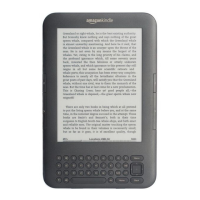
The Kindle Touch is an e-reader designed for a seamless and intuitive reading experience, featuring a touchscreen interface that allows for easy navigation and interaction with content. Its primary function is to provide access to a vast library of digital books, magazines, newspapers, audiobooks, and other active content, delivered wirelessly through Amazon's Whispernet service.
The Kindle Touch serves as a portable digital library, enabling users to acquire, store, and read a wide array of content. It connects to the Kindle Store, offering a diverse selection of titles, including bestsellers, periodicals, and audio editions of radio shows, stand-up comedy performances, and speeches. Content is typically delivered wirelessly, often in less than 60 seconds for books, and periodicals are sent as soon as they're published. The device supports various file formats for personal documents, allowing users to carry and read their own files, such as Microsoft Word, PDF, HTML, and image files, which can be converted to Kindle format or read natively.
Beyond reading, the Kindle Touch incorporates audio capabilities, allowing users to listen to audiobooks through built-in stereo speakers or headphones. It also features a Text-to-Speech function, which can read aloud books, newspapers, magazines, blogs, and personal documents where allowed by the rights holder. This feature offers male or female voice options and adjustable speech rates for an optimized listening experience.
The device is designed to be user-friendly, with most interactions occurring via its touchscreen. It aims to replicate the experience of reading physical books and newspapers through its electronic paper display technology, which uses ink particles displayed electronically. This reflective display ensures clear readability even in bright sunlight.
Touchscreen Navigation: The Kindle Touch's core interaction is through its touchscreen. Users can tap to select items, open books, or activate buttons. The "EasyReach" feature allows for effortless page turning with either hand by tapping almost anywhere on the display for the next page, and the left side for the previous page. Swiping gestures can also be used to turn pages (right to left for next, left to right for previous) and navigate between chapters or articles (swipe up for next chapter/article, swipe down for previous).
Home Screen and Library Management: The Home button provides quick access to the Home screen, which lists all stored content. Users can sort their library by most recent or alphabetically. The "Collections" feature allows for organizing items into groups for easier access, though periodicals and blogs cannot be added to collections. The Home screen also displays Special Offer banners for Kindle models with this feature.
Reading Experience Customization: The device offers several options to customize the reading experience. Users can adjust font size, typeface, line spacing, and words per line through the Text button (Aa) in the toolbar. Images within books can be zoomed in for easier viewing by pressing and holding, then tapping a magnifying-glass icon.
Wireless Connectivity: The Kindle Touch connects to Whispernet via Wi-Fi, and some models also include free 3G connectivity. The device automatically connects to the strongest available network. Wireless connectivity can be turned off to conserve battery life.
Special Offers and Screensavers: For models with Special Offers, sponsored screensavers are displayed when the device is in sleep mode, and banners appear on the Home screen. These offers are updated regularly when connected to a network.
Social Sharing: Users can link their Kindle to social network accounts like Twitter and Facebook to share highlights with friends (feature availability may vary by country).
Lending and Borrowing Books: Eligible Kindle books can be loaned to friends for up to 14 days, during which the lender cannot read the book. Users can also borrow Kindle books from local libraries, retaining access to features like page numbers, notes, and highlights.
Background Music: MP3 files can be transferred to the device's "music" folder via USB and played as background music while reading. Playback controls are available on the Kindle screen.
Viewing Progress: Page numbers and location numbers are displayed to track reading progress. For books with corresponding print page numbers, these are also shown. On the Home screen, bold dots below book titles indicate reading progress.
Settings and Device Management: The Settings menu provides options for registration, Wi-Fi network selection, device passcode, time settings, device name personalization, personal info entry, and viewing the Send-to-Kindle email address. It also allows management of annotations, popular highlights, public notes, page refresh settings, and social network links. The Settings contextual menu offers options to turn wireless off, shop in the Kindle Store, update software, restart the device, reset to factory defaults, and view device information.
Charging: The Kindle Touch is charged via a micro-USB cable, which can be connected to a computer or an AC adapter (sold separately). A lightning bolt icon on the battery indicator and an amber light at the bottom edge indicate charging, turning green when fully charged. Charging typically takes less than four hours with a Kindle AC adapter. The device can be used while charging by unmounting or ejecting it from the computer.
Battery Conservation: To extend battery life, users can turn off the wireless connection when not needed. The device automatically enters sleep mode after a few minutes of inactivity, displaying a static screensaver that consumes no battery power.
Cleaning and Protection: The screen should be cleaned with a soft cloth, avoiding abrasive materials. To prevent scratches, it is recommended to use a cover when carrying the Kindle in a bag or briefcase.
Troubleshooting and Support: If the device is unresponsive, it can be restarted by pressing and holding the power button for 20 seconds. For service needs, Amazon Customer Support should be contacted. The Kindle Customer Service website provides FAQs and how-to videos.
Software Updates: The "Update Your Kindle" option in the Settings contextual menu allows users to install the latest software.
Backup and Archiving: All purchased books, recent issues of newspapers and magazines, and personal documents (if emailed to the device) are archived on Amazon's servers. This allows users to retrieve deleted content or download previously purchased items to a new Kindle. Older issues of periodicals, however, need to be backed up manually if desired.
Reset to Factory Defaults: This option resets the Kindle to its original factory settings and restarts it. Users are advised to back up personal documents and older periodical issues before performing this action and to contact Customer Service if unsure.
Safety Considerations: Users are advised to avoid exposing the Kindle to extreme heat or cold and to keep it away from water or other liquids. If the device gets wet, it should be unplugged, wireless turned off, and allowed to dry completely without external heat sources. Headphone safety tips include keeping the volume down and avoiding prolonged listening. The device should not be used while operating a vehicle if it causes distraction or is prohibited. Wireless connections should be turned off in areas where wireless use is forbidden or may cause interference, such as on airplanes.
 General
| Display Size | 6 inches |
|---|---|
| Supported File Types | Kindle Format 8 (AZW3), Kindle (AZW), TXT, PDF, unprotected MOBI, PRC natively; HTML, DOC, DOCX, JPEG, GIF, PNG, BMP through conversion |
| Display Technology | E Ink Pearl |
| Storage | 4GB |
| Battery Life | Up to 2 months (with wireless off) |
| Weight | 213 grams |
| Dimensions | 10.1 mm |
| Connectivity | Wi-Fi |
| Resolution | 600 x 800 pixels (167 ppi) |













 To Next Page
