27
• Color - always represents picture in color, does not use IR or black and white mode. Performs poorly in
dimly lit areas unless you are using the Starlight series cameras.
• Auto - Uses D&N Sensitivity setting to change between color mode and infrared and black and white
mode.
• Black & White - Always sets picture to black and white, however when illumination is too dark it switches
on IR mode.
• Sensitivity: This option allows the user to change the Day/Night Sensitivity of the camera. The
three options are Low, Middle, and High. The higher the sensitivity, the quicker the camera will
change into another mode depending on the light levels.
• D&N Delay: This dropdown box allows the user to set a delay in seconds for how long it takes to
switch between Day and Night modes. The values range from 2 seconds to 10 seconds.
To reset to default settings, click the Reset Defaults button. To refresh the screen, click on Refresh. To
save the settings, click the Save button.
5.4.1.6. IR Light
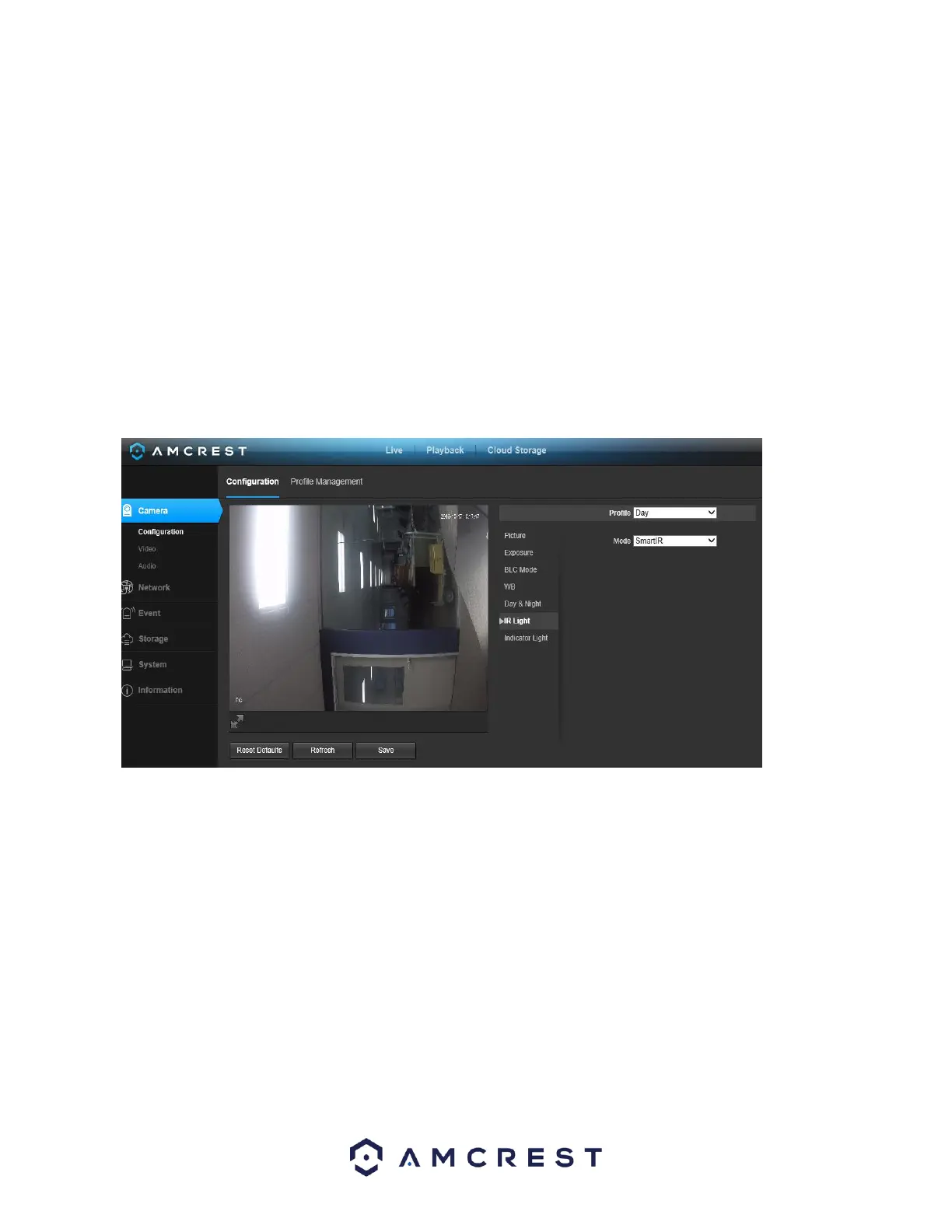
This menu allows the user to select whether the IR lights for night vision are on or off for the selected
profile. Below is a screenshot of this menu:
• Profile: This dropdown box allows the user to select which profile to modify. The 3 options are Day,
Night, and Normal.
• Mode: This dropdown box allows the user to select whether to turn the indication light on or off. SmartIR can also be set to
automatically set the camera’s IR lights to on and off positions based on Day & Night conditions. This setting is usually set by
default within the camera.
To reset to default settings, click the Reset Defaults button. To refresh the screen, click on Refresh. To save the settings, click the
Save button.
5.4.1.7. Indicator Light
This menu box allows the user to select whether the indicator light in the camera is on or off for the
selected profile. Below is a screenshot of this menu:










 To Next Page