EasyManua.ls Logo

AMT Datasouth Fastmark M7XPd - User Manual

AMT Datasouth Fastmark M7XPd
60 pages
Print Icon
To Next Page IconTo Next Page
Loading...
© September 2016 AMT Datasouth Corp.
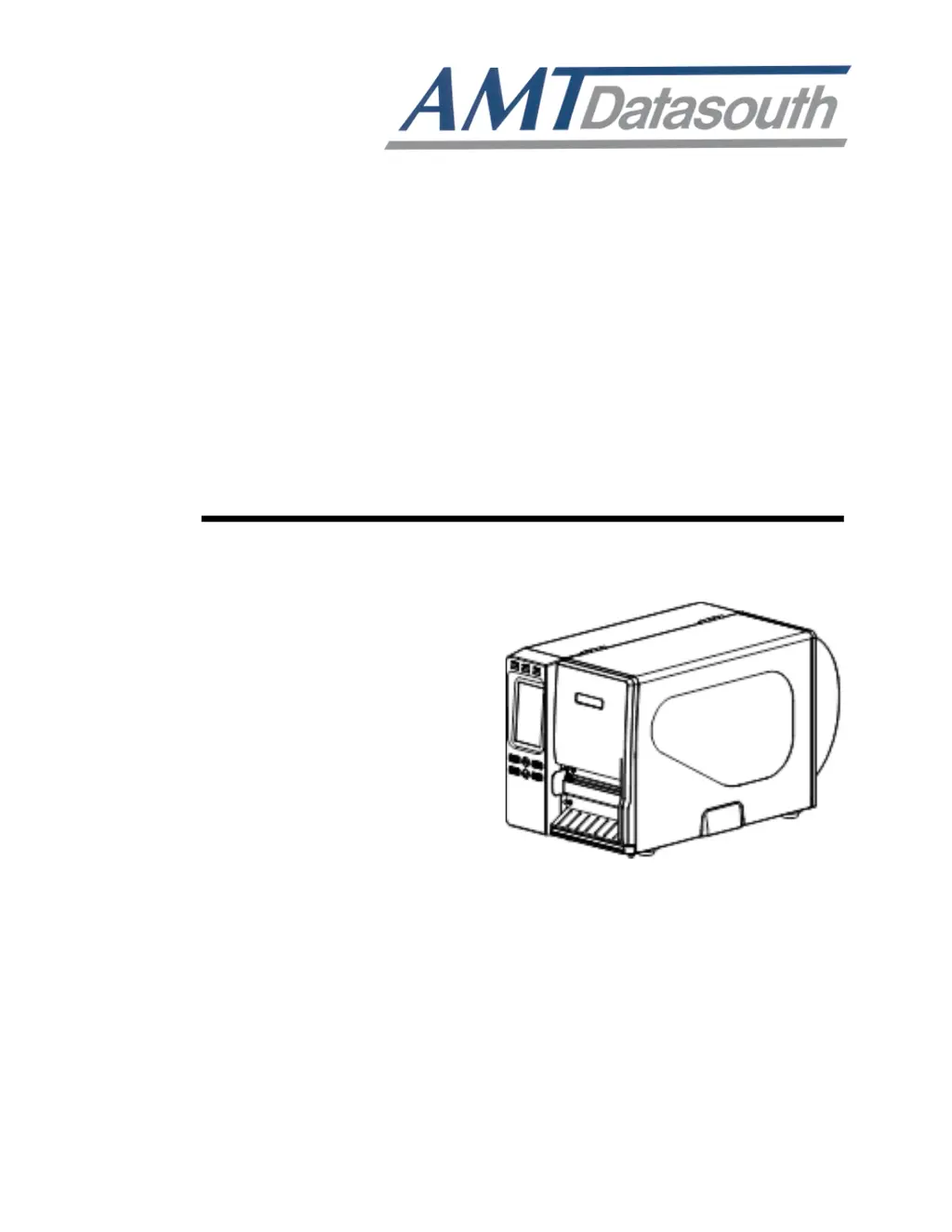
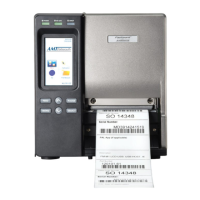
Fastmark M7XPd
Thermal Barcode Printer
(Direct & Transfer)
Users Guide
Document # 121771

Questions and Answers

Summary

Copyright Declaration

Trademark Credits

Regulatory Statement

Operational Safety

Cautions in Setting Up

Packaging

Unpacking the Printer

Steps for unpacking the printer and checking included accessories.

Removing Protective Material

Instructions for removing protective material from the printer.

Introduction

Product Overview

Overview of the AMT Datasouth bar code printer features and design.

Model Configuration

Details on the printer's memory, interfaces, resolution, and speed.

Printer Overview

Front View

Diagram and labels for the front view of the printer.

Interior View

Diagram and labels for the interior view of the printer.

Rear View

Diagram and labels for the rear view of the printer, showing ports.

Operator Controls

Display Panel and Indicators

Description of the display panel, LEDs, icons, and their indications.

Key Functions and Touch Screen

Explanation of key functions and how to use the touch screen interface.

Installation

Setting Up the Printer

Step-by-step guide for placing and connecting the printer.

Loading Ribbon

Instructions for installing the ribbon onto the supply spindle.

Removing Used Ribbon

Procedure for removing the used ribbon from the printer.

Loading Media Roll

Steps to load a roll of media into the printer.

Loading Fan Fold Media

Instructions for loading fan-fold media into the printer.

Loading Media in Peel Mode

Procedure for loading media in peel-off mode.

Adjusting Print Head Pressure

Guide to adjusting the print head pressure for optimal print quality.

Print Head Burn Line Adjustment

How to adjust the print head burn line for print quality.

Ribbon Flow Adjustment (Wrinkle Removal)

Procedure to adjust ribbon flow and remove wrinkles.

Control Panel

LCD Menu and Main Menu Overview

How to enter the main menu and overview of menu structure.

Sensor Settings

Auto Calibration

How to automatically calibrate the sensor for media.

Manual Setup

Manual sensor calibration for paper length and gap/black line.

Threshold Detect

Setting sensor sensitivity in fixed or auto mode.

Maximum Length

Setting the maximum length for label calibration.

Interface Settings

Serial Interface Configuration

Configuration settings for the RS-232 serial interface.

Ethernet Interface Configuration

Configuration and status for the printer's Ethernet interface.

File Manager

Checking printer memory and file lists (DRAM, FLASH).

Diagnostics

Print Configuration

Printing the current printer configuration settings and self-test report.

Dump Mode

Capturing and printing data from the communications port for debugging.

Display Verification

Verifying the printer's display functionality.

Sensor Verification

Verifying the sensor settings and calibration.

Advanced Settings

Setting advanced printer options like brightness, date/time, and language.

Service Functions

Initialization

Restoring printer settings to factory defaults.

Printer Information

Verifying printer serial number, mileage, and counters.

PAL Print and Program Overview

PALSECURE ON DEMAND

Secure label printing for healthcare without network connection.

Traditional Printing

Standard printing where each job generates a single label.

Legacy Data Stream Interpretation

Using PAL to interpret legacy data streams for modern printing.

Standalone;Downtime Applications

Operating the printer independently from a PC or host connection.

Diagnostic Tool

Start Diagnostic Tool

How to launch and access the Diagnostic Utility software.

Printer Function Settings

Details on printer functions like calibration, setup, and testing.

Setting Ethernet via Diagnostic Utility

Instructions for configuring the Ethernet interface using the utility.

Configure Ethernet via USB

Step-by-step guide to configure Ethernet via USB connection.

Configure Ethernet via RS-232

Step-by-step guide to configure Ethernet via RS-232 connection.

Configure Ethernet via LAN

Step-by-step guide to configure Ethernet via LAN connection.

Factory Default and Web Setup

Resetting settings and configuring the printer remotely via web browser.

Troubleshooting Common Problems

Printer Maintenance

Tools and Methods for Maintenance

Recommended tools and methods for printer maintenance procedures.

AMT Datasouth Fastmark M7XPd Specifications

General IconGeneral
BrandAMT Datasouth
ModelFastmark M7XPd
CategoryPrinter
LanguageEnglish

Related product manuals