English 10
How to use the app:
´ The air purifier has built in Wifi module and firmware,
which support user control of the air purifier via an
application on your mobile phone (will be called “app” in
the following instructions). Before you can control your
air purifier with the app, it needs to be connected to a
network.
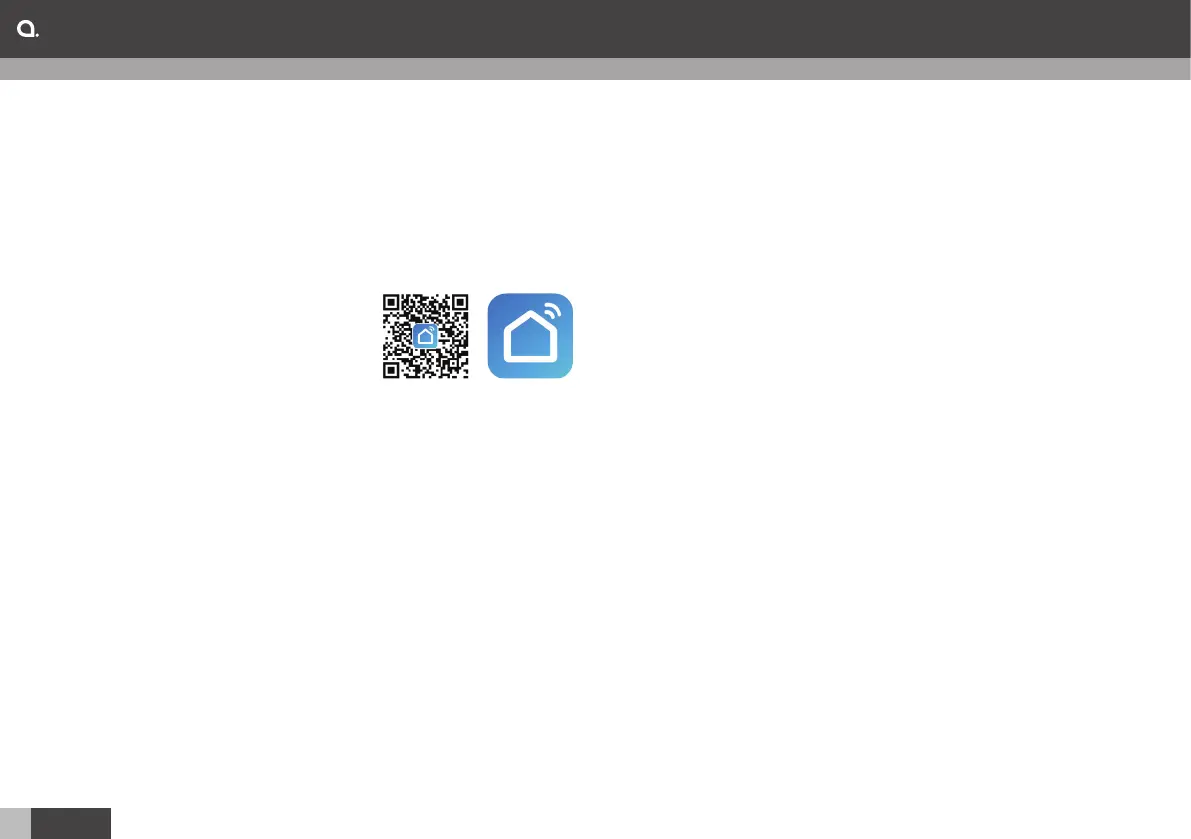
1. Download the “Smart Life”
app on Google Play or App
Store.
2. Enable Wifi on your mobile
phone. Choose and connect
your mobile phone to a network.
3. Rigister in the app “Smart Life”, sign in with user name
and password.
Note: Only supports English letters in the password.
4. In OFF mode, press “Power button” on the control panel/
remote control for 5 seconds to make the air purifier
enter configuration mode. In configuration mode, the Wifi
indicator will rapidly flash.
5. Press “Add device“ in the APP and find the device “Air
purifier” in “Small Appliance”.
6. Choose your network in the list. Type the password for
the network.
Note: Only supports English letters in the wifi password.
7. Press the “Confirm” button. The app will automatically
interact with the air purifier and guide it to connect to the
target network.
Note: The Wifi has to be protected with a password.
Open Wifi networks will not work.
Note: It may take about 30 seconds to connect.
Note: First time you connect the devices, you must keep
the mobile phone and air purifier close to each other
(maximum 20 m distance).
´ If the Wifi indicator light is on, it means that the appliance
was connected successfully to the Wifi.
´ If the Wifi indicator is off, it means that the Wifi connection
failed. In this case, please try again by following step 1-6.
8. Tap the “On/Off” icon to enter the main interface and
control the air purifier.
Note: If the air purifier is connected to a network, you can
monitor and control the air purifier out of home.
9. For more instruction of the APP, pls refer to the APP
instruction.
Operation



 To Next Page