02 EN EN 03
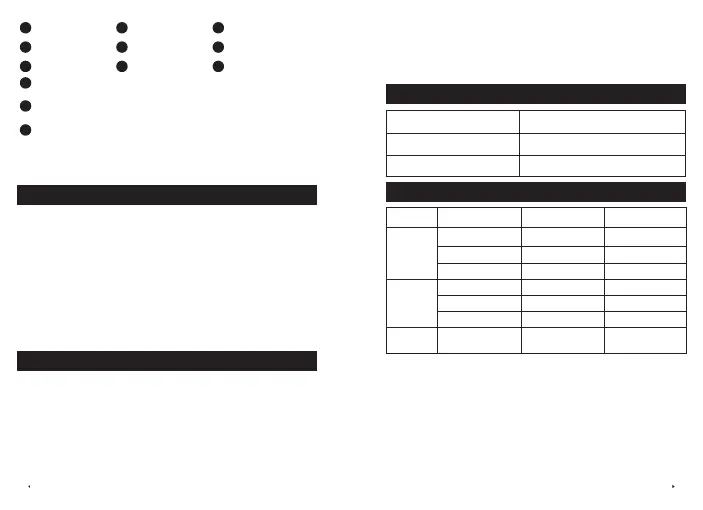
1
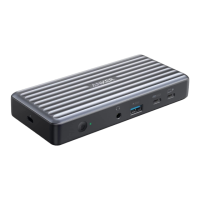
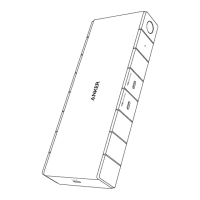
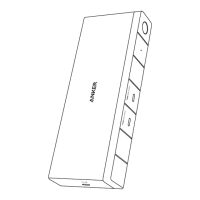
USB-C Upstream Port
2
HDMI 2.0 Port
3
DisplayPort 1.4
4
Ethernet Port
5
USB-A 3.0 Port
6
USB-A 2.0 Port
7
DC-IN Port
8
USB-C 3.2 Gen 2 Port
9
LED Indicator
10
Power Button
4
Connect the dock to a router or modem at 10/100/1000 Mbps via
the Ethernet port.
8
Connect USB-C compatible devices such as SSDs (Solid-State
Drive) to the USB-C 3.2 Gen 2 port (10 Gbps). You can also charge your
phone or tablet at a maximum of 30W via this port.
Important Safety Instructions
1) Avoid dropping.
2) Do not disassemble.
3) Do not expose to liquids.
4)
For the safest and fastest charge, use original or certified cables.
5) This product is suitable for moderate climates only.
6) The maximum ambient temperature when using this product
must not exceed 95°F / 35°C.
7) Open flame sources, such as candles, must not be placed near
this product.
8) Only use a dry cloth or brush to clean this product.
Using Your USB-C Docking Station
Power on Your Dock
1. Plug one end of the included power adapter into the DC-IN port and
the other into a power outlet.
2. Press the power button. The LED indicator will turn green.
Connect the Dock to Your Laptop
Connect your laptop to the dock's USB-C upstream port using the
provided cable. The LED indicator will turn blue, and your laptop will
begin charging at a maximum of 100W.
LED Indicator Guide
Solid green Powered on
Solid blue
Connected to a laptop
O
Not connected to a laptop
Video Ports
Item DisplayPort 1 DisplayPort 2 HDMI Port
Single
Monitor
8K@30Hz / /
/
8K@30Hz
/
/ /
4K@60Hz
Dual
Monitors
4K@60Hz
4K@60Hz
/
4K@60Hz /
4K@60Hz
/
4K@60Hz 4K@60Hz
Three
Monitors
4K@30Hz
4K@30Hz 4K@30Hz
The table above shows the maximum supported resolutions of this dock.
Actual display output will vary based upon the host device specifications.


 To Next Page