32
4 5
6
4
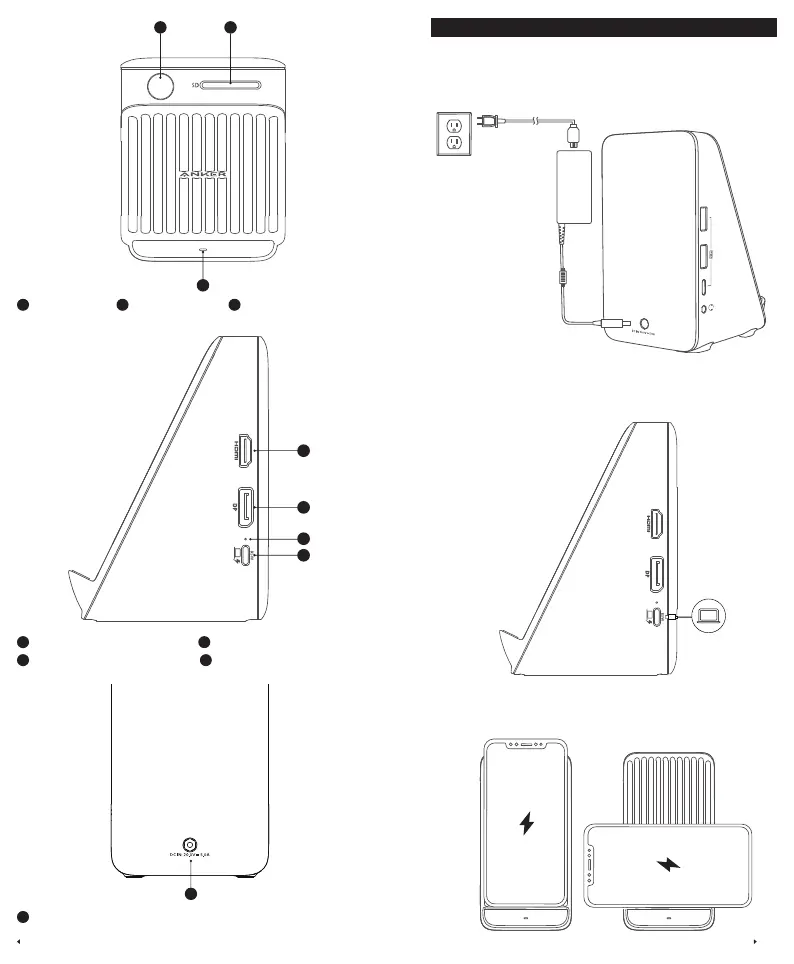
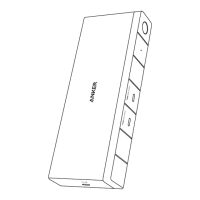
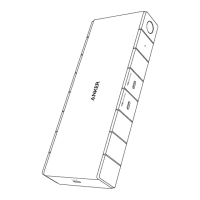
Power Button
5
SD 3.0 Card Slot
6
Wireless Charging Indicator
7
8
10
9
7
HDMI 2.0 Port (4K@60Hz)
8
DisplayPort 1.4 (4K@60Hz)
9
USB-C Upstream Port (5 Gbps, 85W)
10
Connection Status Indicator
11
11
DC-IN Port (100W)
Using Your USB-C Dock
Power on Your Dock
1. Plug one end of the included power adapter into the DC-IN port and the other into
a power outlet.
2. Press the power button. The wireless charging indicator will turn white.
Connect the Dock to Your Laptop
Connect your laptop to the dock's USB-C upstream port using the provided cable.
The connection status indicator will turn white, and your laptop will begin charging
at a maximum of 85W.
Laptop
Charge Your Phone Wirelessly
Put your phone on the charging stand of the dock. The wireless charging indicator
will turn blue.



 To Next Page