54
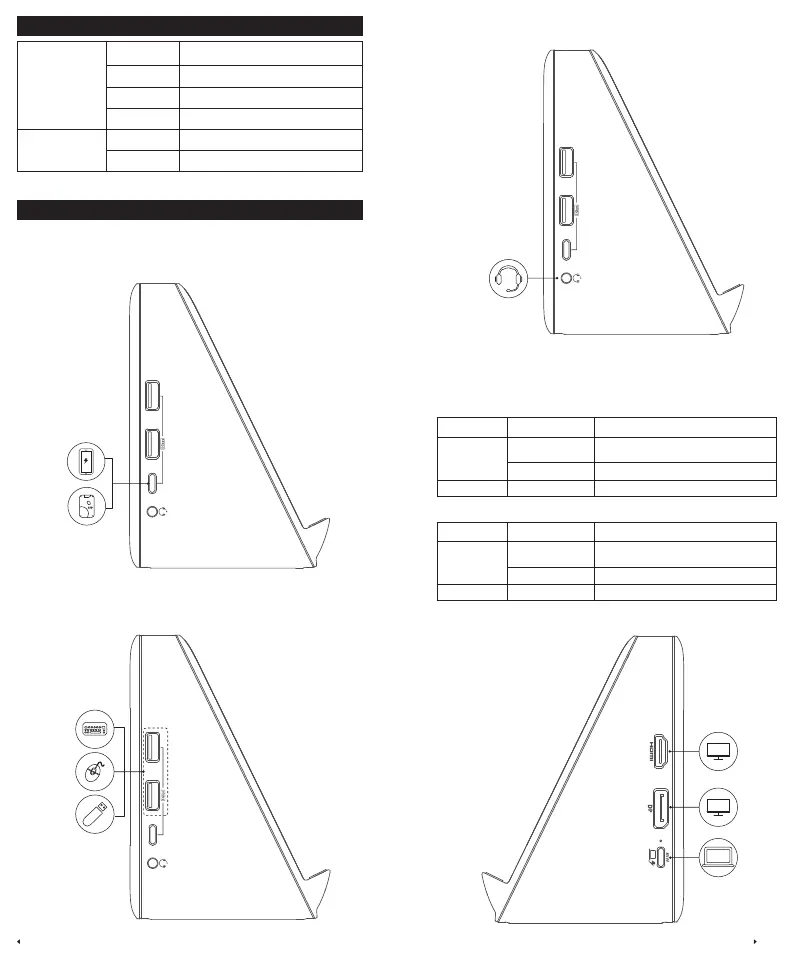
LED Indicator Guide
Wireless Charging
Indicator
Solid white Powered on
Solid blue
Charging a phone wirelessly
Flashing blue
Metal or abnormal objects detected
Flashing white
Overvoltage or undervoltage protection
Connection
Status Indicator
Solid white
Connected to a laptop
Off
Not connected to a laptop
Port Overview
USB-C 3.1 Gen 1 Port
Connect USB-C compatible devices such as SSDs (Solid-State Drive) to the USB-C
3.1 Gen 1 port (5V/1.5A, 5 Gbps).
USB-A 3.1 Gen 1 Ports
Connect USB devices such as USB drives, keyboards, or mice via the two USB-A 3.1
Gen 1 ports (5V/0.9A, 5 Gbps).
Audio Jack
Connect earphones or other devices with a 3.5 mm AUX connector (not included).
HDMI 2.0 Port and DisplayPort 1.4
Connect the dock to up to two monitors via the HDMI port (4K@60Hz) and
DisplayPort (4K@60Hz). Monitor resolution varies depending on your laptop's video
transmission mode:
DisplayPort 1.2 Transmission Mode
Item HDMI Port DisplayPort
Single Monitor
3840x2160@30Hz
/
/ 3840x2160@30Hz
Dual Monitors 1920x1080@60Hz 1920x1080@60Hz
DisplayPort 1.4 Transmission Mode
Item HDMI Port DisplayPort
Single Monitor
3840x2160@60Hz
/
/ 3840x2160@60Hz
Dual Monitors 2560x1440@60Hz 2560x1440@60Hz
If you're using a MacBook to connect dual monitors, both monitors will show the
same content.
Display 3
Display 2
Display 1
A
B
B



 To Next Page