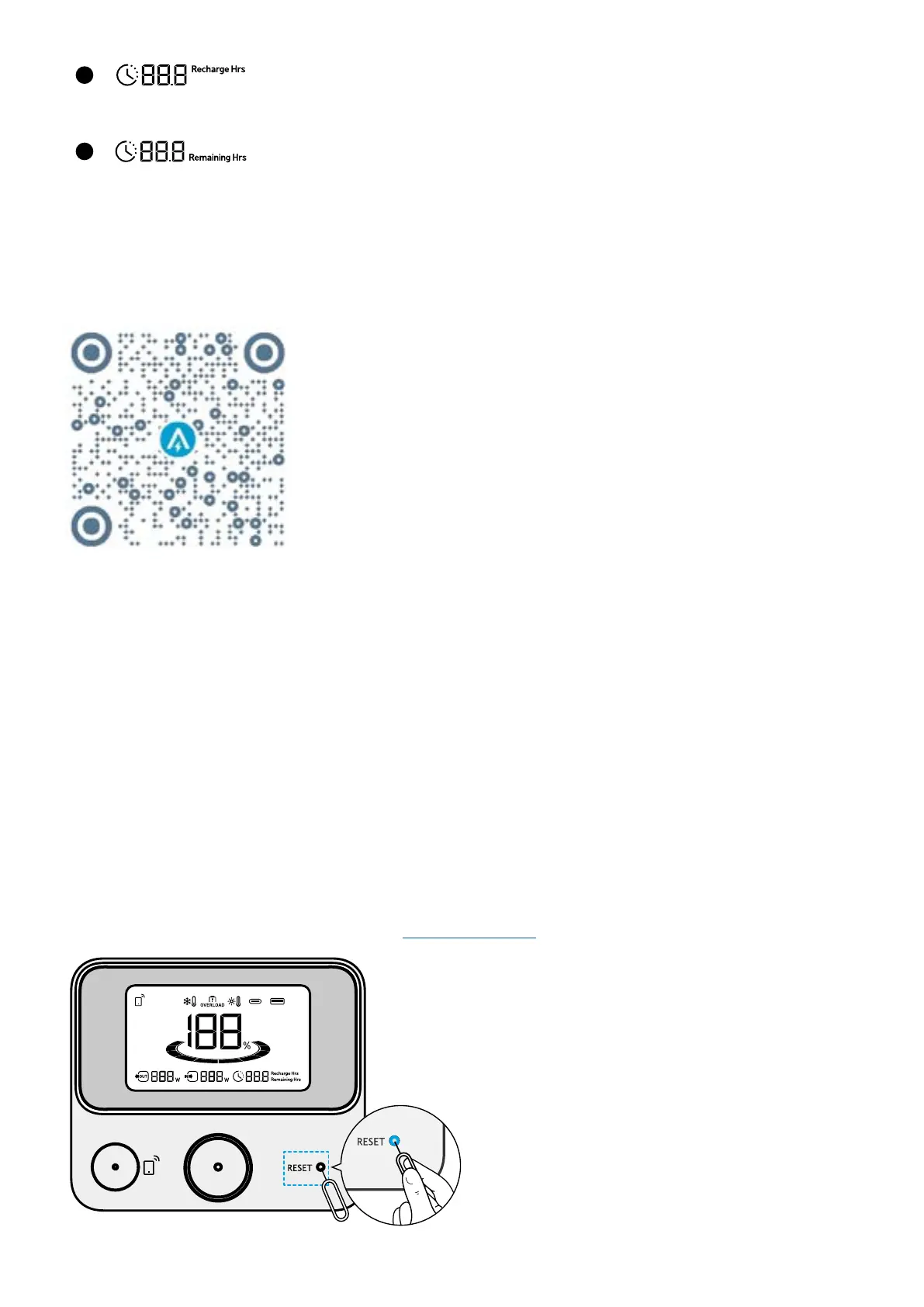
10
Estimated Time to Fully Recharge
11
Estimated Time for Battery to Deplete
The Anker App for Smart Control
You can remotely control your power station using the Anker app.
1. Download the Anker app from the App Store (iOS devices) or Google Play (Android devices), or by scanning the QR code.
2. Connect the device to a network before using the app for the first time. After connecting successfully, you can connect
your device o-grid.
3. Firmware update: You will be informed once a new firmware version is detected when you connect the power station to
the app. During the update, ensure the power station is connected to Wi-Fi or Bluetooth.
FAQ
Q1: What should I do when using a solar charger to charge Anker SOLIX C200 DC Portable Power Station?
The solar input supports an 11-28V solar charger with an XT-60 connector. We recommend using Anker 100W / 60W
Solar Panel for the best compatibility.
Q2: Can the USB-C ports be used to charge Anker SOLIX C200 DC Portable Power Station (input only), or are they output
only?
The USB-C1 and USB-C2 ports are output only. The USB-C3 supports output or input.
Q3: How do I reset Anker SOLIX C200 DC Portable Power Station?
If your power station isn't working correctly, insert a paper clip or pin into the reset hole for 1 second for a factory reset. If
the power station still doesn't work, please contact support@anker.com.



 To Next Page