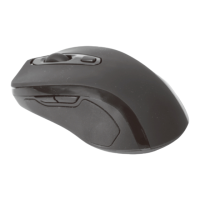
This document is an instruction manual for an Anko Wireless Mouse in Pink/White, with Keycode 42827429.
Function Description:
This device is a wireless optical mouse designed for computer navigation. It operates using 2.4GHz wireless technology, allowing for a cable-free connection to a computer via a USB receiver. The mouse features standard left and right click buttons, a scroll wheel for vertical scrolling, and a DPI button to adjust the cursor sensitivity. It is intended for indoor use with compatible operating systems. The mouse also incorporates a power-saving mode to conserve battery life when not in use.
Important Technical Specifications:
- Connectivity: 2.4GHz wireless technology
- Sensor Type: Optical wireless mouse sensor
- CPI (Counts Per Inch) Settings: 800/1200/1600 CPI, adjustable via the DPI button. The default CPI is 1200. The settings cycle in the order: 1200CPI → 1600CPI → 800CPI → 1200CPI.
- Working Distance: Up to 10 meters (without any obstructions)
- Battery Type: 1 x 1.5V AA battery (not included, but required for operation).
- Compatibility: Supports Windows XP SP3, VISTA 7/8/10, and Mac OS X 9.x or later.
Usage Features:
- Setup:
- Unpack the device and ensure all parts are present and undamaged.
- Remove all protective foils and packaging material.
- Battery Installation: Remove the battery compartment cover located on the underside of the mouse. Insert one 1.5V AA battery, paying close attention to the polarity diagram printed inside the compartment. Replace the cover firmly.
- USB Receiver Connection: The USB receiver is stored in a compartment inside the mouse. Remove it and plug it into a free USB port on your computer. No additional driver installation is required.
- Power On: Push the ON/OFF switch, located on the underside of the mouse, to the "ON" position. The mouse will automatically connect to the computer and be ready for immediate use.
- Controls:
- Left Button: Standard left-click function.
- Right Button: Standard right-click function.
- Scroll Wheel: Used for scrolling through documents or web pages.
- DPI Button: Located on the top of the mouse, this button allows users to cycle through the available CPI settings (800, 1200, 1600) to adjust cursor sensitivity.
- Power Saving Mode: If the mouse is inactive for 8 minutes, it automatically enters a power-saving mode, turning off the optical sensor to minimize power consumption. To reactivate the mouse, simply move it or press any button.
- ON/OFF Switch: A physical switch on the underside of the mouse allows users to manually turn the device on or off, further conserving battery life when the mouse is not in use for extended periods.
Maintenance Features:
- Cleaning: After use, ensure the ON/OFF switch is set to "OFF". Wipe all parts of the mouse with a dry, soft cloth. Avoid using liquids or abrasive cleaners.
- Battery Care:
- Only use top-quality batteries to prevent leakage and potential damage to the device.
- If the device will not be used for an extended period, remove the batteries to prevent damage from leakage.
- Replace batteries when the device's functions weaken.
- Dispose of expired batteries in an environmentally friendly manner, adhering to local regulations. Do not dispose of them in household waste.
- Never attempt to recharge, activate by other means, dismantle, throw into fire, or short-circuit batteries.
- Keep batteries and device components away from children. If a battery is swallowed, seek immediate medical attention.
- In case of battery leakage, remove the batteries with a cloth, dispose of them properly, and avoid contact with skin and eyes. If battery acid contacts skin, wash the affected area with soap and water. If it contacts eyes, flush thoroughly with water and consult a physician immediately.
Safety Instructions (General):
- Read the instruction manual thoroughly before use and follow all safety instructions to prevent damage from improper use.
- Keep the manual for future reference and hand it over if the device is given to a third party.
- Use the device only for its intended purpose.
- Use the appliance indoors only.
- Keep the appliance away from hot surfaces and naked flames.
- Place the appliance on a level, stable, clean, dry surface.
- Protect the appliance from extreme heat, cold, dust, direct sunlight, humidity, and drops or jets of water.
- Do not immerse the appliance in water or other liquids.
- Do not open the housing or introduce any objects into its interior.
- In case of malfunction due to electrostatic discharge or a short power surge, disconnect the mouse from the computer and then reconnect it.
The product comes with a 12-month warranty from Kmart Australia Ltd, covering defects in materials and workmanship, provided the product is used according to recommendations. This warranty is in addition to rights under the Australian Consumer Law. For warranty claims, customers can contact Kmart's Customer Service Centre.

 Need help?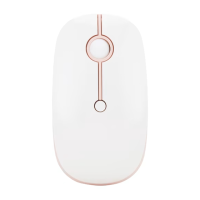

 To Next Page
 General