Need help?
Do you have a question about the AOC 24V5 and is the answer not in the manual?
Explains notational conventions such as Notes, Cautions, and Warnings used in the document.
Details safety precautions related to power sources, grounded plugs, and extension cords.
Provides guidelines for safely installing the monitor, including placement and ventilation.
Instructions on how to clean the monitor cabinet and screen safely.
Covers other safety precautions such as handling strange smells, ventilation, and sound pressure.
Lists all the items included in the product package.
Step-by-step instructions for attaching or removing the monitor stand and base.
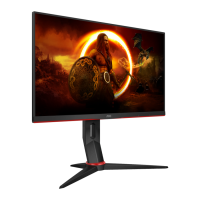
Guidance on how to adjust the monitor's viewing angle for optimal viewing.
Instructions for connecting the monitor to a PC, including cable connections.
Instructions for preparing and installing an optional wall mounting arm.
Explains the function of various hotkeys for monitor control and OSD navigation.
Details how to activate and adjust the Clear Vision feature for better image quality.
Details technical specifications for the 24V5 model, including panel, physical, and environmental characteristics.
Details technical specifications for the 27V5 model, including panel, physical, and environmental characteristics.
Explains the VESA DDC2B capabilities for monitor identity and display capability communication.
This document serves as a user manual for the AOC LCD Monitor models 24V5 and 27V5, providing comprehensive instructions for setup, adjustment, and maintenance. It begins with crucial safety information, outlining national conventions for notes, cautions, and warnings to ensure user safety and prevent damage to the device.
The AOC LCD Monitor is designed to provide a visual display for computer systems. It supports various input signals, including HDMI and DisplayPort (DP), allowing for versatile connectivity with different devices. The monitor offers a range of adjustable settings to optimize the viewing experience, including luminance, color setup, picture boost, and game-specific enhancements. It is equipped with VESA DDC2B capabilities, enabling it to communicate its identity and display capabilities to the host system, facilitating a plug-and-play experience. The monitor also features an LED indicator to show its power status.
The monitor's setup involves attaching the stand and base, or alternatively, mounting it on a wall using a VESA-compatible arm. The stand allows for adjustment of the viewing angle, with a recommended range of -5° to 23° tilt and a height adjustment of 130mm, ensuring ergonomic comfort.
Connecting the monitor to a PC is straightforward:
The monitor features an intuitive On-Screen Display (OSD) menu for adjusting various settings. Hotkeys provide quick access to frequently used functions:
The OSD menu is structured into several categories:
The monitor's LED indicator shows its status: white for full power mode and orange for active-off mode.
Regular cleaning of the monitor cabinet is recommended using a soft cloth and mild detergent to remove stains. Strong detergents should be avoided as they can damage the product. When cleaning, care must be taken to prevent liquid from leaking into the product, and the cleaning cloth should not be too rough to avoid scratching the screen surface. It is crucial to disconnect the power cord before cleaning the monitor to prevent electric shock.
The manual also provides troubleshooting tips for common issues such as the power LED not being on, no images on the screen, fuzzy pictures, flickering, missing colors, or improper screen centering. These tips often involve checking cable connections, power supply, monitor drivers, and adjusting OSD settings like contrast, brightness, and resolution. For more complex issues or strange smells, sounds, or smoke, users are advised to immediately disconnect the power plug and contact a Service Center.
To protect the equipment, it is always recommended to turn off both the PC and the LCD monitor before connecting or disconnecting any cables. The monitor should not be placed on unstable surfaces, and objects should not be pushed into its slots. Adequate ventilation space around the monitor is essential to prevent overheating. When adjusting the viewing angle, users should hold the stand and avoid touching or pressing the LCD screen to prevent damage.
 General
| Screen Size | 24 inches |
|---|---|
| Panel Type | IPS |
| Refresh Rate | 75 Hz |
| Response Time | 4ms (GtG) |
| Brightness | 250 cd/m² |
| Contrast Ratio | 1000:1 |
| VESA Mount | 100 x 100 mm |
| Viewing Angle | 178° (H) / 178° (V) |
| Resolution | 1920 x 1080 |
| Ports | HDMI, VGA |
| Color Gamut | NTSC 72% |

 To Next Page