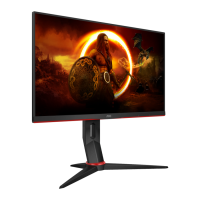
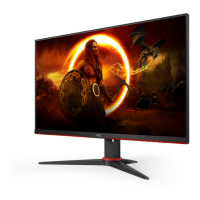
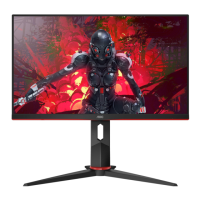
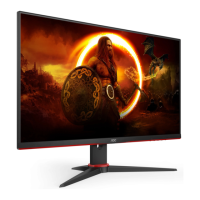
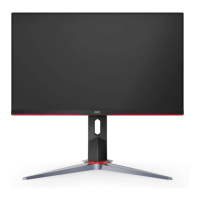
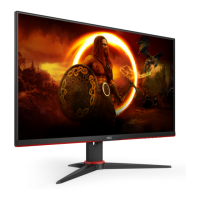
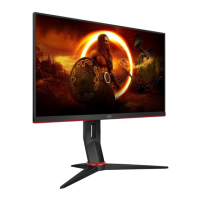
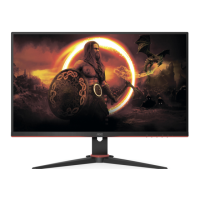
This document serves as the user manual for the AOC LCD Monitor models 24G2Z and 24G2ZU, providing comprehensive instructions for setup, adjustment, and maintenance to ensure optimal performance and user safety.
Function Description
The AOC LCD Monitor is a display device designed for various computing tasks, offering a visual interface for your computer system. It supports multiple input sources, including HDMI and DisplayPort, allowing connectivity with a wide range of devices. The monitor is equipped with an On-Screen Display (OSD) menu, which provides access to various settings for customizing the display's picture quality, color, and other operational parameters. Key functions include adjusting luminance, color temperature, and game-specific settings to enhance the viewing experience for different content types. The monitor also features Adaptive Sync technology, which helps to eliminate screen tearing and stuttering by synchronizing the display's refresh rate with the graphics card's frame rate, particularly beneficial for gaming. USB upstream and downstream ports are available on some models (24G2ZU) for connecting peripherals and charging devices, expanding the monitor's utility as a central hub for your desktop setup. The LED indicator provides visual feedback on the monitor's power status, showing white for full power mode and orange for active-off mode.
Usage Features
The AOC LCD Monitor offers several features to enhance user experience and flexibility.
- Adjusting Viewing Angle: The monitor stand allows for adjustment of the viewing angle to suit individual preferences. Users can tilt the screen from -5° to 23° and adjust the height by up to 130mm. It is recommended to hold the stand firmly when adjusting the angle to prevent the monitor from toppling. Users are advised not to touch the LCD screen during angle adjustments to avoid damage.
- Connecting the Monitor: The monitor provides multiple connectivity options. For video input, it includes two HDMI ports (HDMI-1, HDMI-2) and one DisplayPort (DP). An earphone jack is available for audio output. For power, it connects to a standard AC power source. The 24G2ZU model further extends connectivity with a USB-PC upstream port and multiple USB 3.2 Gen 1 downstream ports, including one with Quick Charging capability, allowing users to connect peripherals directly to the monitor. When connecting, users should ensure the power cord is firmly attached, and all signal cables are securely connected to both the monitor and the computer. It is crucial to turn off both the PC and the LCD monitor before making any connections to protect the equipment.
- OSD Hotkeys: The monitor features dedicated hotkeys for quick access to frequently used functions. These include:
- Source/Exit: When the OSD is closed, this button functions as a source hotkey, allowing users to switch between input sources. When the OSD is open, it acts as an exit button.
- Game Mode/<: When the OSD is closed, this key opens the game mode function, enabling users to select from various preset game modes (FPS, RTS, Racing, Gamer 1, Gamer 2, Gamer 3) optimized for different game types.
- Dial Point/>: When the OSD is closed, this button shows or hides the Dial Point feature, which can assist in aiming in certain games.
- Menu/Enter: This button displays the OSD menu when it's not active and confirms selections within the OSD.
- Power: This button turns the monitor on or off.
- OSD Setting Navigation: The OSD menu is intuitive, allowing users to navigate through functions using the directional keys (< or >) and confirm selections with the Menu/Enter button. Settings can be adjusted by pressing < or >. The AUTO-button (often integrated with one of the hotkeys) is used to exit the OSD.
- OSD Lock Function: To prevent accidental changes to settings, the OSD can be locked. This is done by pressing and holding the MENU-button while the monitor is off, then pressing the power button to turn it on. To unlock, repeat the same process.
- Adaptive Sync Function: This feature works with both DP and HDMI inputs and is compatible with a range of AMD Radeon™ graphics cards (RX Vega series, RX 500 series, RX 400 series, R9/R7 300 series, Pro Duo (2016), R9 Nano series, R9 Fury series, R9/R7 200 series). It ensures a smooth, tear-free gaming experience by dynamically adjusting the monitor's refresh rate.
- Picture Boost: This feature allows users to adjust the brightness, contrast, and position of a specific "Bright Frame" area on the screen, providing a better viewing experience for particular content.
- DCB Mode (Dynamic Color Boost): This mode offers various color enhancement options such as Full Enhance, Nature Skin, Green Field, Sky-blue, and Auto Detect, allowing users to optimize color display based on content. It also includes a DCB Demo mode to showcase the effect of these enhancements.
- Game Setting: This section of the OSD provides specific settings for gamers, including:
- Game Mode: Presets for FPS, RTS, Racing, and customizable Gamer modes.
- Shadow Control: Adjusts the black level details in dark scenes.
- Low Input Lag: Reduces input lag by turning off the frame buffer.
- Game Color: Adjusts color saturation for better picture quality in games.
- Low Blue Mode: Decreases blue light emission to reduce eye strain, with presets for Reading, Office, Internet, Multimedia, and Off.
- Overdrive: Adjusts the response time of the pixels to reduce motion blur.
- Adaptive-Sync: Toggles the Adaptive Sync feature on or off.
- Frame Counter: Displays the vertical frequency on the screen.
- MBR (Motion Blur Reduction): Adjusts motion blur reduction (available when Adaptive Sync is off and vertical frequency is up to 75 Hz).
- Image Ratio: Users can select different image ratios (Wide, 4:3, 1:1, 17" (4:3), 19" (4:3), 19"W (16:10), 21.5"W (16:9), 23"W (16:9)) to suit their content or preference.
- DDC/CI Support: The monitor supports DDC/CI (Display Data Channel/Command Interface), allowing the host system to communicate with the monitor for configuration and information exchange.
Maintenance Features
Proper maintenance ensures the longevity and optimal performance of your AOC LCD Monitor.
- Cleaning the Cabinet: The monitor cabinet should be cleaned regularly with a soft cloth. A mild detergent can be used to wipe off stains, but strong detergents should be avoided as they can damage the product cabinet. It's important to ensure no detergent leaks into the product during cleaning.
- Cleaning the Screen: When cleaning the screen, use a soft, non-abrasive cloth. Avoid using rough cleaning cloths that could scratch the screen surface.
- Power Disconnection: Always disconnect the power cord before cleaning the product to prevent electric shock.
- Ventilation: Ensure that the ventilating openings around the monitor are not blocked by tables, curtains, or other objects. Adequate air circulation is crucial to prevent overheating, which can lead to fire or damage to the monitor. A minimum of 12 inches (30cm) of space above and 4 inches (10cm) on the sides and back is recommended when installed with a stand.
- Environmental Considerations:
- Avoid placing the monitor on unstable surfaces (cart, stand, tripod, bracket, or table) to prevent it from falling and causing injury or damage.
- Never push objects into the slots on the monitor cabinet, as this can damage circuit parts and cause fire or electric shock.
- Do not spill liquids on the monitor.
- Do not place the front of the product on the floor.
- If wall-mounting, use a manufacturer-approved mounting kit and follow its instructions.
- Protect the monitor from power surges by unplugging it during lightning storms or when it will not be used for extended periods.
- Avoid overloading power strips and extension cords to prevent fire and electric shock.
- Use the monitor only with UL listed computers with appropriate receptacles (100-240V AC, Min. 5A).
- Ensure the wall socket is easily accessible and near the equipment.
- Do not subject the LCD monitor to severe vibration or high impact conditions during operation or transportation.
- Do not knock or drop the monitor.
- Troubleshooting: The manual provides a comprehensive troubleshooting guide for common issues such as the power LED not being on, no image on the screen, fuzzy pictures, flickering, missing colors, or incorrect screen centering. Solutions often involve checking cable connections, power supply, adjusting display settings, or rebooting the computer. In cases of strange smells, sounds, or smoke, users are instructed to disconnect the power plug immediately and contact a Service Center.

 Need help?
 General

 To Next Page