RoadRunner HD™ | High Definition Mobile Recorder
Select the first box beside Date and the individual sections of the date will highlight. Use the Up and Down arrows
to change the number. Select the Format box beside Date and select from the three available date formats to save
selected format.
Select the first box beside Time and the individual sections of the time will highlight. Use the Up and Down arrows
to change the number. Select the Format box beside Time and select from the three available time formats to save
selected format.
The clock will not start running until the Apply button is selected.
Select the box beside Time Zone and select time zone from the list.
The Time Zone can also be selected on the map below by pressing the Left and Right buttons or scrolling
the mouse wheel up and down.
Selecting Use Daylight Saving Time toggles between On and Off.
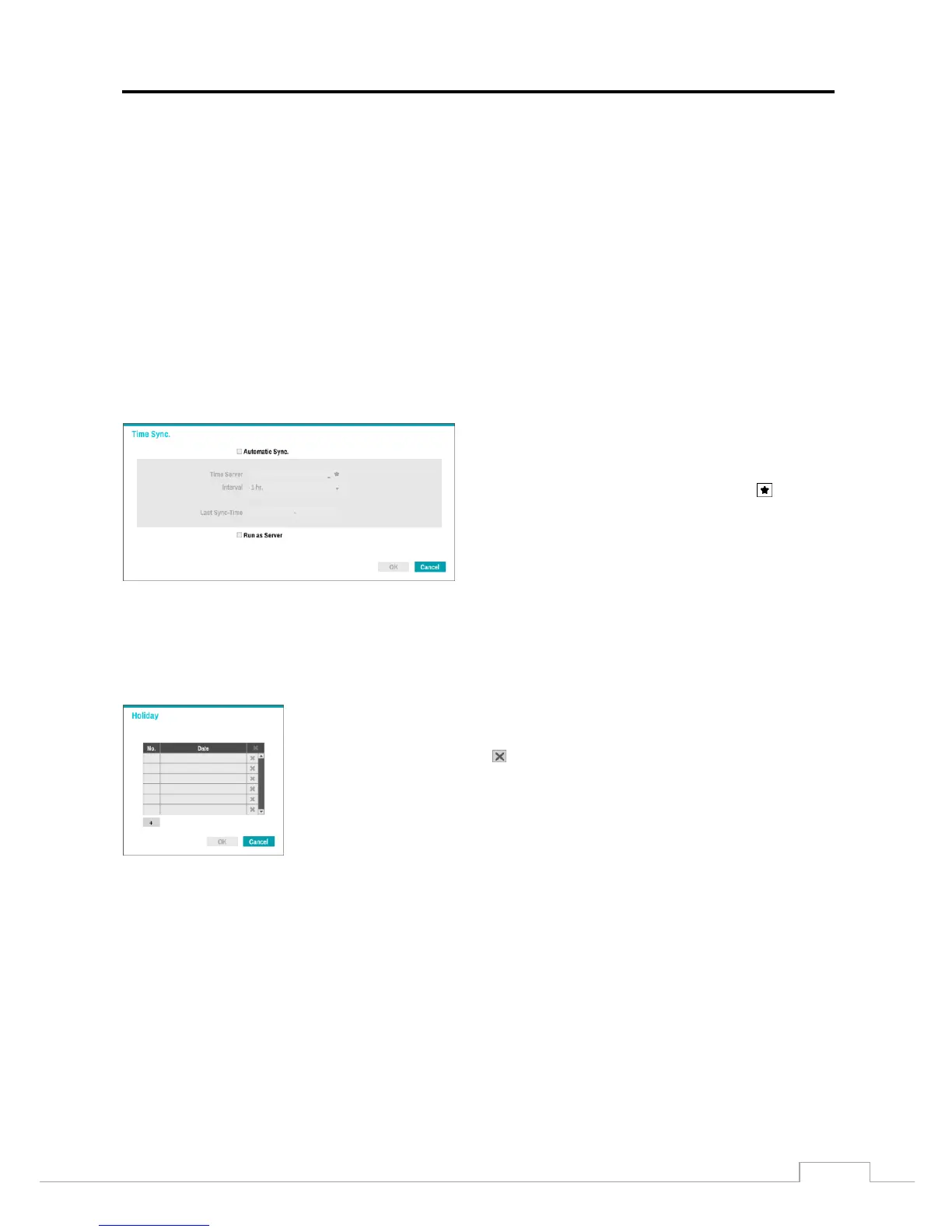
Selecting the Time Sync box. Time can be synchronized between the Recorder and standard time servers that are
available in most time zones and countries, or between the Recorder and another Recorder.
Selecting the box beside Automatic Sync. toggles between
On and Off.
Select the box beside Time Server and enter the IP address
or domain name of the time server. Or, select and then
a time server from the time server list.
NOTE: Use the domain name instead of IP address if the
domain name is set up the DNS Server.
Select the box beside Interval and set the time interval for synchronization from 30 minutes to 1 day.
Last Sync-Time displays the last time the Recorder was synchronized with the time server.
Selecting Run as Server toggles between On and Off. When it is On, the Recorder runs as a time server.
Select the Holiday box and set up holidays.
Set up holidays by selecting
+
. The current date appears.
Select the month and day and change them by using the Up and Down arrows. Dates
can be deleted by selecting the beside the date.
NOTE: Holidays that do not fall on the same date each year should be updated
once the current year’s holiday has passed.


 To Next Page