4 | P a g e
From your computer go to: http://volume.itunes.apple.com/us/store
In the Search Paid Apps box type in a subject or name of an app. Choose the specific app you wish to purchase. Review
the page contents then copy the entire URL from the website. Paste the complete URL in an email along with the name
and price of the app to infotech@umhb.edu for approval.
You may want to save the URL to your Favorites. For example this is the URL for Audionote
http://volume.itunes.apple.com/us/app/audionote-notepad-voice-recorder/id369820957?mt=8&term=audio%20notepad&ign-mpt=uo%3D4
After approval, you will receive an email from IT with the iTunes Code needed to purchase the app.
Once you have received the iTunes Code, go to the app URL or iTunes/App Store. Search and select the approved iPad
App. When the app page appears, click on the Buy App button. Click Buy when prompted.
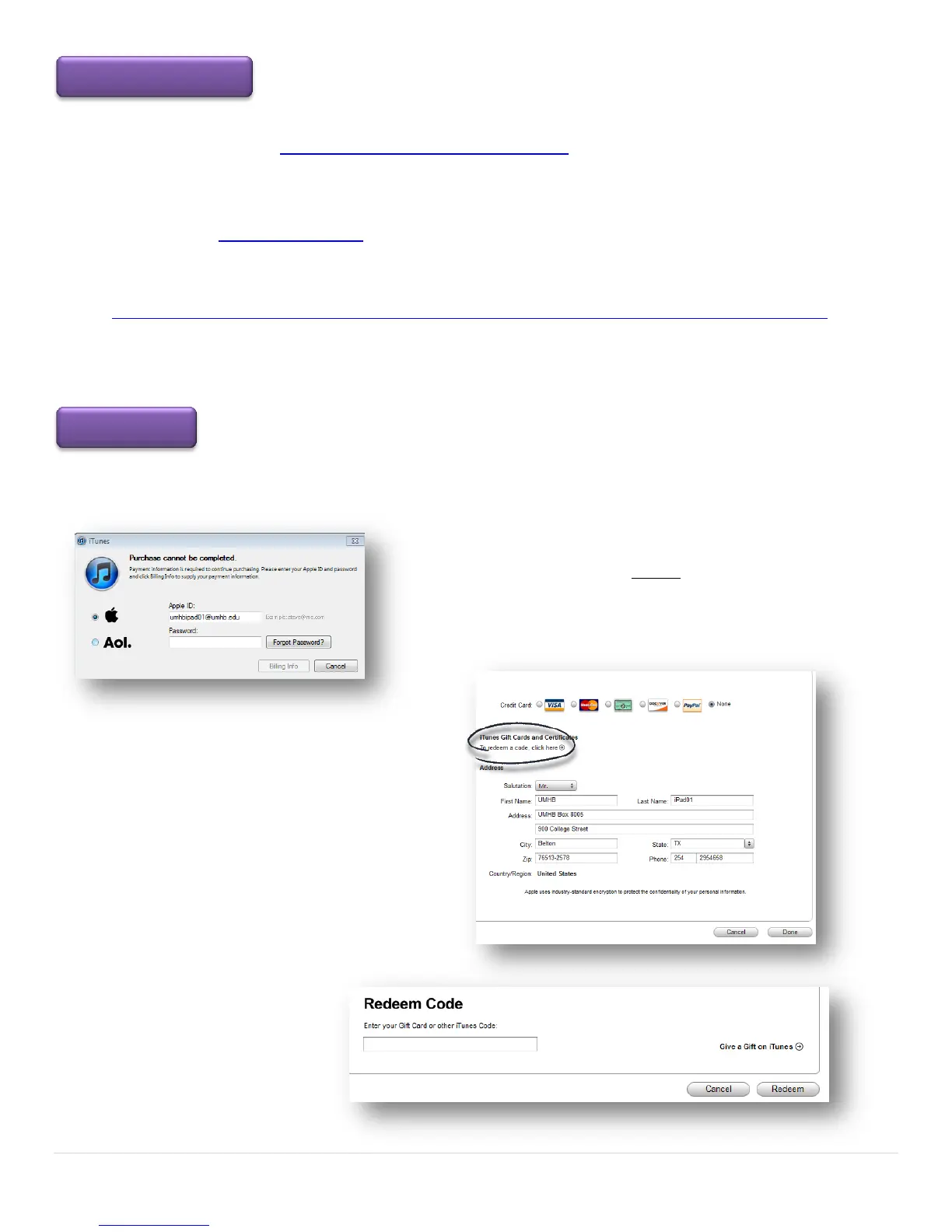
You will be asked to type in the password.
The password is Umhb1845 (exactly the way you see it here unless
you changed the password).
Click on the Billing Info button.
On the Edit Payment Information page, select
To redeem a code, click here.
Enter the code and select
the Redeem button.



 To Next Page