Tap, Hold, and Drag
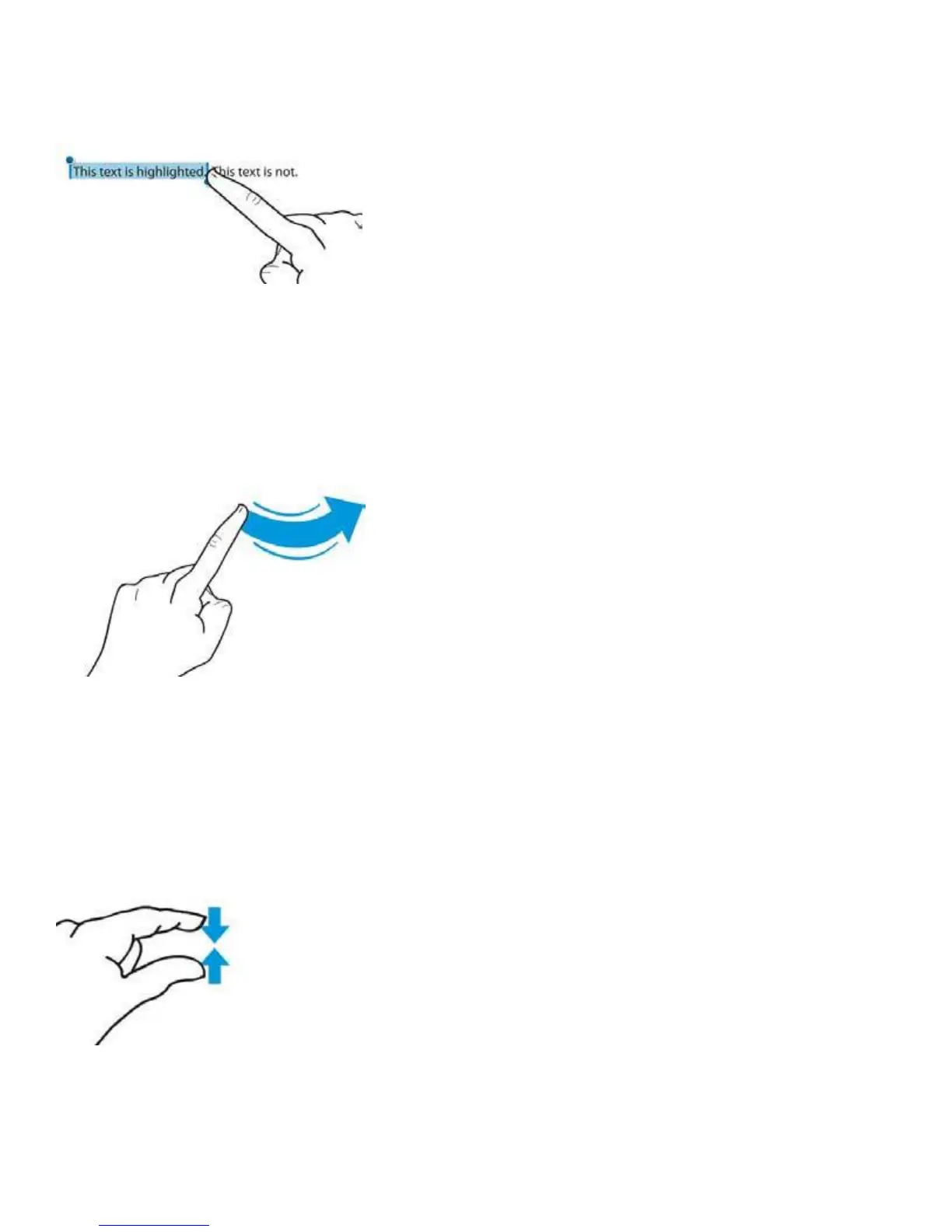
For some functions‚ such as highlighting text, copying and pasting, or deleting and moving apps‚ you’ll need
to tap and hold down on the screen. When you do this on a piece of text, it will highlight in blue, and editing
handles—vertical lines with blue dots—will appear on either side of the highlighted area. You can tap, hold,
and, while holding down, drag your finger to increase or decrease the selection. Dragging also comes into play
for moving objects in apps, drawing, and swiping and flicking.
Flick and Swipe
Drag your finger across the screen‚ up, down, left, or right‚ to swipe. Swiping is one of the primary
navigational tools on the iPad: You use a left or right swipe to move through app pages on your Home Screen or
images in the Photos app; you use an up or down swipe to read text in Safari. It’s one of the easiest gestures
to learn. A flick is just like a swipe, only faster: The iPad supports inertial scrolling, which means that the faster
or slower you move your finger, the faster or slower content will move. If you want to get to the bottom of a
page quickly, just flick your finger upward in a fast motion.
Pinch
To zoom in or out, you’ll use the pinch gesture (also referred to as pinch-to-zoom). To zoom in or to open
something, place your thumb and index finger, pinched together, on screen and spread them apart. To zoom out,
do the reverse: start with your thumb and index finger outwards, and then pinch them together.



 To Next Page