Note: To save space, iPad automatically deletes audio messages two minutes after you
listen to them, unless you tap Keep. To always keep them, go to Settings > Messages >
Expire (below Audio Messages), then tap Never.
Forward a message or attachment. Touch and hold a message or attachment, tap
More, select additional items if desired, then tap .
Share, save, or print an attachment. Tap the attachment, then tap .
Copy an attachment. Touch and hold the attachment, then tap Copy.
Share items from another app. In the other app, tap Share or , then tap Message.
Delete a message or attachment. Touch and hold a message or attachment, tap More,
select additional items if desired, then tap .
Digital Touch
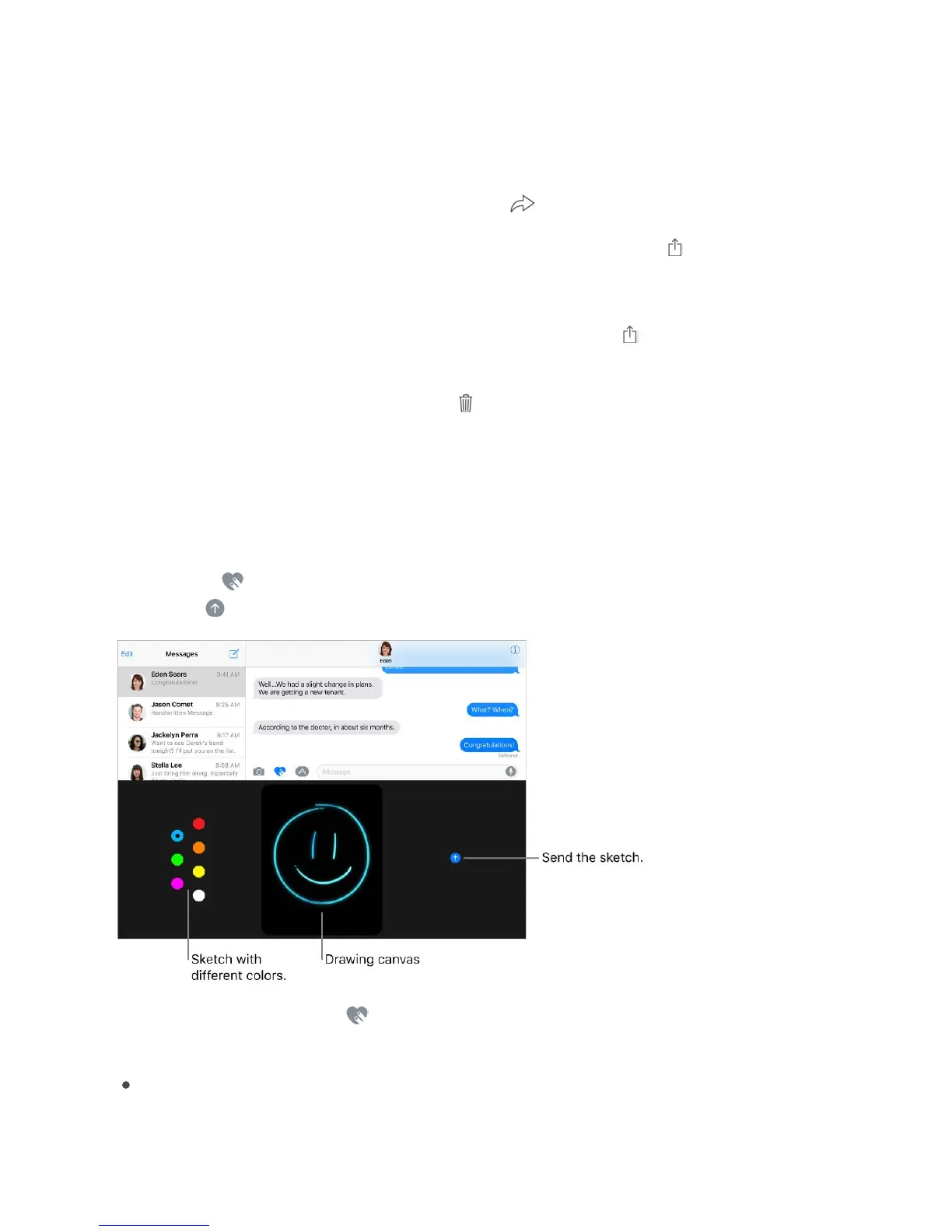
With iMessage, you can use Digital Touch to send sketches, taps, kisses, heartbeats, and
more. You can even add a Digital Touch effect to a photo or video.
Sketch. Tap , then draw with one finger. You can change the color, then start drawing
again. Tap to send.
Express your feelings. Tap , then use gestures on the canvas to send a Digital Touch
effect. Your feelings are sent automatically when you finish the gesture:
Tap: Tap with one finger to create a burst of color. You can change the color, then tap
again.



 To Next Page