Browsing with Safari
|
91
Managing a Reading List
Many times you’ll run across an interesting website that you want to visit again,
but you may not necessarily want to save it as a bookmark (which you learn to do
in Chapter 13). For temporarily saving websites, Safari offers a Reading List. The
Reading List lets you save, open, and delete websites at any time.
Creating and Using a Reading List
When you find an interesting website, you can save it to your Reading List by fol-
lowing these steps:
1. From the Home screen, tap Safari. The
Safari screen appears.
2. Visit a website by typing an address, using
a search engine, or visiting a previously
stored bookmark.
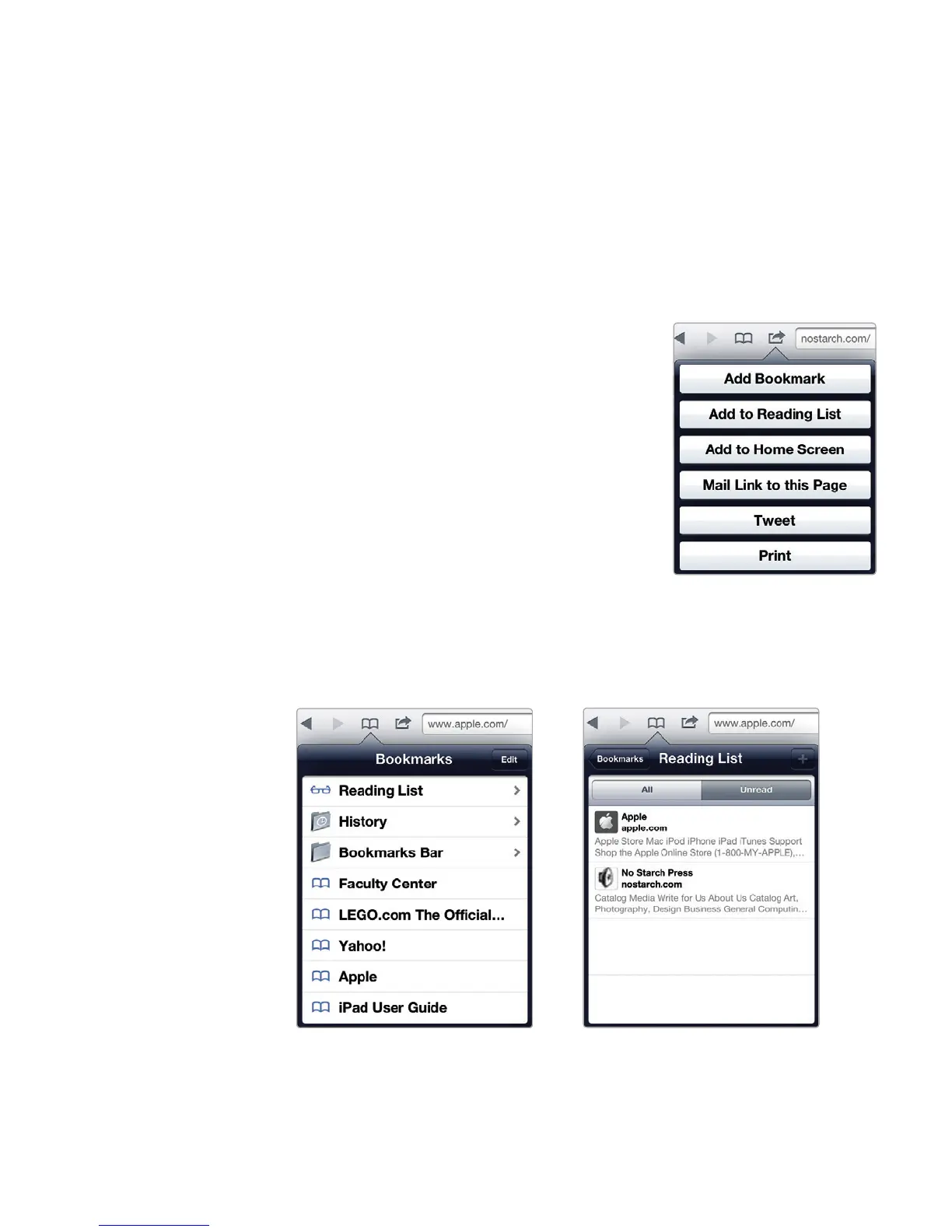
3. Tap the Action icon (it looks like a square
with a curved arrow pointing to the right).
Amenu appears, as shown in Figure 12-4.
4. Tap Add to Reading List.
5. Tap the Bookmarks icon (it looks like an
open book). The Bookmarks menu appears,
as shown in Figure 12-5.
6. Tap Reading List. The Reading List menu
appears, as shown in Figure 12-6.
7. Tap the All tab to see all your saved web-
sites, including those you’ve already visited
since they were stored in your Reading List.
FIGURE 12-4: The Action
icon lets you save or
share a Web page.
FIGURE 12-5: You can revisit
your favorite sites with the
Bookmarks icon.
FIGURE 12-6: To temporarily
save an article you’d like to
read later, try the Reading List.



 To Next Page