Watching Video Podcasts, iTunes U Classes, and YouTubeVideos
|
155
Viewing a Video File
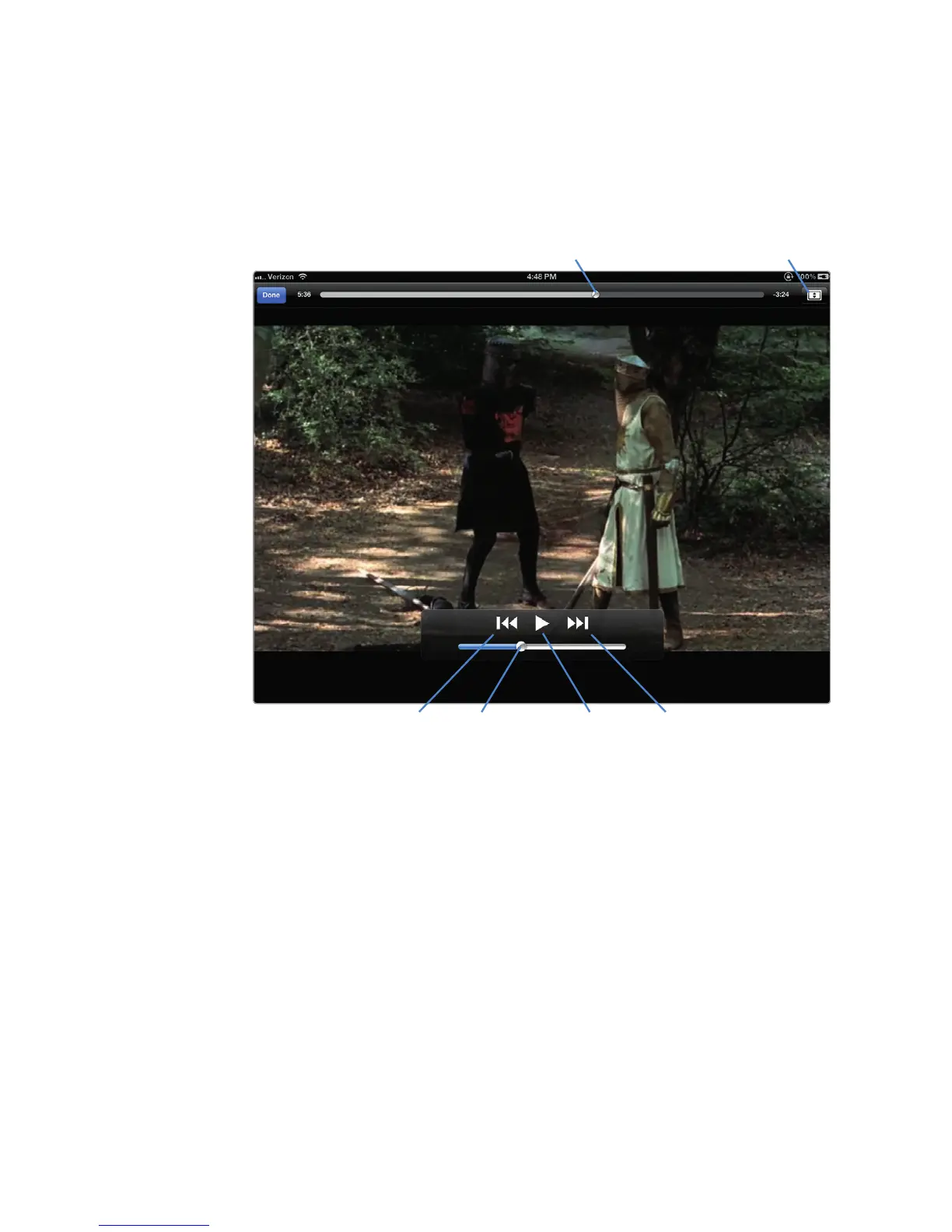
When you’re watching a video file, you can display controls by tapping the screen
once. The controls appear at the top and bottom of the screen, as shown in Fig-
ure19-2. If you don’t use any of the displayed controls after a few seconds, they
disappear again. You can also hide the controls by tapping the screen once while
they are displayed.
The available controls are as follows:
> Playhead slider Drag this left and right to play different parts of the
videofile.
> Full Screen Tap to expand the video to fill the entire screen; tap a second
time to shrink the video slightly.
> Rewind Tap to rewind to the beginning of a video file or play the previous
video file in a list. If you hold your finger over the rewind button, you can
quickly skip back through a video.
> Volume slider Drag this left and right to adjust the volume.
FIGURE 19-2: Tapping a playing video displays controls at the top and
bottom of the screen.
Playhead slider Full Screen
Volume sliderRewind Play/Pause Forward



 To Next Page