156
|
Chapter 19
> Play/Pause Tap to pause or resume playing of a video file.
> Forward Tap to play the next video file in a list. If you hold your finger over
the forward button, you can quickly jump ahead in a video.
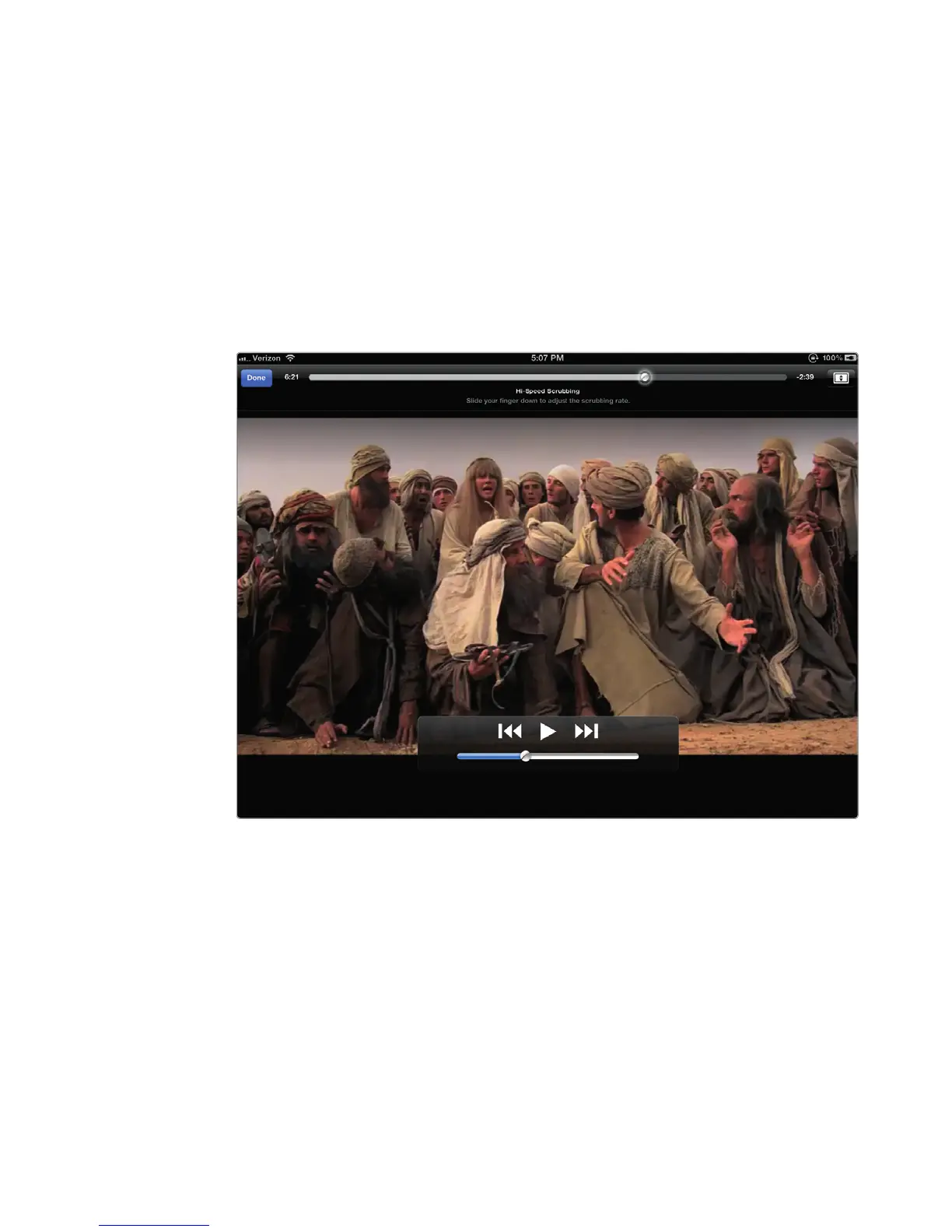
Q NOTE: To skip backward or forward in a video at different speeds, hold your
finger over the Playhead slider until a Hi-Speed Scrubbing message appears
underneath thePlayhead slider, as shown in Figure 19-3. Slide your finger
down away from the Playhead slider. As you move your finger down, the
Hi-Speed Scrubbing message changes into Half Speed Scrubbing, Quarter
Speed Scrubbing, and Fine Scrubbing. When your desired speed appears,
slide your finger left or right to rewind or fast forward through your video.
To see how to control a video, follow these steps:
1. Follow the steps in “Choosing a Video” on page 154 to find a video you
want to play.
2. Tap the image that represents the video you want to play. A list of episodes
appears in the left side of the screen, as shown in Figure 19-4.
3. Tap Play. Your chosen episode starts playing, filling the entire screen.
4. Tap the screen once to display controls at the top and bottom of the screen.
5. Drag the Playhead slider to view a different part of the video.
FIGURE 19-3: Sliding your finger down lets you choose different scrubbing
rates to change the speed that you can scroll backward or forward.



 To Next Page