Watching Video Podcasts, iTunes U Classes, and YouTubeVideos
|
157
6. Drag the Volume slider to adjust the volume.
7. Tap Play/Pause to pause and play the video.
8. Tap and hold Rewind. Your video plays backward.
9. Tap and hold Forward. The video advances and then stops when you
release.
10. Tap Full Screen. The video expands to fill the screen.
11. Tap Full Screen again. The video shrinks slightly.
12. Tap Done.
Choosing a YouTube Video
For those times when you want to watch something for just a few minutes, you can
browse the massive selection of videos available on YouTube. On your iPad, you
can access YouTube directly without going through your browser at all.
Before you start browsing YouTube’s massive library of videos, make sureyou
have a reliable Internet connection. If you have a weak Internet connection, you may
spend your time staring at a screen that appears frozen but occasionally lurches
forward to display a few additional frames before grinding to a halt once more.
After you’re satisfied that your Internet connection is reliable, you can browse
through YouTube by following these steps:
1. From the Home screen, tap YouTube. The YouTube screen appears.
2. Tap Featured at the bottom of the screen. Thumbnail images of videos that
YouTube is promoting that day appear, as shown in Figure 19-5.
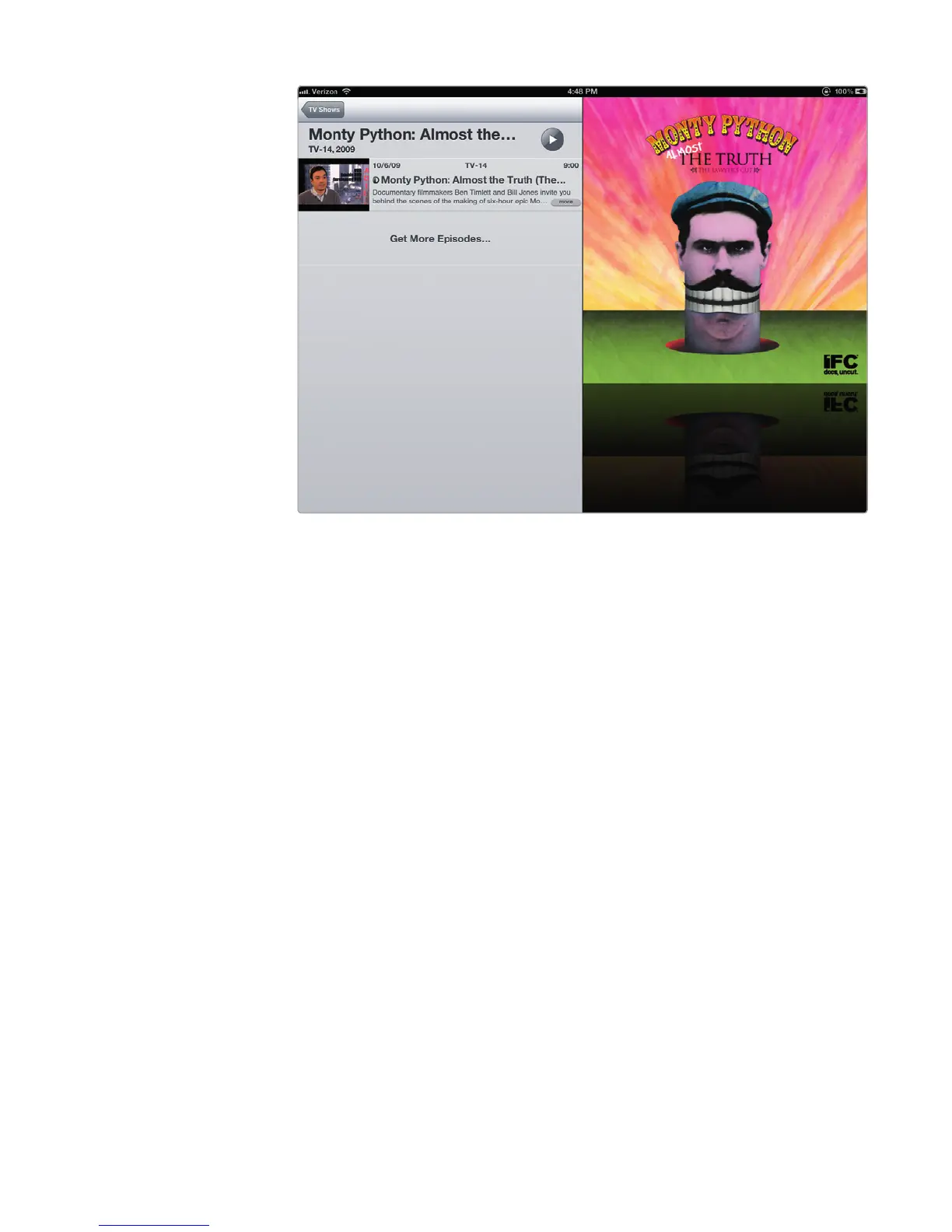
FIGURE 19-4: Viewing a list of episodes for a video



 To Next Page