276
|
Chapter 32
Q NOTE: If you’re connected to a Wi-Fi network and you still can’t browse the
Web or check your email, the Wi-Fi network you are connected to may not
have Internet access. (For example, you might be in an airport or hotel where
they’d like you to pay money to connect.) To stop automatically connecting to
that bad Wi-Fi network, you want to forget it. See “Forgetting a Wi-Fi Net-
work” on page 73 for instructions.
Restoring Your iPad
Each time that you connect your iPad to your computer through its USB cable, the
iTunes program on your computer makes a backup of your entire iPad. That way if
your iPad malfunctions or fails completely, you can restore your backed up data to
a new iPad and start working right away as if nothing had happened.
Restoring from a Backup
Restoring your iPad is an easy fix for many software troubles—give restoring a try
if your iPad starts to malfunction or fails to sync properly and restarting doesn’t
work. Even if you lose your iPad, you can get a new one, restore your backups to
this new iPad, and essentially clone your old iPad onto your new iPad.
To restore a backup from iTunes to your iPad, follow these steps:
1. Connect your iPad to your computer through its USB cable.
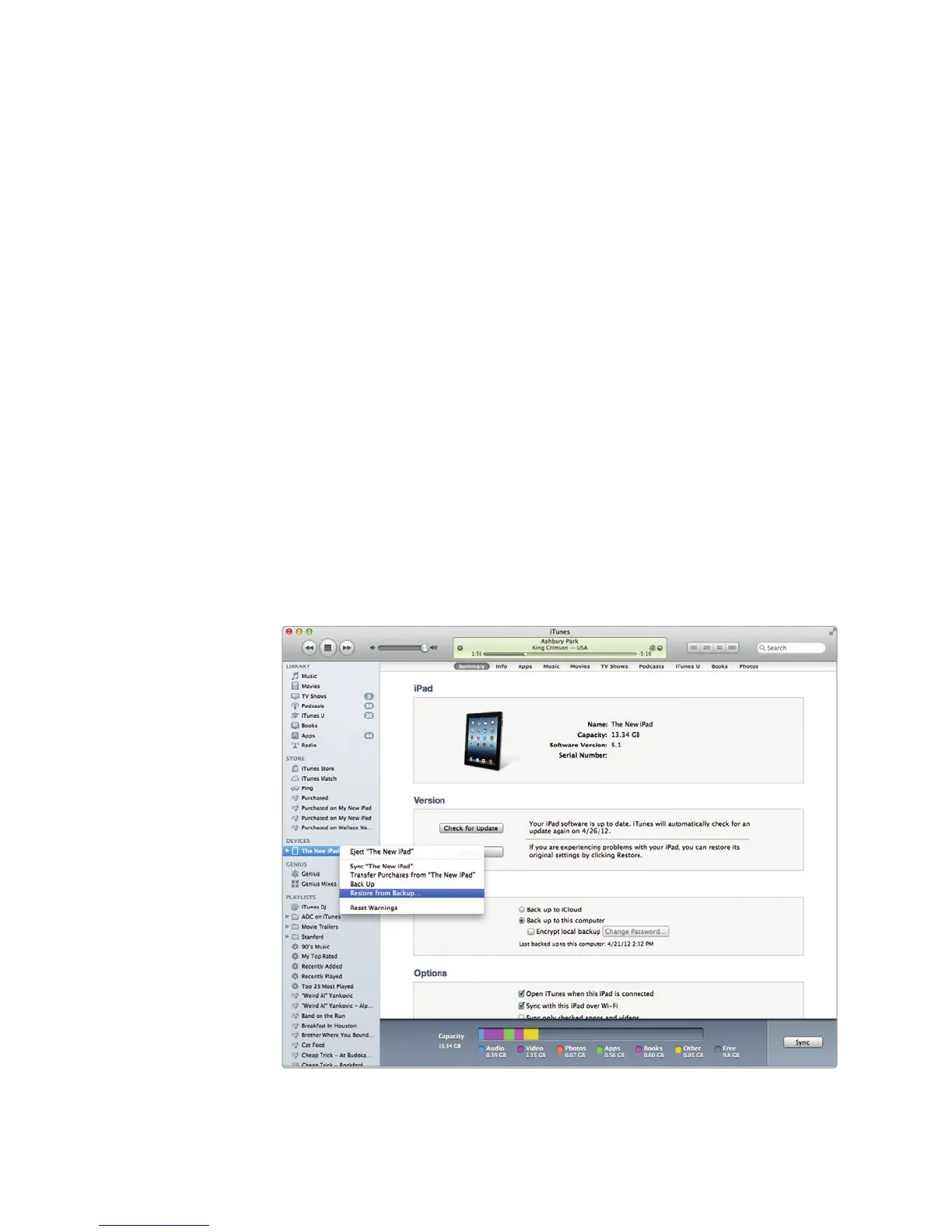
2. Right-click on the name of your iPad under the Devices category in the
iTunes window. A pop-up menu appears, as shown in Figure 32-1.
FIGURE 32-1: Every time you connect your iPad to your computer,
iTunes can back up your data.



 To Next Page