Troubleshooting Your iPad
|
277
3. Choose Restore from Backup. A Restore from Backup dialog appears.
4. Choose the backup you want to use (if you have multiple choices) and click
the Restore button.
Encrypting Your Backup
Normally iTunes on your computer just backs up your data without encrypting it.
However, if you want to protect your backed up data with a password, you can turn
on backup encryption by following these steps:
1. Connect your iPad to your computer through its USB cable.
2. Run the iTunes program on your computer.
3. Click the name of your iPad under
the Devices category in the iTunes
window.
4. Click the Summary tab and select (or
unselect) the Encrypt local backup
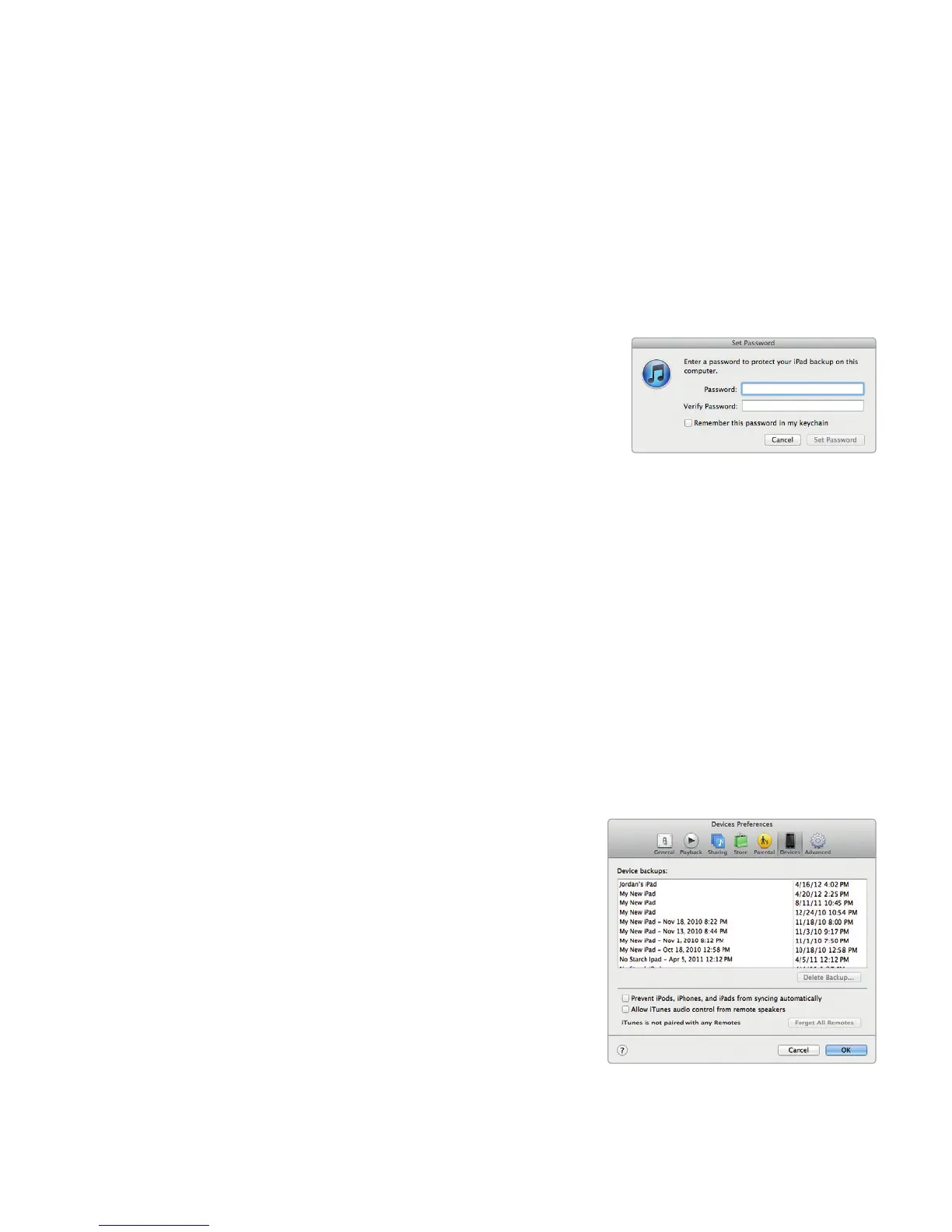
checkbox. A dialog pops up, asking
you to type in a password twice, as
shown in Figure 32-2.
5. Type a password twice and click the
Set Password button.
Q NOTE: You can change your password later by clicking the Change Password
button on the Summary tab. Before you can restore your backup to your iPad,
you’ll need to type in your password, so don’t forget it!
Deleting a Backup
Backing up your iPad is a good idea, which is why iTunes does this automatically.
However, if you’re selling or giving away your computer, you probably don’t want
to keep your iPad backups on that computer anymore. To remove your backups,
follow these steps:
1. Run the iTunes program on your
computer.
2. Choose iTunes4 Preferences
(Mac) or Edit4 Preferences (Win-
dows). A window appears.
3. Click the Devices icon or tab. A list
of your backups appears, as shown
in Figure 32-3.
4. Click the iPad backup you want to
delete and click OK.
FIGURE 32-2: The Encrypt iPad
backup checkbox lets you
define a password.
FIGURE 32-3: You can delete your
iPad backups within iTunes.



 To Next Page