Troubleshooting Your iPad
|
281
Locating a Lost iPad
When the Find My iPad switch is set to ON, you can locate your iPad on a map by
following these steps:
1. Visit http://www.icloud.com/ and sign in using your iCloud account and
password.
2. Click the Find my iPhone icon. iCloud displays a list of any Apple devices
(iPad, iPhone, or iPod) that have been configured to broadcast their locations.
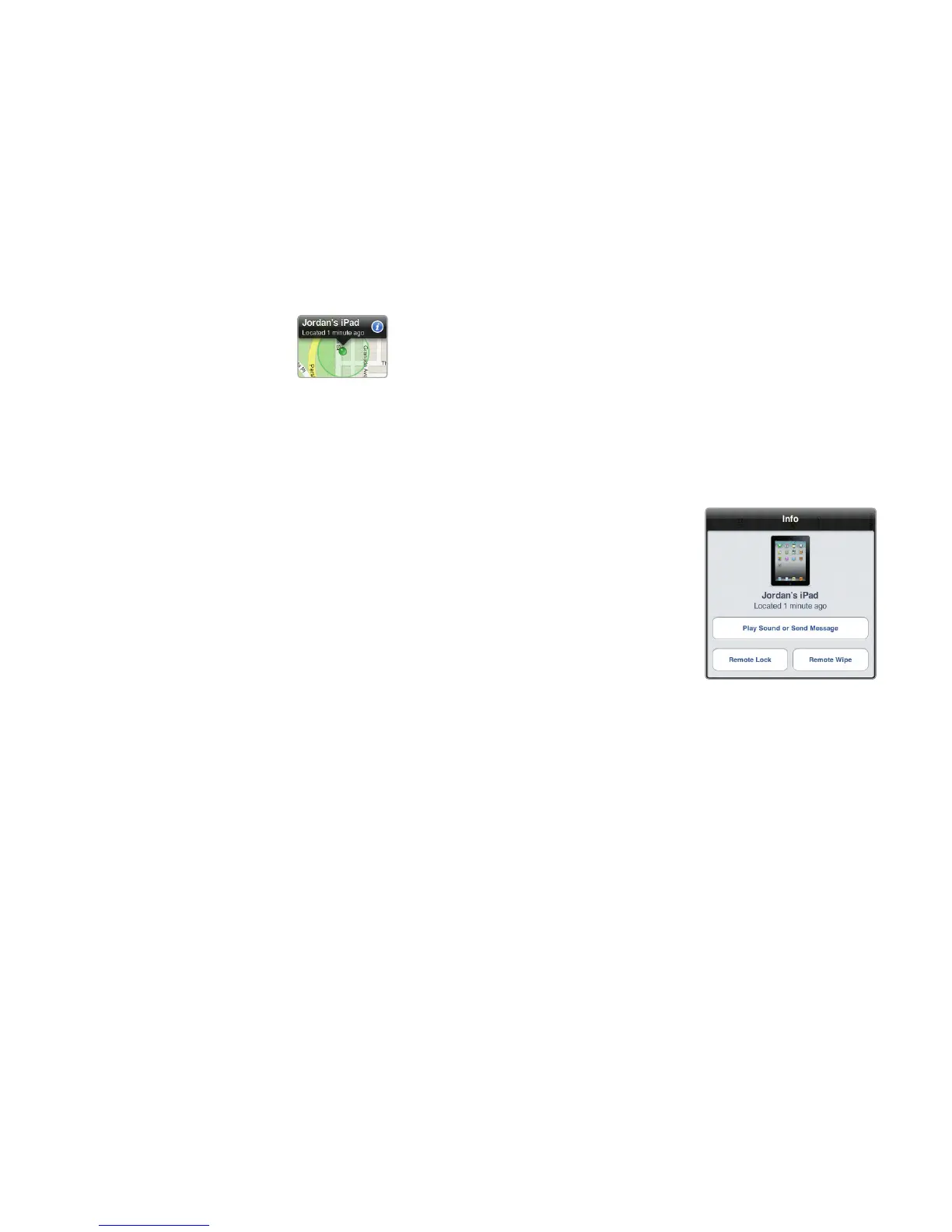
3. Tap on the name of the device that you want to locate. A dot displays the
location of your chosen device, as shown in Figure 32-6.
4. Click the white arrow that appears in a blue circle. A window appears that
displays three buttons: Play Sound or Send Message, Remote Lock, or
Remote Wipe, asshown in Figure 32-7.
> Play Sound or Send Message This
lets you display a message, such as your
contact number or email address, on the
iPad screen so that someone finding your
device can reach you. As an alternative, you
can have your iPad play a sound so you can
locate it in your house or office.
> Remote Lock This lets you block anyone
from using your iPad if they don’t knowyour
current pass code. (If you didn’t set up a
passcode, go back and follow the steps in
Chapter 9.)
> Remote Wipe This lets you erase all your
data to prevent unauthorized access.
Q WARNING: Clicking the Wipe button will return your iPad to its factory set-
tings, but then you will not be able to identify its location or remotely lock it
with a passcode.
5. Click the Play Sound or Send Message, Remote Lock, or Remote Wipe
button, as shown in Figure 32-7. Depending on which option you choose, you
may see additional options.
FIGURE 32-6: Locating a missing
iPad through iCloud
FIGURE 32-7: The
three options after
you have located
your iPad



 To Next Page