Charging and Conserving Battery Power
|
13
3. Tap the Location Services on/off switch so it reads OFF. As an alternative,
you can selectively tap the on/off switch of the different apps stored on your
iPad. That way you can turn off Location Services for certain apps but keep it
turned on for other apps.
4. Press the Home button to return to the Home screen.
Turning Off Notifications
Notifications can let you know when a text message or game center message sud-
denly arrives. If you don't use these services, you can turn off the notifications to
keep the iPad from expending energy checking for new notifications by following
these steps:
1. From the Home screen, tap Settings. The Settings screen appears.
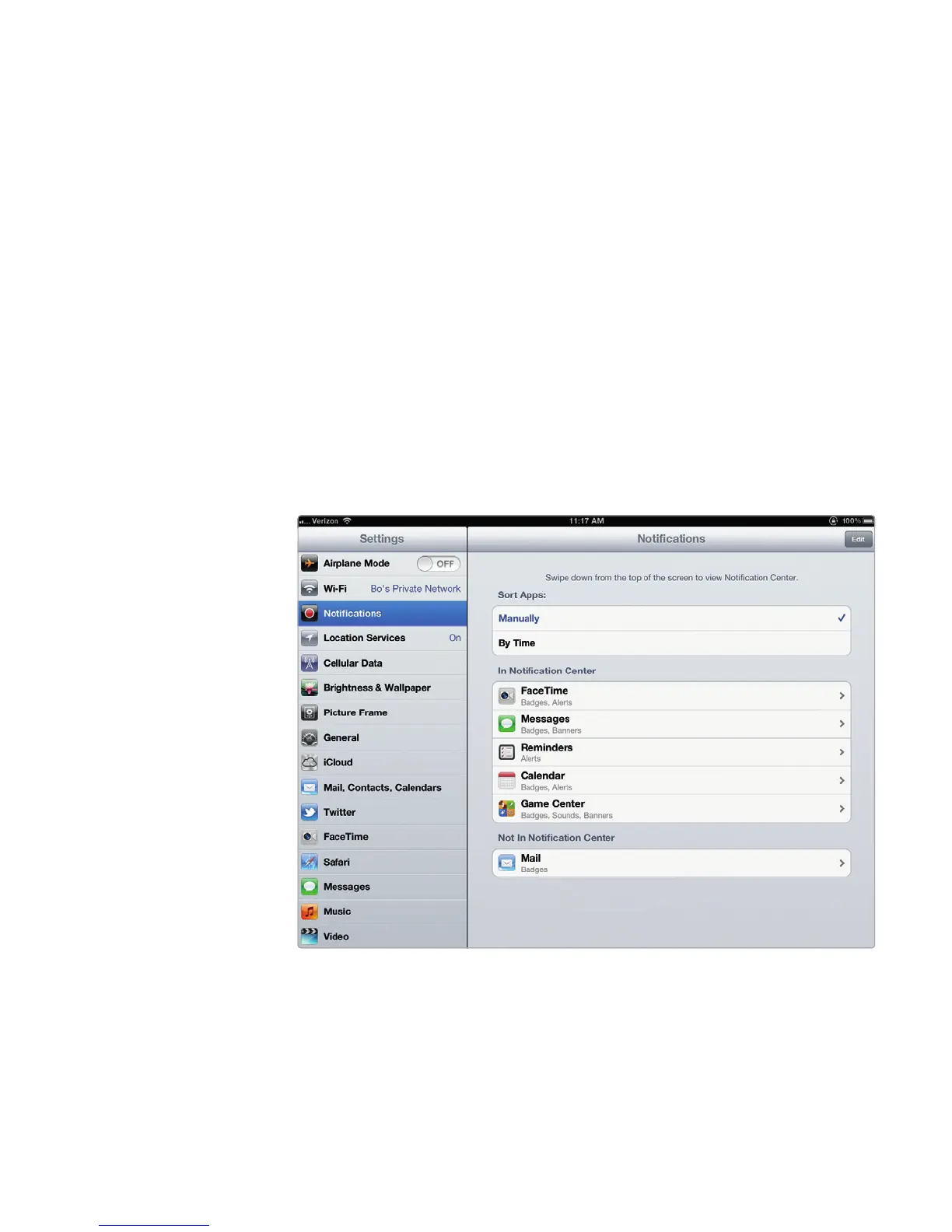
2. Tap Notifications. The Notifications settings screen appears, as shown in
Figure 2-4.
3. Tap the notification you want to turn off. Your chosen item’s notification set-
tings appear, as shown in Figure 2-5.
4. Tap the Notification Center on/off switch to turn it OFF.
FIGURE 2-4: The Notifications settings screen



 To Next Page