Charging and Conserving Battery Power
|
15
Monitoring Battery Life
To let you know how much battery life is left, your iPad displays a battery gauge
inthe upper-right corner of the screen. The more filled this battery gauge appears,
the more charge your battery has remaining.
Since this small visual gauge may be hard to read, your iPad can also display
the battery charge remaining as a percentage. A fully charged battery appears
as100% charged, while a weaker battery charge will have a lower percentage.
When your battery life reaches 20% and 10%, warning messages alert you to
recharge your iPad soon.
In case you find this battery percentage indicator annoying, you can turn it
off (or on) by following these steps:
1. From the Home screen, tap Settings. The Settings screen appears.
2. Tap General. The General settings screen appears.
3. Tap Usage. The Usage settings screen appears, as shown in Figure 2-7.
4. Tap the Battery Percentage on/off switch. When set to ON, the battery
percentage indicator appears next to the battery gauge. When set to OFF,
the percentage indicator does not appear.
5. Press the Home button to return to the Home screen.
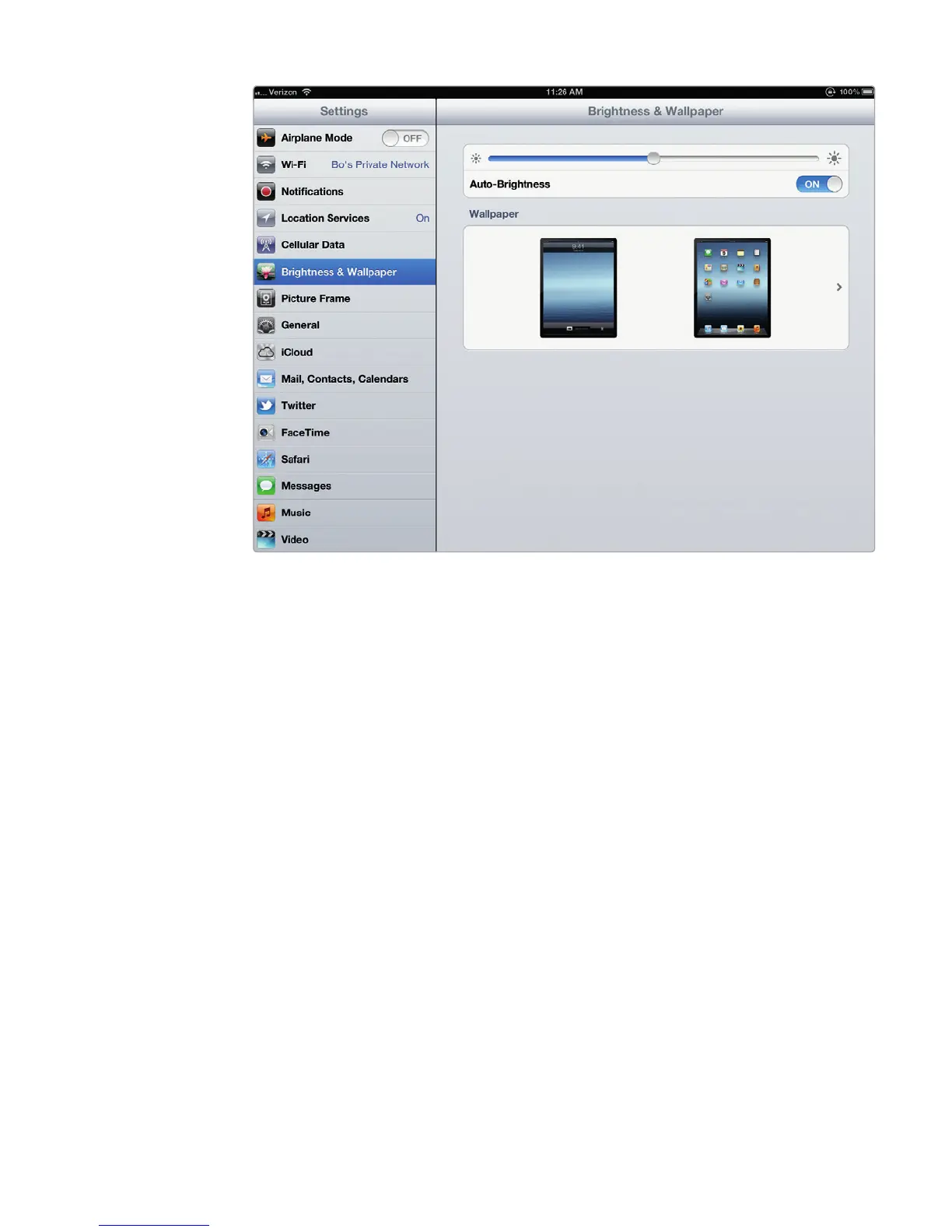
FIGURE 2-6: The Brightness & Wallpaper settings screen



 To Next Page