© Computer Coaching Services | www.computercoach.co.nz | 027 637 0413 | info@computercoach.co.nz P a g e | 15
Tap the home button twice, then flick the bottom of the screen from left
to right.
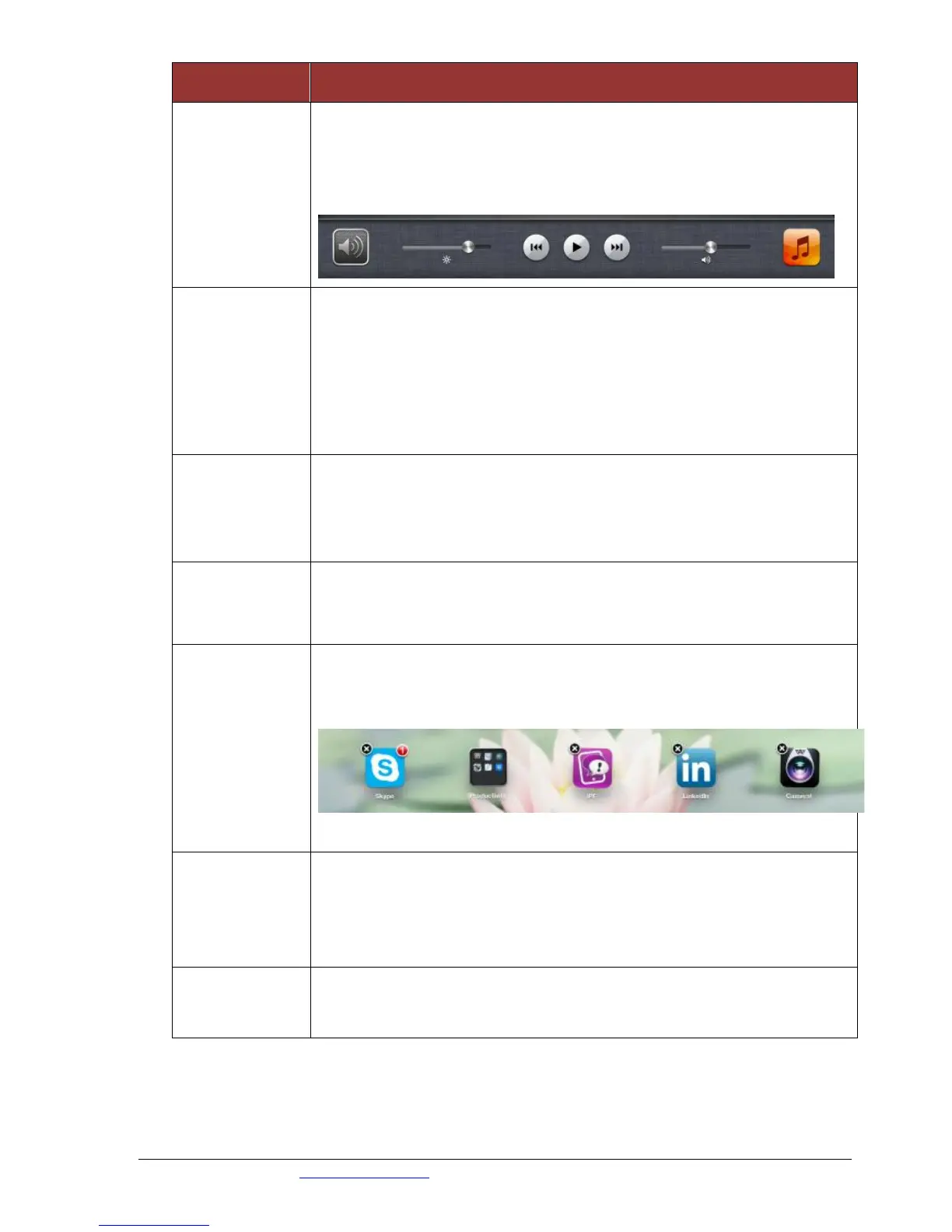
The screen orientation lock (or mute button), brightness slider, and iPad
controls appear.
Use four or five fingers to:
Pinch to the Home Screen
Swipe up to reveal multitasking bar
Swipe left or right between apps
If they are not working, check under Settings, General and turn from Off
to On.
Press and hold any icon until all the icons begin to wiggle
Drag the icons around until you’re happy with their positions
Press the Home button to save your arrangement and stop the
wiggling.
Add an App to
the App Dock
App icons and folders in the dock at the bottom of the Home Screen will
be available across all of your Home Screens. The dock can hold up to 6
apps or folders. Simply drag the desired app onto the dock.
Press and hold any icon until all the icons begin to jiggle
Press the X on the top right corner of the app.
The app will be deleted
Note: you can’t delete built in apps.
Touch and hold an icon until the Home screen icons begin to jiggle.
Drag the icon onto another icon.
A new folder is created that includes the two icons, and shows the
folders name. You can tap the name field to enter a different name.
Remove all icons from the folder. The folder is deleted
automatically when empty.



 To Next Page