Tap the Safari icon. This will take you to the internet.
Type the website address that you want to go to in the address
field at the top of the screen.
Note: if you already have a web site open, that address will be
there, otherwise it will be blank. Tap the clear x button at the far
right of the address field to delete its contents.
Once the address is entered, tap the GO button on the keyboard.
To browse a web page, drag your finger up and down the screen,
or left and right across the screen.
To zoom in and out place two fingers on the screen and pinch
them in and out, or:
Double tap your finger where you want to zoom in to.
Use the back and forward buttons in the top left corner of the
screen to go back and forth between prevously visited sites.
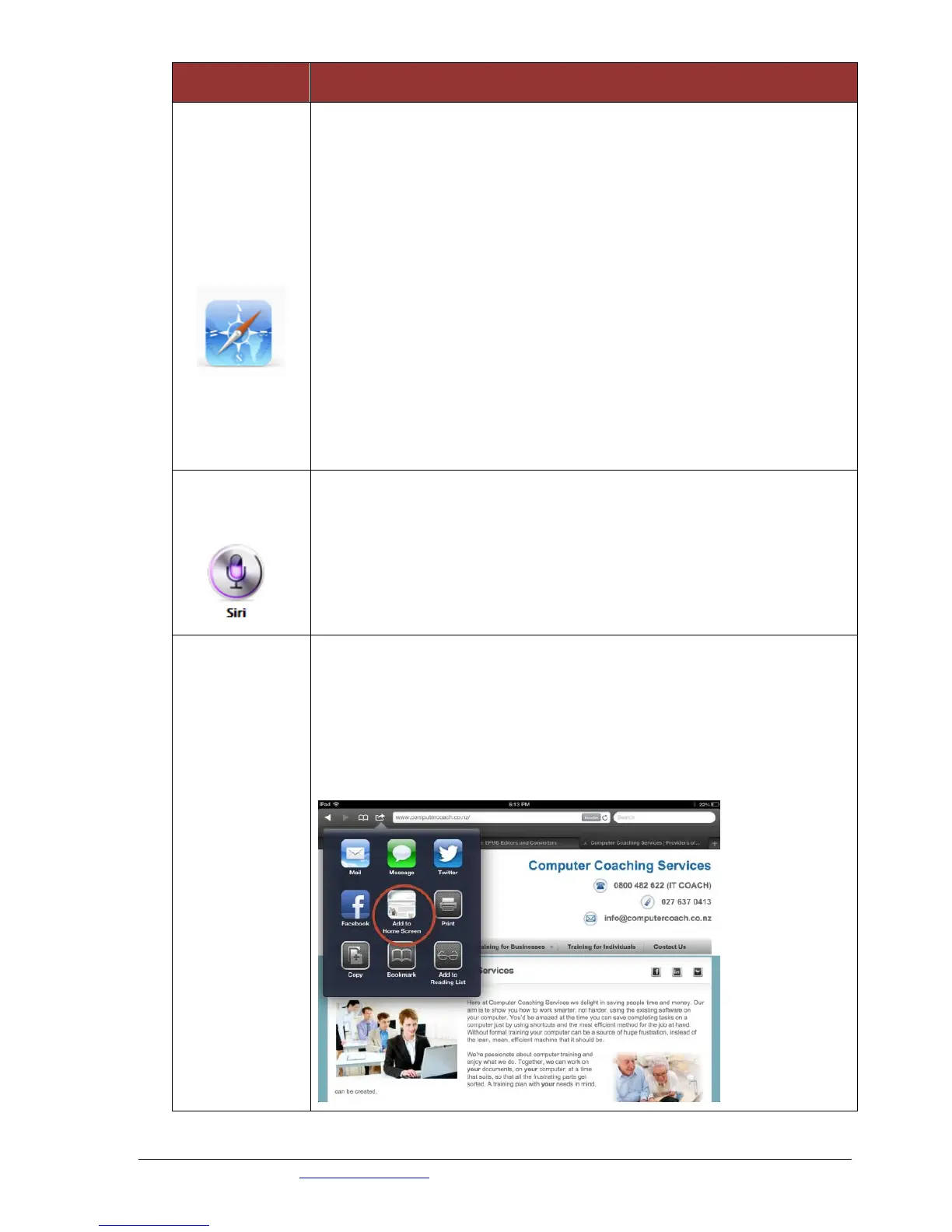
Safari does not allow you to set a home page. Instead when you visit
Safari you are taken to the last web page you went to. A work around for
this is to create web clips.
Open the web page that you want to save as a clip
Tap the Add to Home Screen button
An icon appears on your home screen. Simply tap this to go directly there.



 To Next Page