© Computer Coaching Services | www.computercoach.co.nz | 027 637 0413 | info@computercoach.co.nz P a g e | 17
Type a To Do list
Using Notes
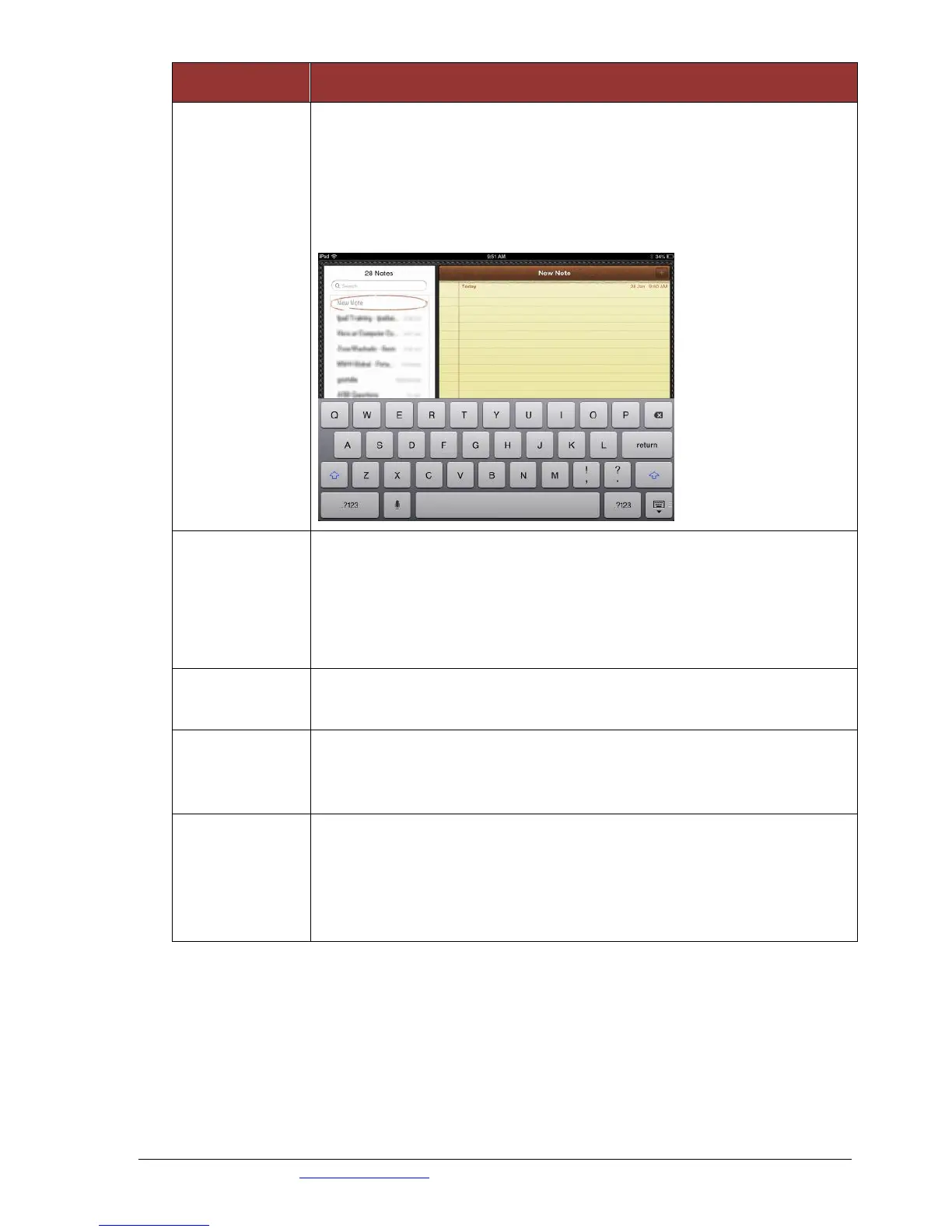
Press the Notes app
Click + on the top right corner of the screen
Start typing your list using the inbuilt keypad. Note the top line of
text will become the name of the note
Click Notes on the top left of the screen when completed
Click the Home button to go back to the Home screen
Use shortcuts to
Enter text
Go to Settings, General, Keyboard
Tap Add New Shortcut and type in the phrase
Type the shortcut you wish to use to trigger it
Tap Save
Double-tap the spacebar once text is inserted.
Swipe up quickly on the ‘comma’ key and it will insert an
apostrophe.
Swiping up on the period key inserts a quotation mark.
Press the Exclamation Mark/Comma key for at least one second.
An apostrophe will appear.
Slide your finger onto it and then lift your finger. You have an
apostrophe without having to visit the punctuation and numeric
keyboard.



 To Next Page