iPad for Learning Trial – iPad Quick Start Guide Page 5
9. Provide the required username and password details and click Continue.
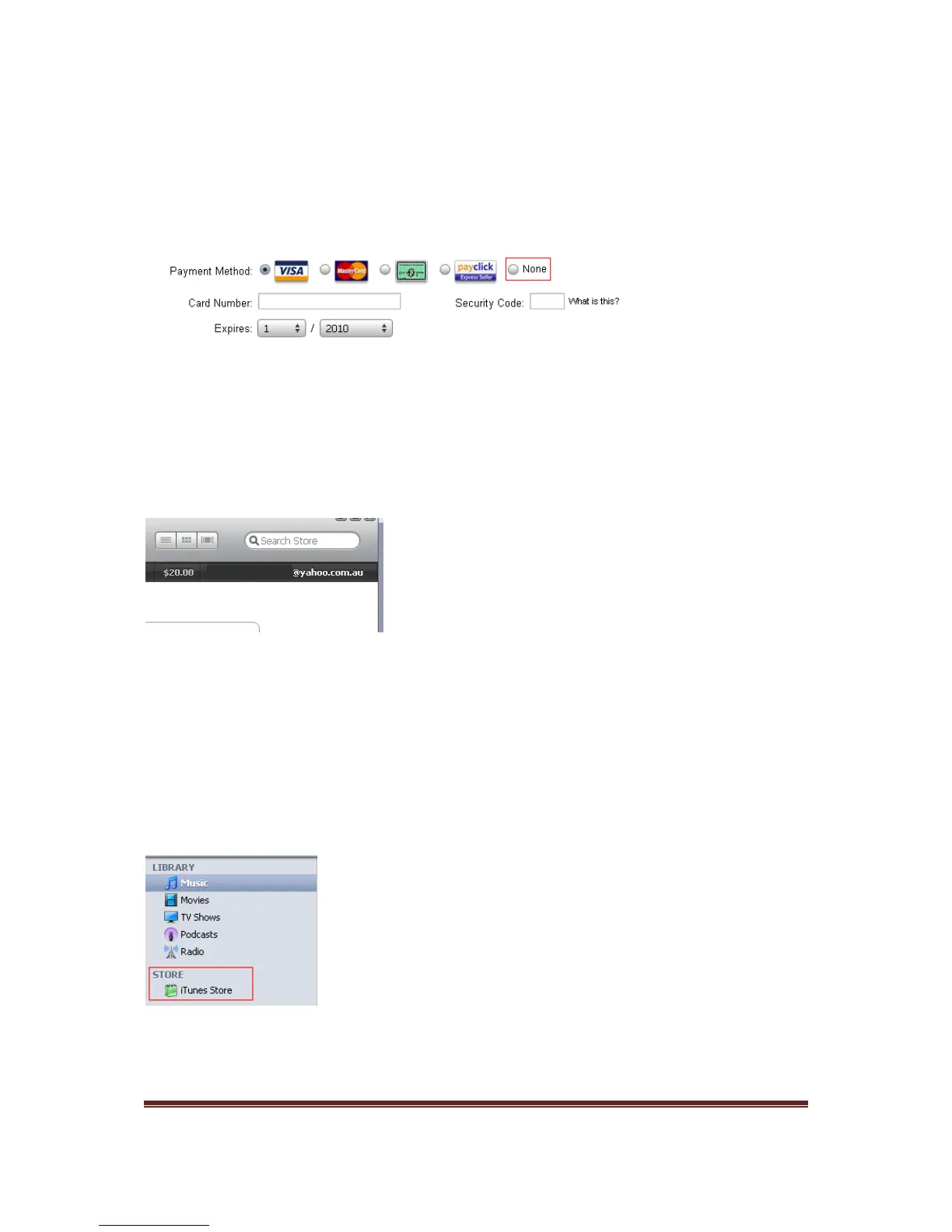
10. In the follow screen you are asked to provide you payment method for your iTunes
purchases and your billing address. As part of this Trial, you have been provided with
iTunes gift cards for your purchases, so there is no requirement for you to select a
payment method. Click the None radio button, enter your billing address details and
click Continue.
11. Once you have successfully, redeemed your iTunes gift cards, the credit amount will
appear next to your account name in the upper-right corner. Each time you purchase
items, iTunes will deduct funds from the credit until it is depleted. If a pending purchase
exceeds the credit amount, iTunes will ask you to enter a credit card number. You do
not need to re-enter your gift card number to make multiple purchases.
Congratulations, you have now successfully created your iTunes store account and have
redeemed your iTunes gift cards. You are now ready to connect your iPad for the first time.
I already have an iTunes store account
1. Open iTunes.
2. On the left hand side of the screen, click on the iTunes Store.
3. In the upper-right corner of the iTunes Store window, click the ‘Sign In’ button. If you
are already signed in, skip to Step 5.
4. Sign into the iTunes Store using your iTunes account information.



 To Next Page