iPad for Learning Trial – iPad Quick Start Guide Page 6
5. In the QUICK LINKS window in the right-hand column, click Redeem.
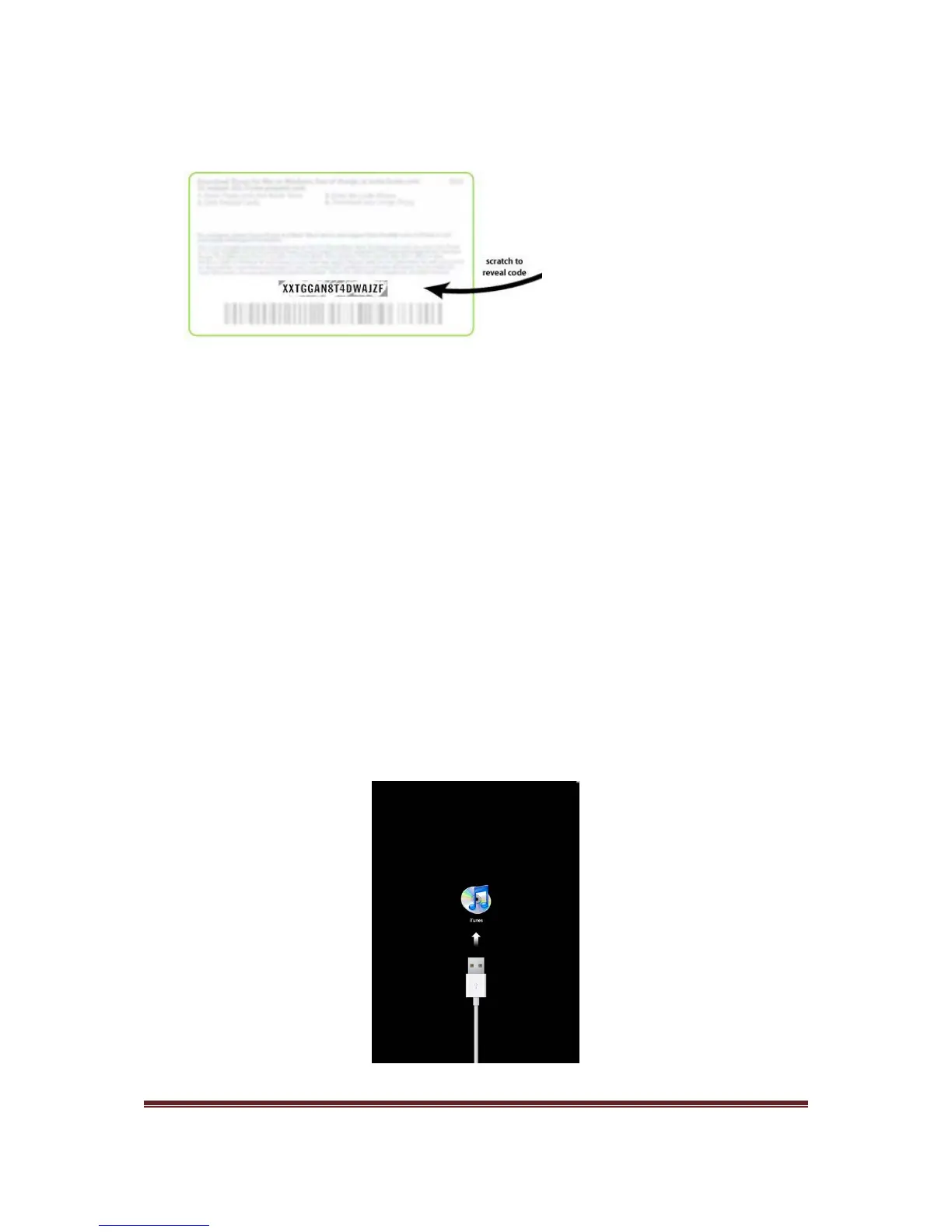
6. In the resulting screen, enter the 16-digit code printed on the back of the card (it starts
with the letter ‘X’), then click Redeem.
7. Once you have successfully redeemed your code, the credit amount will appear next to
your account name in the upper-right corner. Each time you purchase items, iTunes
will deduct funds from the credit until it is depleted. If a pending purchase exceeds the
credit amount, iTunes will ask you to enter a credit card number. You do not need to
re-enter your gift card number to make multiple purchases.
Congratulations, you have now successfully redeemed your iTunes gift cards. You are now
ready to connect your iPad for the first time.
3. Connecting your iPad to your PC or Mac for the
first time
Once you have a computer that that has a copy of iTunes and have redeemed your iTunes
gift cards, you are ready to connect your iPad for the first time.
1. The very first time you turn your iPad on, you are displayed a screen that indicates
need to connect to iTunes.



 To Next Page