7
Multi-faceted Home Button
Single Home Button Tap: A single Home button tap takes you to the main screen.
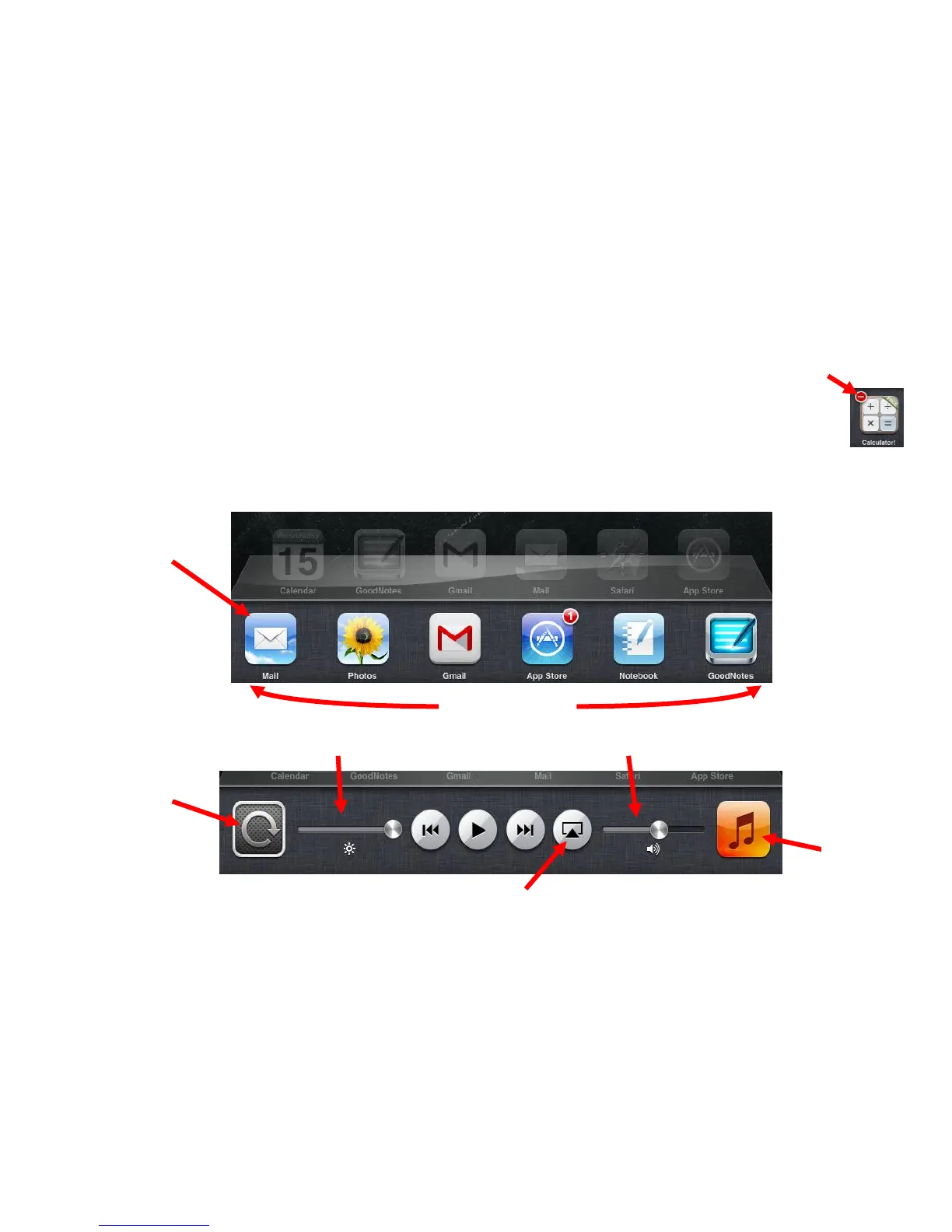
Double Home Button Tap: Double tapping the Home Button will bring up the multi-tasking
bar at the bottom of the screen (as shown below in Picture 1). All open applications will
appear in this multi-tasking bar. Tap any of the icons to open that app. You can swipe the
icons left or right to see more. Swiping the icons all the way to the right will bring up
music, AirPlay/Apple TV, and other options as seen below in Picture 2.
Closing Open Apps: Open the multi-tasking bar to show all of the open apps. Press and
hold one of the app icons until all of the icons start to wiggle and a red circle with a
dash appears on the top left of each icon. Tapping the red circle will close the app.
This is a good way to help keep your iPad running smoothly. Tapping the home button
one time will stop the icons from wiggling. Tap the Home button one more time to
return to the main screen.
Toggle Switch: This will lock the screen orientation to portrait or landscape. To unlock,
press it again.
Music Library: This will bring up your music library on the iPad.
Brightness Slider: This will adjust the brightness of the screen. If you keep the
brightness down, it will help save battery life.



 To Next Page