8
Apple TV/AirPlay: This button will allow you to connect to any AirPlay device (i.e., Apple
TV) that is on your wireless network. (See the Connecting to Apple TV/AirPlay Section for
more information.)
Triple Home Button Press: This will bring up three (3) Accessibility Options.
1. Invert Colors
2. Zoom
3. Assistive Touch
The options for the triple home button tap can be altered by going to Settings > General >
Triple-click Home.
Sound Controls
Volume Control Bar: The upper part of the button increases the volume; the lower part
decreases it.
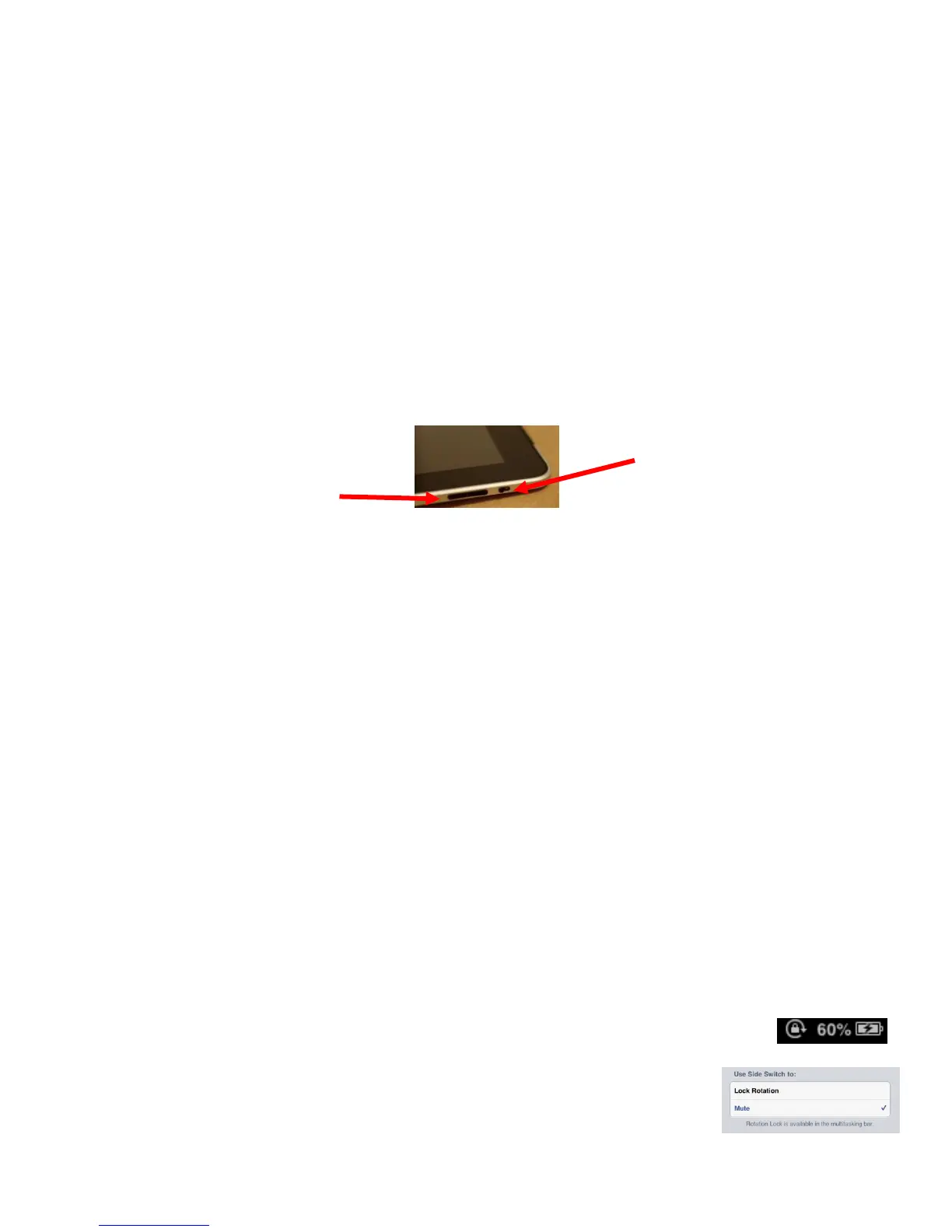
Headphones: If you would like to listen to the iPad privately, plug your headphones into
the hole on the top left corner of the iPad. (See image on page 5.) Use the volume control
bar to set sound to desired level.
Mute/Lock Rotation Switch: On the side of your iPad, there is a sliding switch. By
default, the switch mutes the volume on the iPad. When the switch is set to Silent mode
(
the down position, with an orange dot visible on the switch
), your iPad does not make any
sound when you receive new e-mail or when an alert pops up on the screen.
Note: The Mute Switch does not silence what we think of as "expected" sounds, which are
sounds you expect to hear in a particular app. Therefore, it does not silence the iTunes or
Videos apps, nor will it mute sounds in games and other apps that emit noises. About the only
thing the Mute switch will mute are "unexpected" sounds, such as those associated with
notifications from apps or the iPad operating system (iOS). If the switch does not mute
your notification sounds when engaged (that is, when it is set to see the little orange dot on
the switch), look for a No Rotation icon to the left of the Battery icon in the
Status Bar of the screen (near the top of your screen). If you see this icon
when you flick the Mute switch, you must change the setting from
Rotation Lock to Mute in the Settings app under General Settings.
Mute/Lock
Rotation Switch



 To Next Page