10 Quick Start
Important: Be sure to connect iPod mini to a high-power USB 2.0 port directly on your
computer, or to a powered USB 2.0 hub that’s connected to your computer. iPod mini
won’t work if it’s connected to a low-power USB 2.0 port, such as those sometimes
found on keyboards or other peripherals.
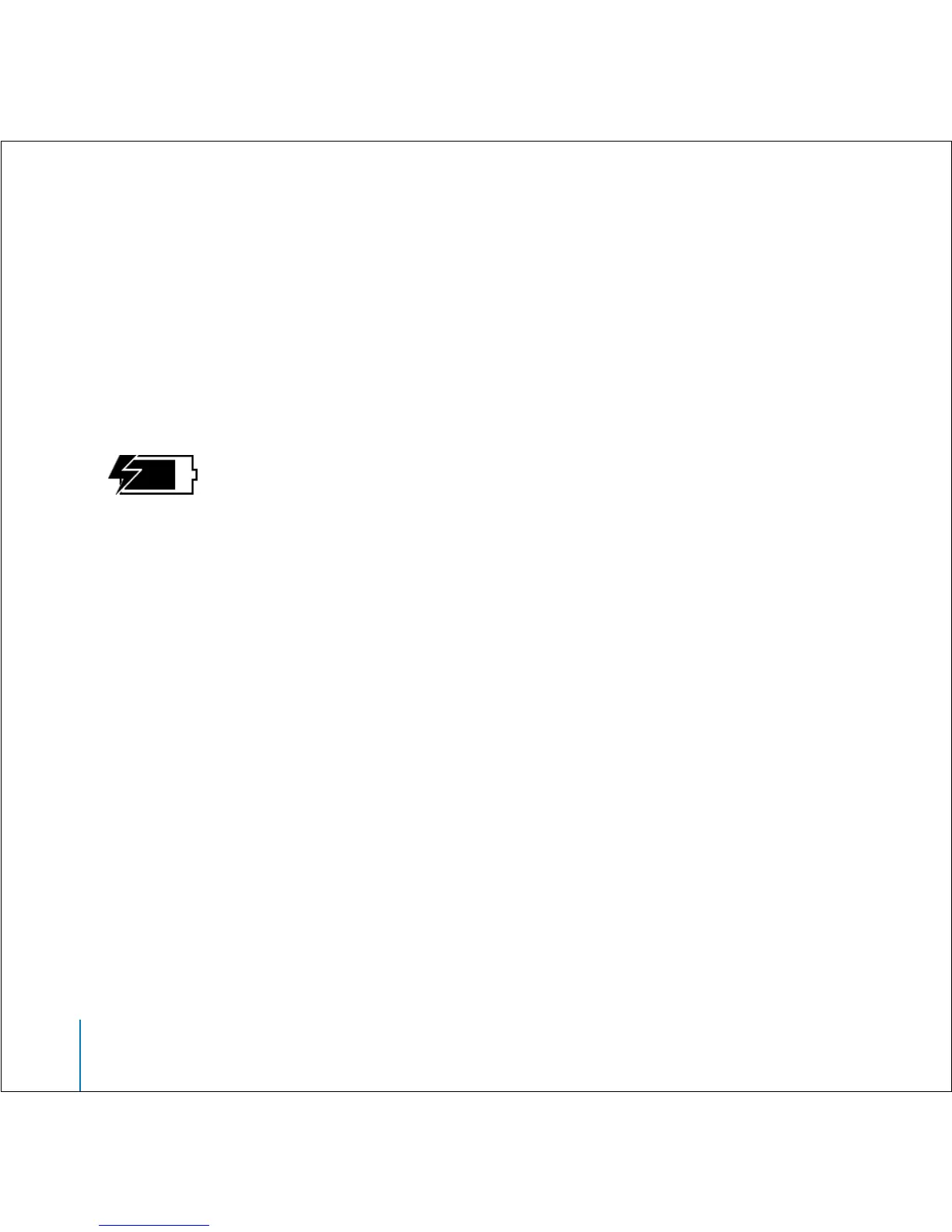
If the battery icon in the upper-right corner of the iPod mini screen shows a lightning
bolt, iPod mini is connected to a high-power USB 2.0 port and the battery is charging
(see page 37 for more information).
If you’re using a portable or laptop computer with a high-power USB 2.0 port, connect the
computer to a power outlet before connecting iPod mini for best results.
If your computer doesn’t have a high-power USB 2.0 port, but has a 6-pin FireWire 400 (IEEE
1394) port, you can connect iPod mini using the optional iPod Dock Connector to
FireWire Cable, available at www.ipod.com/store.
If your Windows PC doesn’t have a high-power USB 2.0 port or a 6-pin FireWire 400 (IEEE
1394) port, you can purchase and install a USB 2.0 card or a FireWire card.
For more information on cables and compatible USB and FireWire cards, go to
www.apple.com/ipod.



 To Next Page