16 Chapter 2 Lesson 2: Transferring Music to iPod mini
• If you have a Windows PC that doesn’t have any FireWire or USB 2.0 ports, you must
purchase and install a FireWire or USB 2.0 card. For more information about
compatible FireWire and USB 2.0 cards, go to www.apple.com/ipod.
Charging the iPod mini Battery
iPod mini has an internal, nonremovable battery. For best results, charge your iPod mini
for at least an hour before you continue this lesson.
To charge the iPod mini battery:
1 Connect the iPod Dock Connector to FireWire Cable to the iPod Power Adapter, and
plug the other end of the cable in to iPod mini.
2 Plug the power adapter in to a working electrical outlet for at least an hour.
Note: If you have a Macintosh, you can also charge the iPod mini battery by
connecting iPod mini to your computer. If you have a Windows PC, in most cases you
can charge the iPod mini battery by connecting iPod mini to your computer. If the
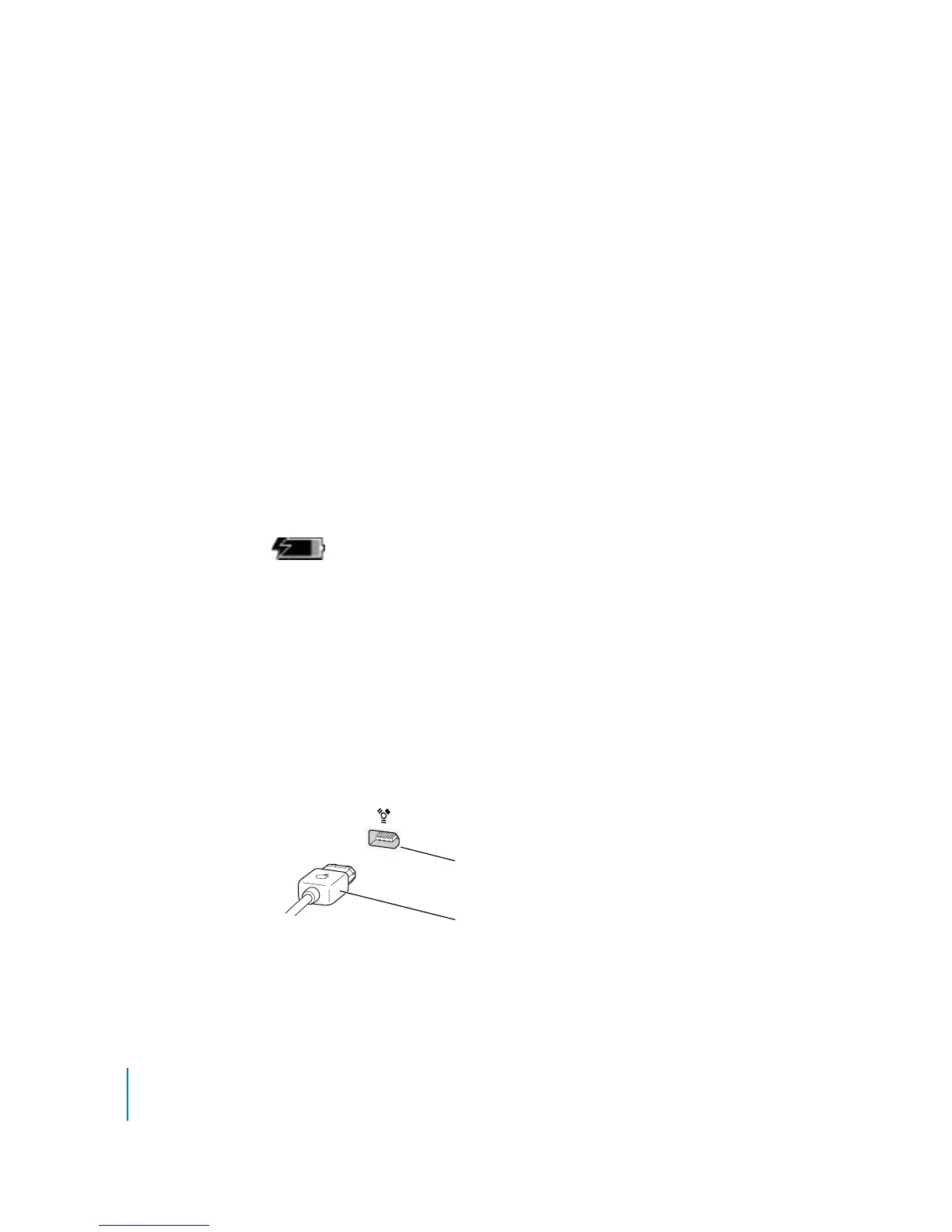
battery is charging, the battery icon on the iPod mini screen animates.
Connecting iPod mini to Your Computer
You connect iPod mini to your computer to transfer music to iPod mini and organize
music on iPod mini.
To connect iPod mini to your computer:
1 Make sure you have the right cable to connect iPod mini to your computer (see “Before
You Begin” on page 15). Then connect the cable to a FireWire or USB port on your
computer, as shown below.
• If you have a Macintosh, or if you have a Windows PC with a 6-pin FireWire port:
Battery charging
6-pin FireWire port
iPod Dock Connector to FireWire Cable



 To Next Page