Controlling Playback
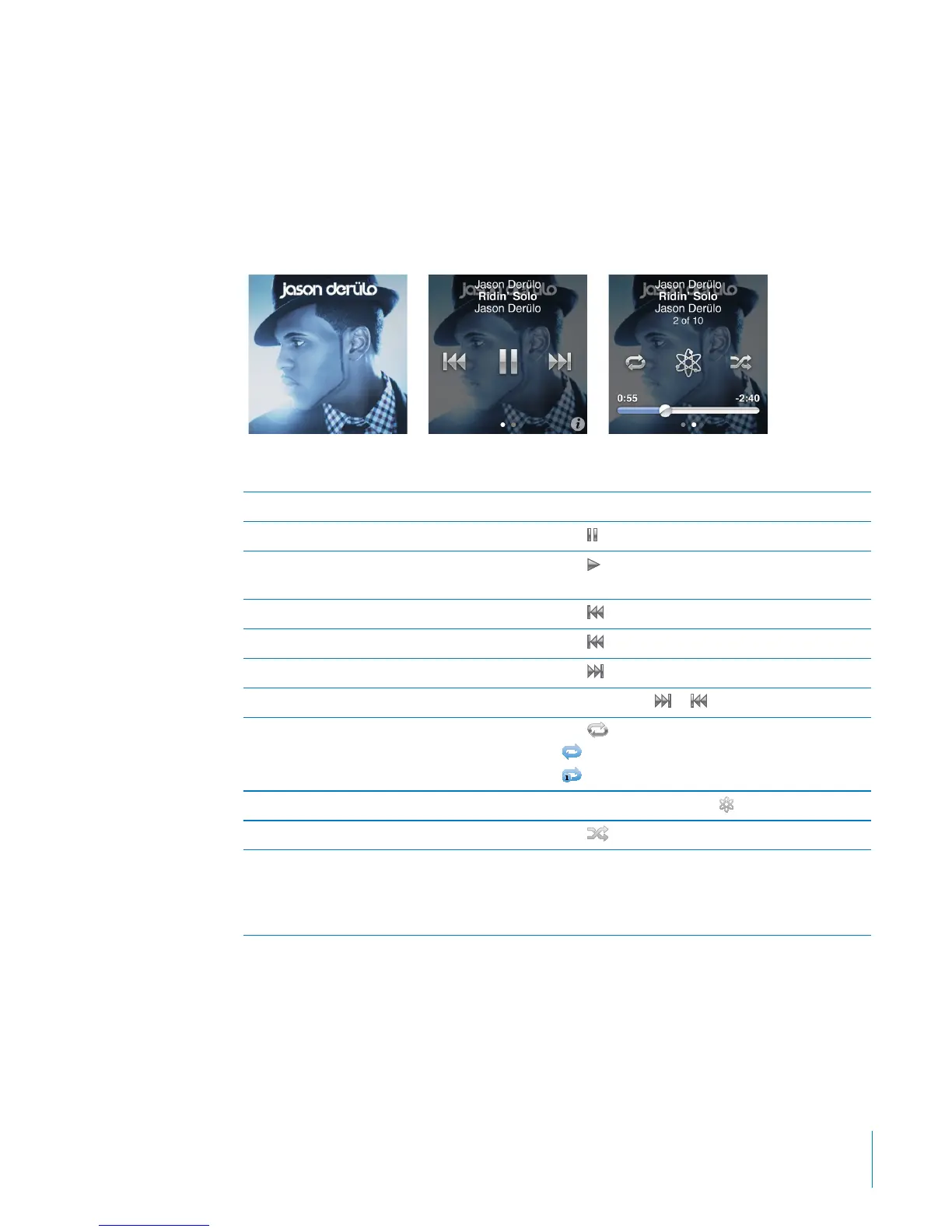
When you tap Now Playing on the Home screen, the album artwork for the current
song appears. Tap the album artwork to show the song controls. Swipe left to show
the song controls on the next screen. A third screen shows song lyrics if you added
them in iTunes.
The dots at the bottom of the screen indicate the number of screens available.
Here’s what you can do with the iPod nano song controls:
To Do this
Pause a song Tap or disconnect your earphones.
Play a paused song Tap
. iPod nano must be ejected from your
computer to play songs and other audio.
Start a song over Tap
.
Play the previous song Tap
twice.
Skip to the next song Tap
.
Fast-forward or rewind a song Press and hold
or .
Repeat songs Tap
.
= Repeat all songs in the current album or list.
= Repeat only the current song over and over.
Create a Genius playlist Play a song, and then tap
.
Shue songs Tap
.
Skip to any point in a song Drag the playhead along the scrubber bar. Slide
your nger up to slow the scrub rate for greater
precision. The farther up you slide your nger, the
smaller the increments.
27
Chapter 5 Music and Other Audio



 To Next Page