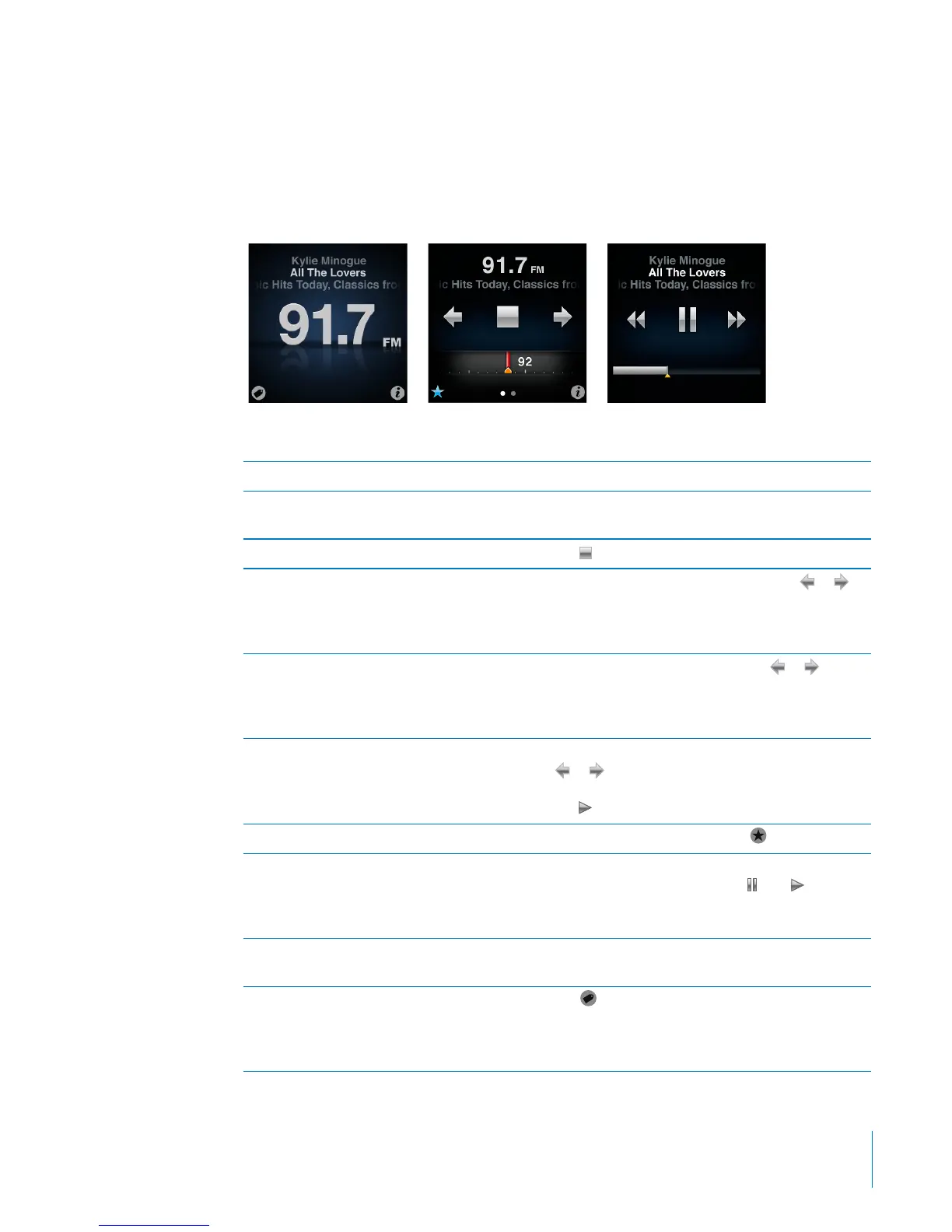
To listen to the radio:
1 Connect earphones or headphones to iPod nano, and then tap Radio on the
Home screen.
2 Tap the Now Playing screen to see the radio controls, and then swipe left to see
the Live Pause controls.
Here’s what you can do with Radio controls:
To Do this
Listen to FM radio On the Home screen, tap Radio. You must connect
earphones to listen to radio.
Turn o the radio Tap
, or disconnect the earphones or headphones.
Tune to an FM station Tap the radio station frequency and tap
or
to go to favorites (if you set any). If no favorites are
set, you hear the previous or next tunable station.
To tune to a particular station, drag the radio tuner.
Seek FM stations When the radio tuner is visible, tap
or to
go to the next or previous tunable station. If you
saved any stations as favorites, this cycles through
those stations.
Scan FM stations When the radio tuner is visible, touch and hold
or until the screen shows “Scanning.” Tap an
empty spot on the screen to stop scanning, then
tap
to listen.
Save an FM station as a favorite With the radio tuner visible, tap
.
Pause and resume live radio Tap Now Playing or Radio, swipe left across the
top of the screen, and then tap
. Tap to
resume playing. Changing the radio station clears
paused radio.
Switch between the radio tuner and the Live
Pause screen
Swipe left across the middle of the screen.
Tag a song on the radio Tap
on the Now Playing screen. Tagging is
available only for radio stations that support
iTunes Tagging. Sync with iTunes to preview and
purchase tagged songs.
39
Chapter 6 FM Radio



 To Next Page